Install in the GitHub Copilot app
If you work in the GitHub Copilot app, SpecKit Companion opens as a canvas beside your chat. It shows every spec in the repo, where each one is in the pipeline, and a button for the next step. You do not need the VS Code extension for this path.
The path has the same shape everywhere: Spec Kit itself, then the Companion extension for Spec Kit, which is optional but recommended, then the one thing your tool needs. Install where you work has the other two places.
Get Spec Kit
Spec Kit is GitHub’s toolkit for spec-driven development. Its
specifycommand sets a project up with the/speckitcommands your agent runs.uv tool install specify-cli --from git+https://github.com/github/spec-kit.git --forceThis installs the GitHub build. The stock PyPI
specify-clihas noextensioncommand, so step 2 would fail with it. The command changes your globaluvtools.Then set the project up for Copilot, from its root:
specify init --here --integration copilotYou should see
A
.specifyfolder in the project, and the/speckitcommands under.github/.Add the Companion extension for Spec Kit (optional, recommended)
This is the engine half. It records each run, adds the Companion pipeline and Auto, and brings living specs. It needs Spec Kit 0.9.5 or newer.
specify extension add companion --from https://github.com/alfredoperez/speckit-companion/releases/download/companion-latest/companion.zip --forceRun it from your project root and copy it whole.
Without it the board still works. Its buttons send the stock Spec Kit commands, and Companion and Auto are disabled when you start a spec. The board reads each step from the files, and shows a time only for a step you sent from the board.
You should see
A one-time untrusted source prompt. Accept it. Then
specify extension listhascompanionin it.Add the board
Copy the
apps/copilot-canvasfolder from a checkout of the repository into your project. Swap<project>for your project’s path:cp -R apps/copilot-canvas <project>/.github/extensions/speckit-companionOr into your user folder, for every project on your machine. This is the quick way to try it out:
cp -R apps/copilot-canvas ~/.copilot/extensions/speckit-companionIf the
extensionsfolder does not exist yet, create it first withmkdir -p.Then commit what steps 1 and 2 added, and the board if you copied it into the project. Get the commit onto your default branch. The Copilot app runs each session in a fresh copy of that branch, so anything uncommitted is missing there.
You should see
A
speckit-companionfolder with anextension.mjsfile in it, at the place you copied to.Accept the repository content and start a new session
Open the project in the Copilot app. Since version 1.1.26 the app will not run code from a project until you accept it:
- Choose Review repository content on the notice the app shows. It is also in the project’s settings under Repository trust.
- Check that it lists
speckit-companion, and choose Accept for new sessions. - Start a new session. The session that was open when you accepted never gets the board.
Then ask: Open the SpecKit Companion canvas. It is also in the session’s + menu under Canvas, as SpecKit Companion.
A user-folder copy has nothing to accept, unless the project ships other extensions you have not accepted. The app turns every extension off there.
You should see
The board beside the chat, with every spec in the repo on the left.
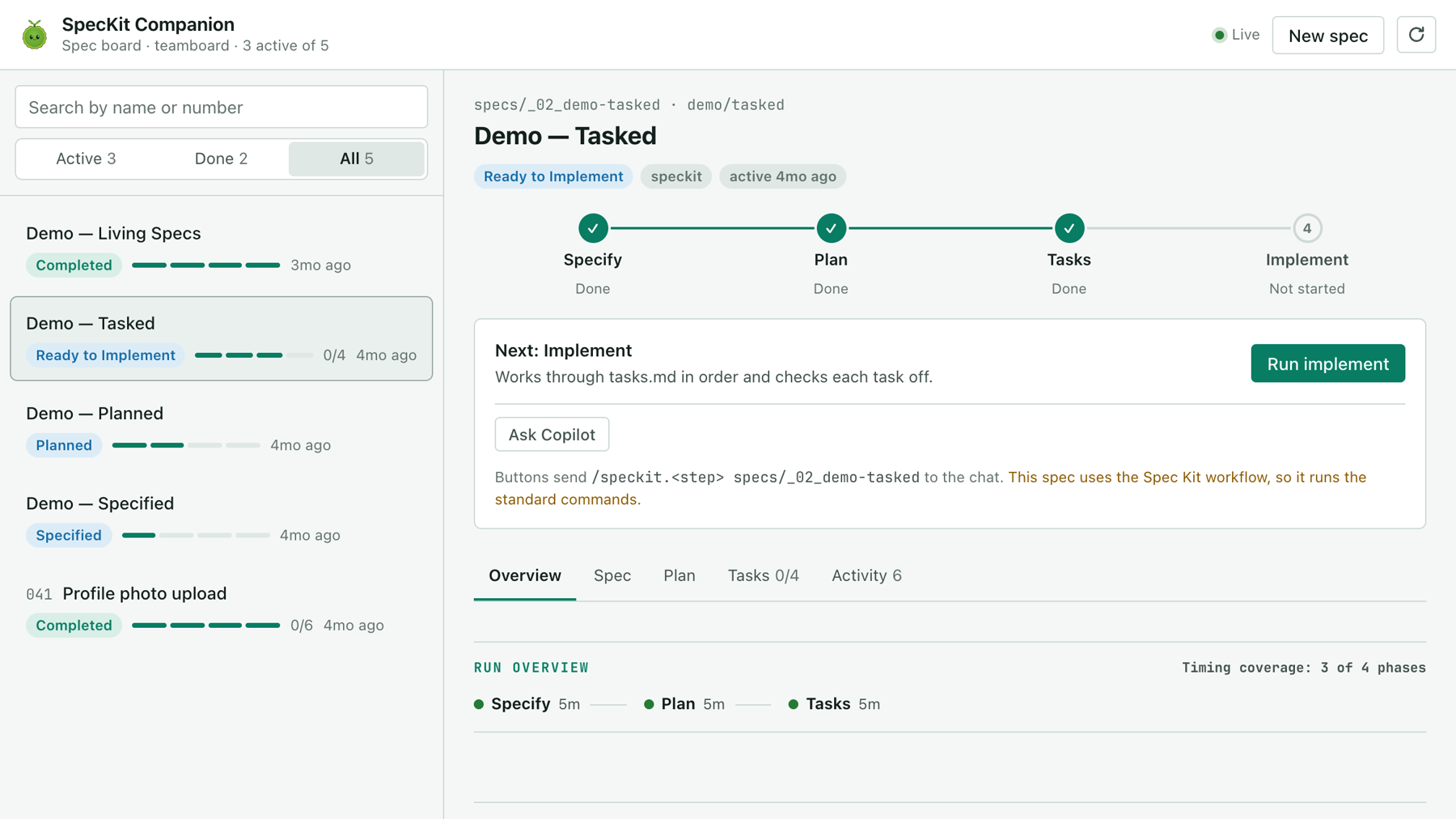
The board once it opens: every spec in the repo on the left, the selected one on the right. Check that it took
Press New spec, choose Companion, describe a small change and submit. On stock Spec Kit, choose Spec Kit.
You should see
The command land in the chat. When the agent finishes, the spec is on the board as Specified, and its card offers Run plan.
A run, step by step follows one spec from there to implement.
When it shows up
Section titled “When it shows up”| Where you copied it | When it shows up |
|---|---|
| Your user folder | In every new session, with nothing to accept. Not in a project that ships extensions you have not accepted, because the app turns every extension off there |
| The project | In sessions started after you accept the repository content, and only once the copy is on your default branch |
The app accepts the exact files under .github/extensions/. When any of them changes, such as after you update the board, the project’s Repository trust shows Update available and new sessions lose the board until you accept again.
If the agent opens an empty speckit-companion.md in the editor instead of the board, you are in a session from before you accepted. Start another one.
Update it, or fix it
Section titled “Update it, or fix it”Update later has the command for each piece. If something did not work lists what you might see and what to do.
Related
Section titled “Related”- Navigate the board covers what each part of the board shows.
- Run the steps covers which commands the buttons send.
- Install where you work says what each piece is and where it installs.