What the mod shows
The mod adds two things to Claude Code, a band and a pane. Both follow one spec at a time and update while the agent works.
The band
Section titled “The band”One line above the prompt: the spec you are following and where its run stands.

A finished spec reads Completed · Tasks 12/12 · 38m active.
The pane
Section titled “The pane”The pane sits beside the transcript and has three tabs. Press 1, 2 or 3 to switch.
| Tab | What it shows |
|---|---|
| Run | The four steps with the time each one took, the spec’s documents, and the task list by phase with a bar of ticked tasks |
| Overview | What the run recorded about the change: the intent, the approach, the decisions and why, what was verified, and any concerns |
| Specs | The recent specs, to pick the one to follow |
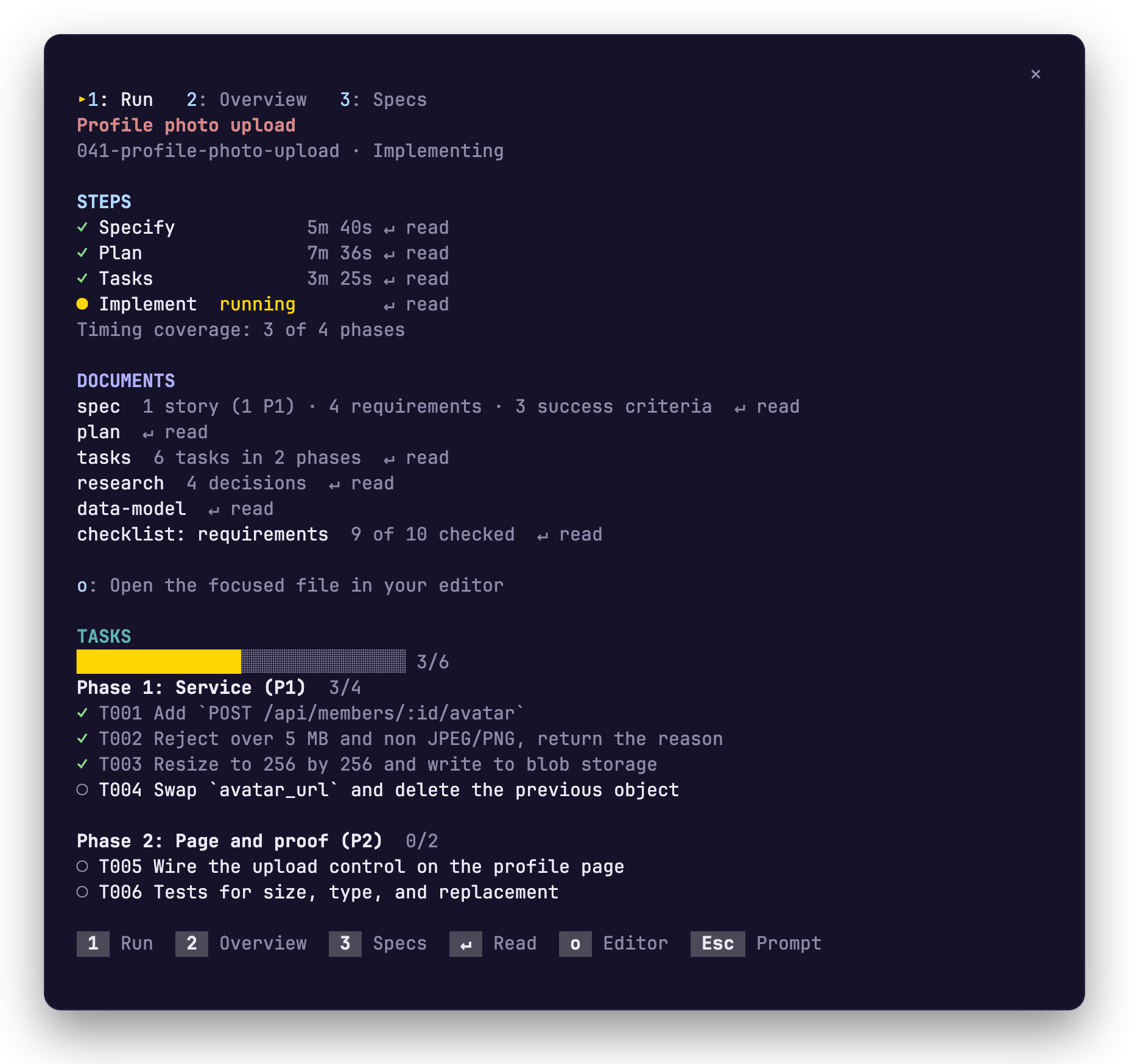
The pane opens by itself in a wide terminal. In a narrow one, run /speckit-tracker to open it. In VS Code itself, the SpecKit Companion extension already shows all of this.
Colours
Section titled “Colours”The colours come from your Claude Code theme. A finished step is green, the running step is the warning colour, a failed check is red, and times are dim.
The foot of the pane lists them.
| Key | What it does |
|---|---|
1 2 3 |
Switch to Run, Overview or Specs |
| Tab or the arrow keys | Move between steps and documents |
↵ |
Read the step or document you are on, inside the pane |
o |
Open that file in your editor |
b |
Go back from a document |
Esc |
Give the keyboard back to the prompt |
Read a step’s document
Section titled “Read a step’s document”On the Run tab, every step and document that has a file ends in ↵ read. Move to it and press Enter. Specify opens the spec, Plan opens the plan, and Tasks and Implement open the task list. Press b to go back.
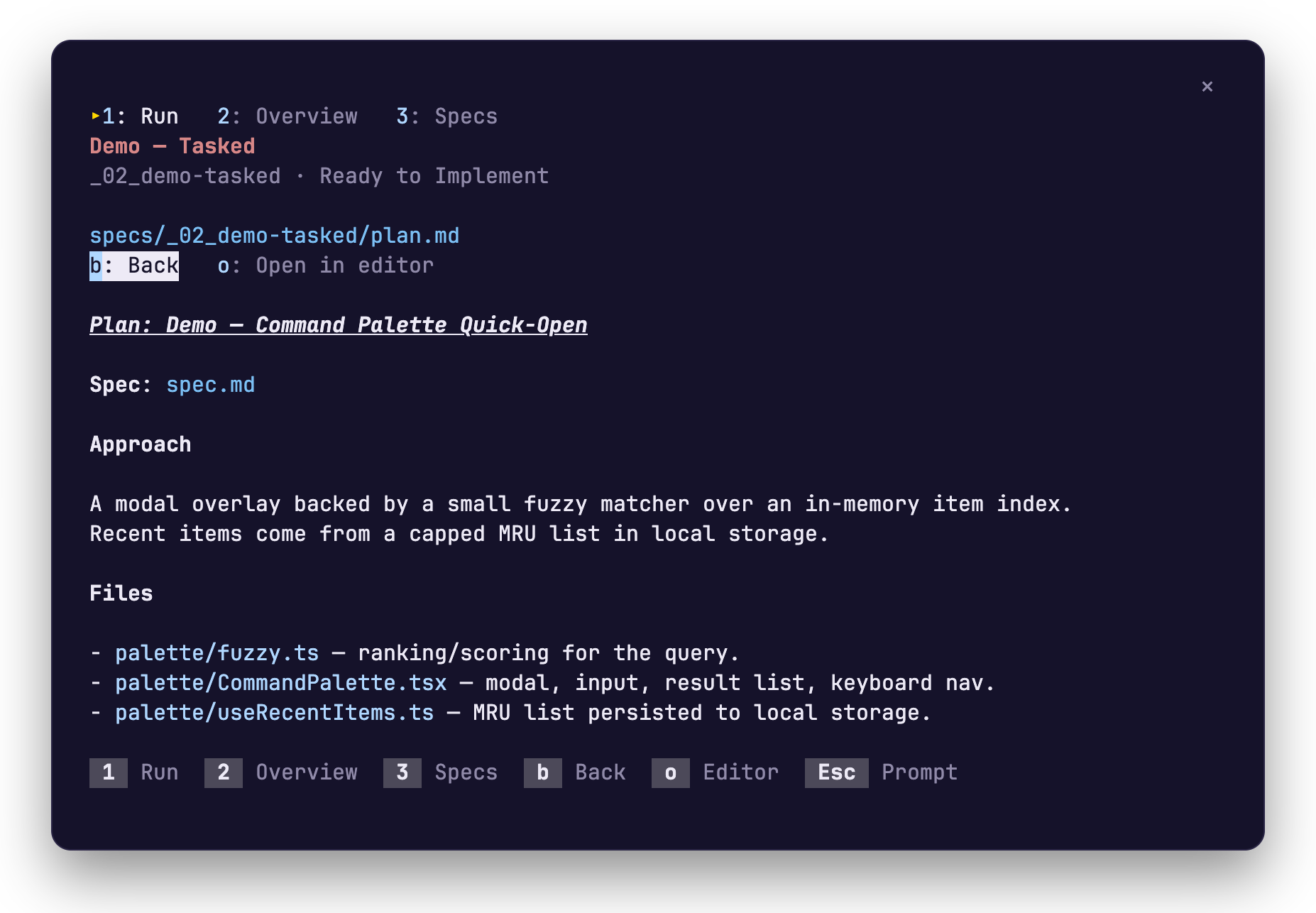
A step whose file is not written yet says not written yet and cannot be opened. When Specify plans and tasks a small change in one pass, Plan and Tasks read with Specify where a time would be.
Open a file in your editor
Section titled “Open a file in your editor”Press o on a step or a document, or while you are reading one. The file opens in the editor named by $VISUAL or $EDITOR when that editor has a window of its own, else in Cursor or VS Code, else in your system’s default app. If none can be started, the file’s path is copied to the clipboard.
The Overview tab
Section titled “The Overview tab”Each part shows only when the run recorded it.
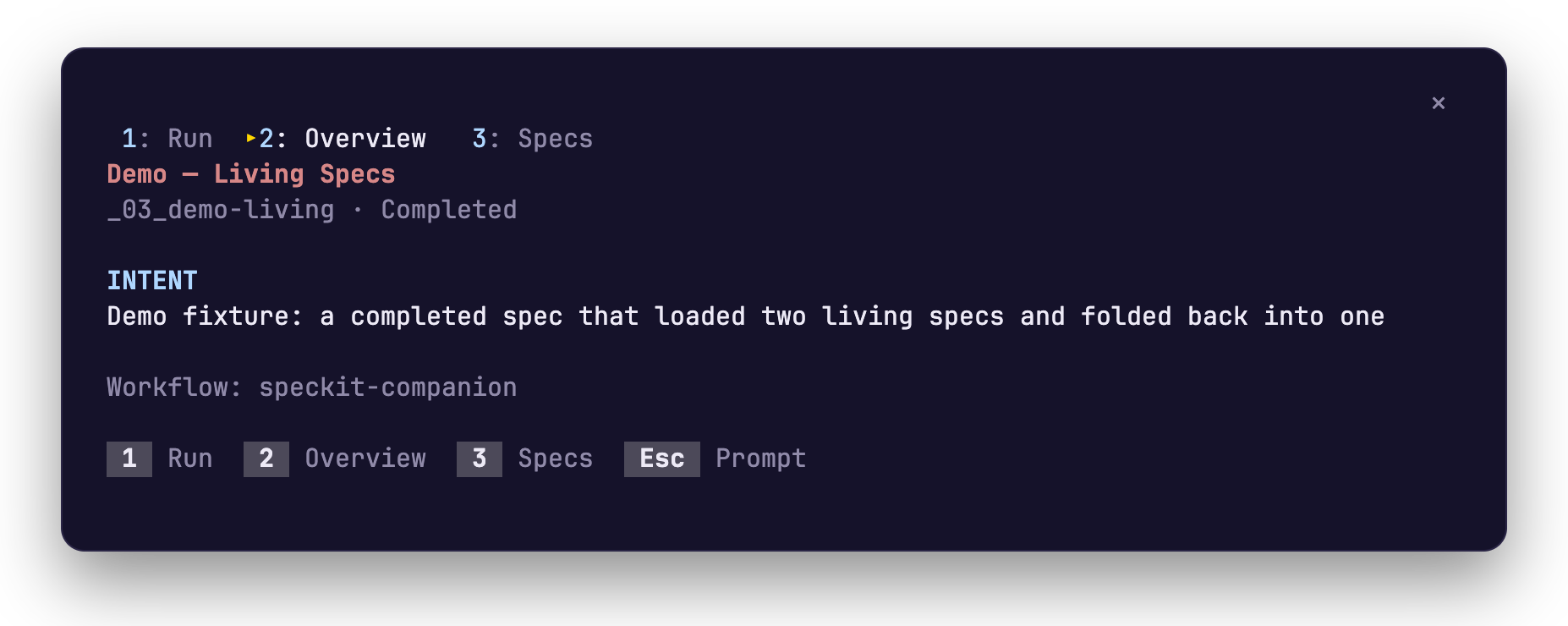
Without the Companion Spec Kit extension
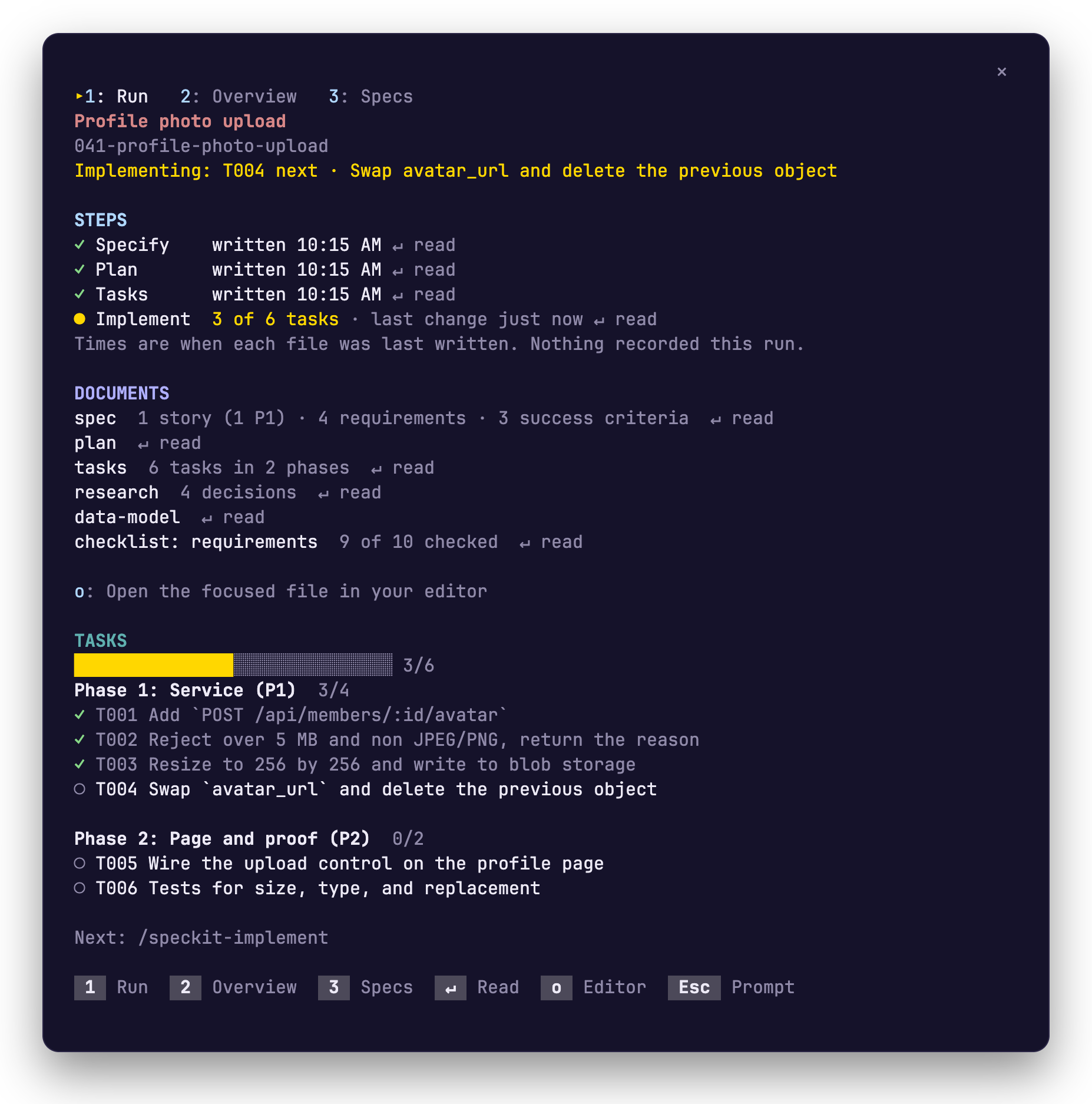
Section titled “Without the Companion Spec Kit extension”A stock Spec Kit project records no step times, so the pane works from the files. Each step says when its document was last written, and Implement counts the ticked tasks.
Good to know
Section titled “Good to know”The mod only reads. It never writes a spec file or sends a prompt, so you still run /speckit-companion-plan, /speckit-implement and the rest yourself.
Related
Section titled “Related”- A run, step by step follows one spec from specify to implement.
- Switch specs with /speckit-tracker changes the spec the band and the pane follow.
- Install adds the mod to Claude Code.