Viewer and sidebar
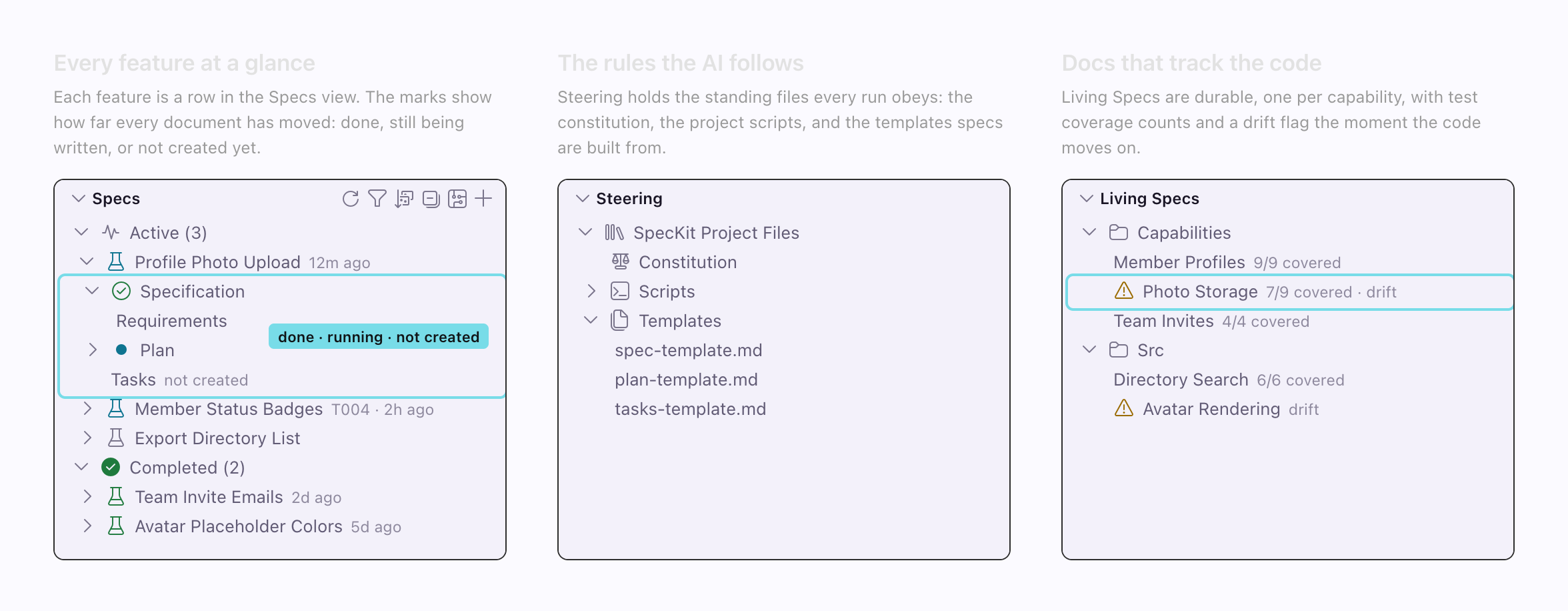
| View | Holds | Shows when |
|---|---|---|
| Specs | Every spec folder, grouped by where it stands | Always |
| Bugs, Ideas | Spec Kit’s bug reports and idea assessments | The folder is a Spec Kit project |
| Living Specs | One row per capability | A folder is open |
| Steering | The standing files your assistant reads | Unless you turn off speckit.views.steering.visible |
| Settings & Feedback | Shortcuts | You turn on speckit.views.settings.visible |
The sidebar
Section titled “The sidebar”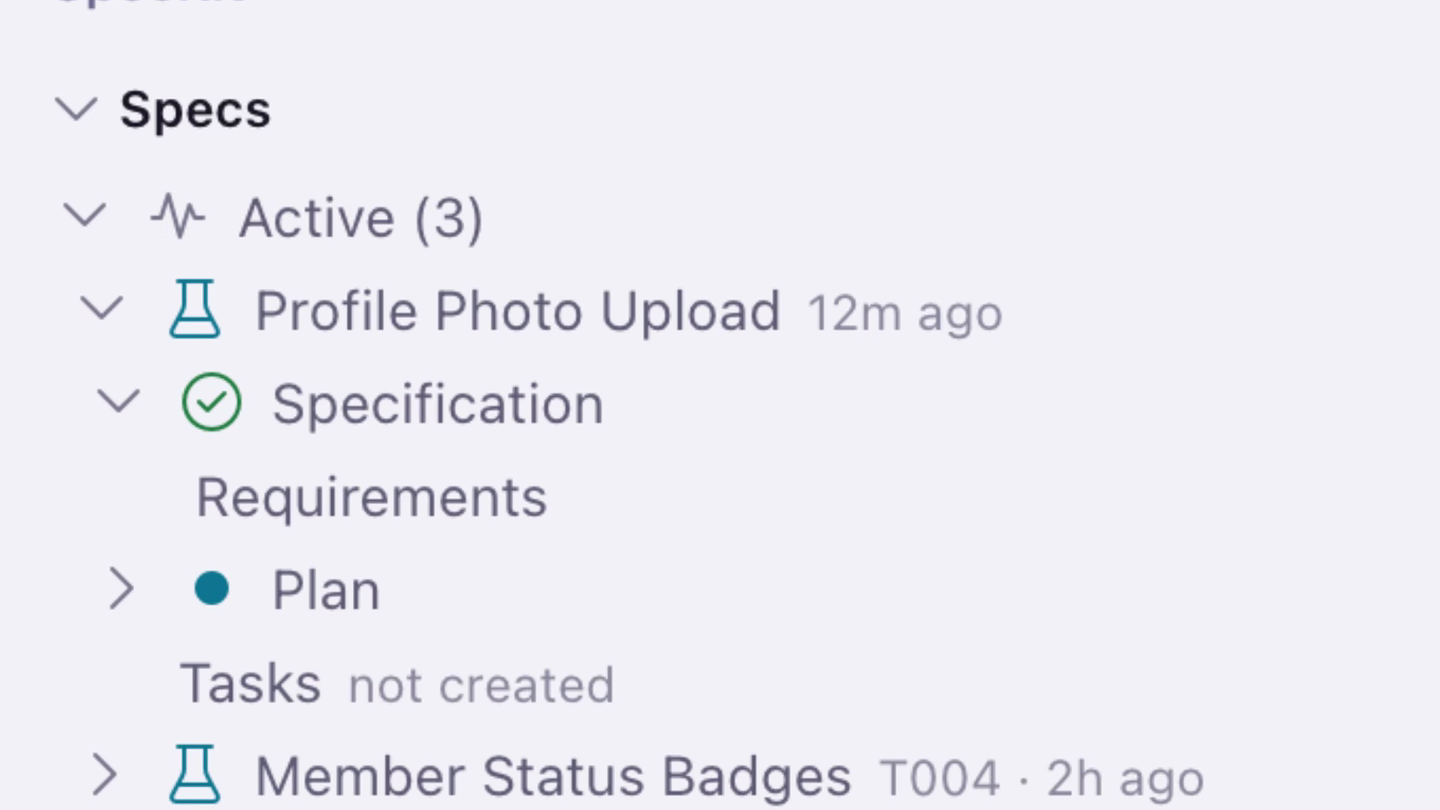
Specs sit under Active, Completed and Archived, and an empty group is hidden. A row is named from its folder, so 515-readable-spec-names reads “Readable Spec Names”. Click the name to open the viewer, or the chevron to expand its documents.
A spec in flight shows its last finished task and how long ago anything happened, like T004 · 22h ago · Claude Code. The assistant’s name appears only when Companion sent the last step itself, because a step you type straight into the assistant isn’t recorded.
Each document under a spec has a mark: a green check when it’s done, a blue dot while in progress, a hollow circle when the file exists and the workflow hasn’t reached it, and not created when it isn’t on disk.
The toolbar has Refresh, Filter, Sort, Collapse All or Expand All, Open Workflow Builder and New Spec. Filter matches the folder slug or the readable name, and an empty value clears it. Sort offers Number (the default, highest first), Name, Date Created, Date Modified and Workflow Step.
Status badges
Section titled “Status badges”One stored status drives both the badge in the viewer’s header and the beaker beside the spec.
| Stored status | Header badge | Sidebar icon | Group |
|---|---|---|---|
draft |
Draft | Plain beaker | Active |
specifying, specified, planning, planned, implementing |
The same word, capitalized | Blue beaker | Active |
tasking |
Creating Tasks | Blue beaker | Active |
ready-to-implement |
Tasks Created | Blue beaker | Active |
implemented |
Implemented | Yellow beaker | Active |
completed |
Completed | Green beaker | Completed |
archived |
Archived | Blue or plain beaker | Archived |
A spinner replaces the beaker while a step runs. implemented stays under Active because the build finished and you haven’t confirmed it. The hover on a row spells two statuses differently from the badge: “Tasking” and “Ready to Implement”.
Right-click actions
Section titled “Right-click actions”Hover a spec for Resume and More Actions…, or right-click for the same menu.
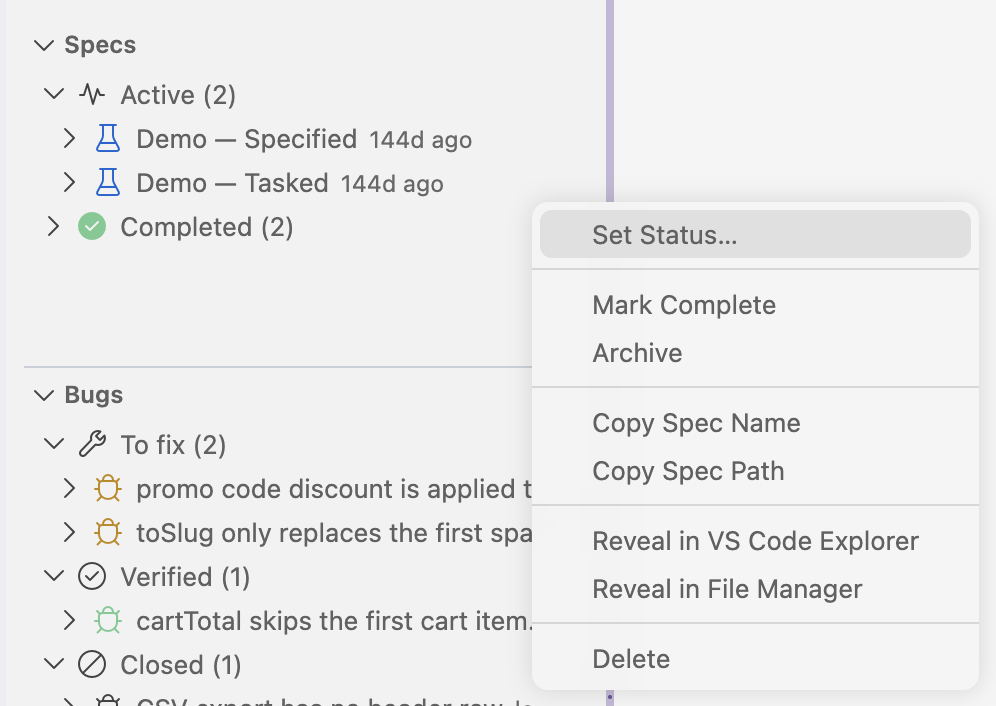
Resume shows on a spec that can still move forward, once the Companion Spec Kit extension is installed (Overview and progress covers it). Set Status… is the way out when the buttons won’t move a spec. Mark Completed shows on active specs, Archive on anything not archived, Reactivate on completed and archived ones, and Converge on implemented and completed ones. Show Terminal appears while the terminal Companion opened for the spec is still open.
Shift-click or cmd-click selects several specs to complete, archive or reactivate together, and right-clicking a group header does it for the whole group.
The other views
Section titled “The other views”Bugs and Ideas list Spec Kit’s bug reports and idea assessments by stage: see Bugs and ideas.
Living Specs offers the Companion install when the extension is missing, then Set up living specs, then one row per capability. Right-click a row to check drift or coverage, or to move, reveal or delete its spec. Living specs explains the counts on each row.
Settings & Feedback holds shortcuts to the Workflow Builder, the settings, the bug and feature forms and the Marketplace rating.
Steering
Section titled “Steering”A spec says what to build this time, and a steering document says how this project builds anything. The view adds no format of its own. It gathers the files your assistant already reads, such as CLAUDE.md or AGENTS.md (Settings lists each assistant’s paths), next to Spec Kit’s constitution, scripts and templates.
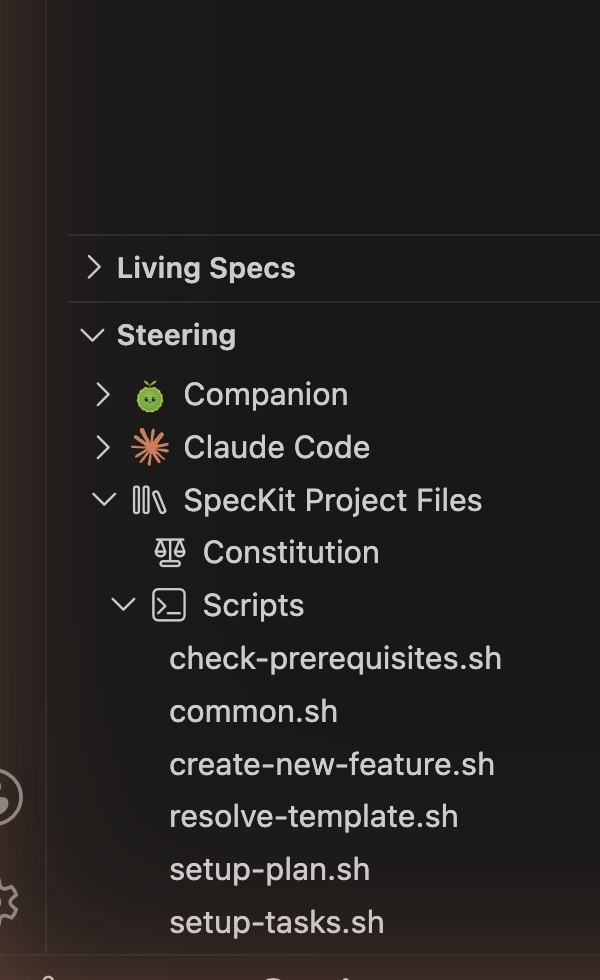
Rule files, agents, skills and settings are grouped under Project (this repository) and User (you, across every project). A missing section means that thing doesn’t exist here yet. With the Companion Spec Kit extension installed, a Companion node on top opens .specify/companion.yml and lists the installed commands.
New Steering Document, Refine and Delete Steering each hand a prompt to your assistant. Companion never reads these files when it sends a step. The assistant reads its own rules, so a rule that gets ignored is a question for the assistant.
The viewer
Section titled “The viewer”The viewer draws a spec’s markdown as a page and never changes the file.
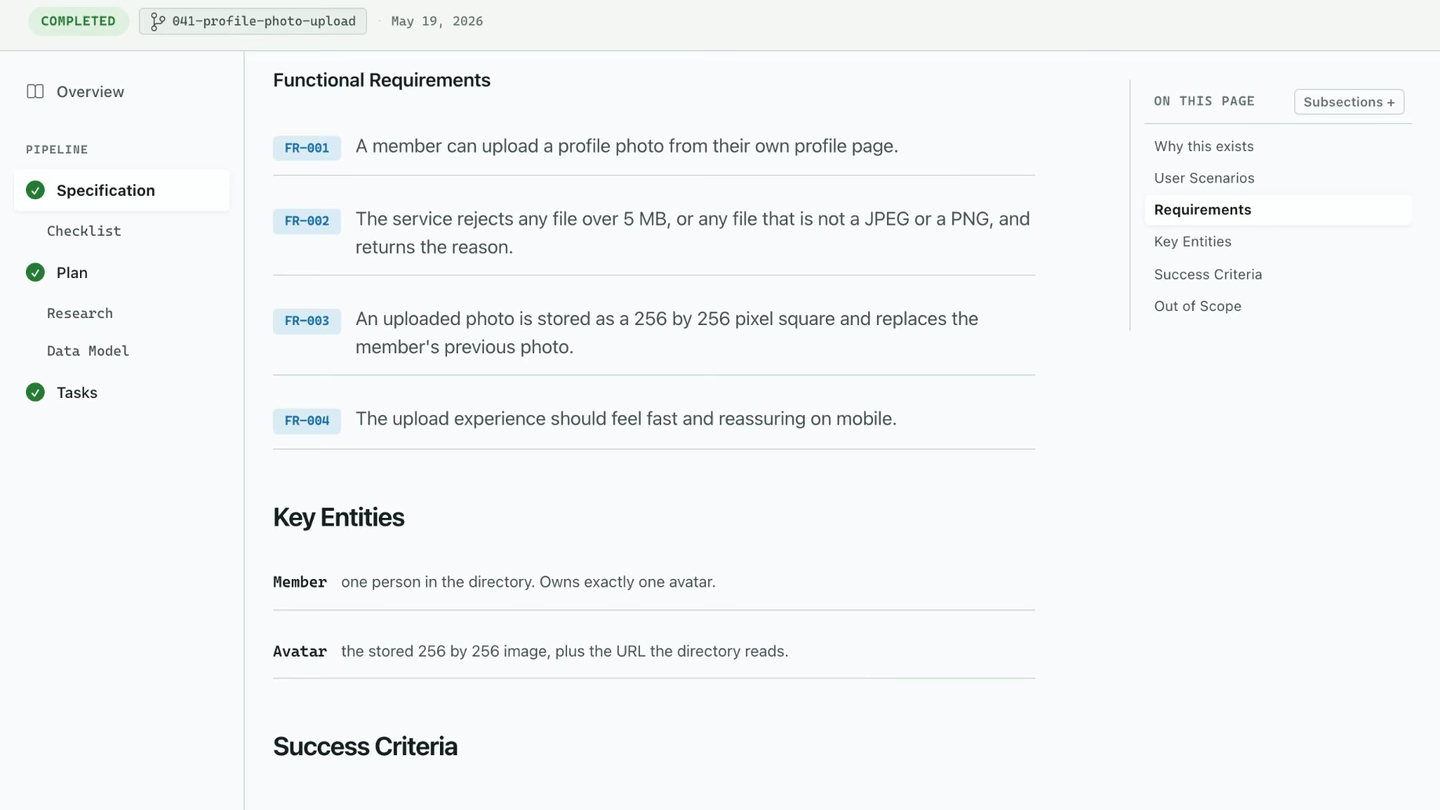
The header carries the spec’s name, its status badge, the branch, the creation date and the assistant the last step went to. Under it, the run strip counts tasks done, requirements traced, checks and active time, and links the pull request.
Step tabs
Section titled “Step tabs”The rail has one tab for each step that writes a document, with the Overview on top.
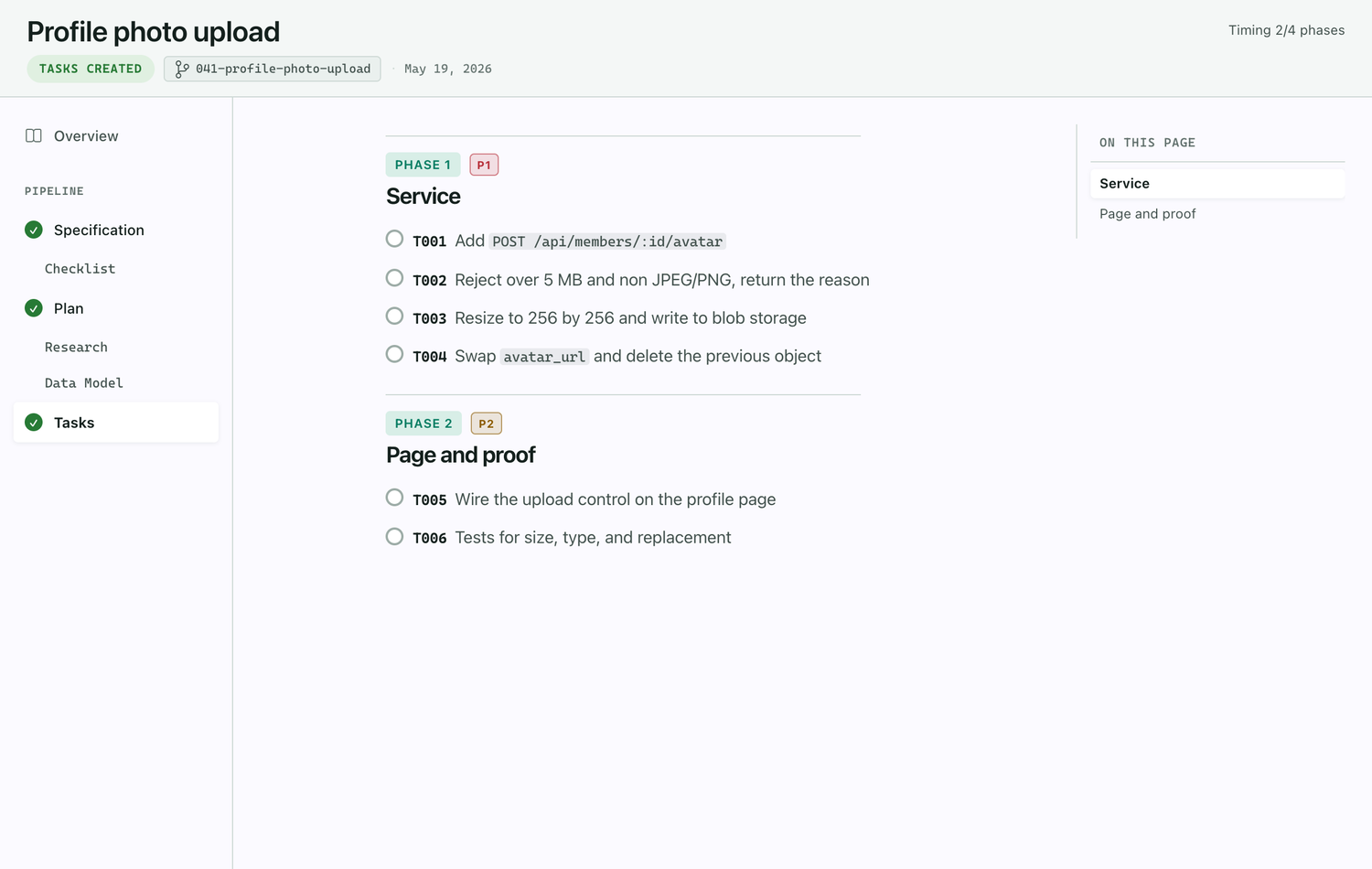
A check means the step is done and its document exists, and a spinner with a timer means it’s running. A disabled tab belongs to a document that doesn’t exist yet while a step ahead of it runs.
Clicking a tab changes what you read and never moves the run. Supporting documents such as Research and Data Model sit under the step that wrote them. Implement and Mark Complete write no document, so they have no tab and their actions live in the footer.
Footer actions
Section titled “Footer actions”The main button is named after the next step, with a line above it such as Next: Plan. Pressing it records the current step as done and sends the next command to your assistant.
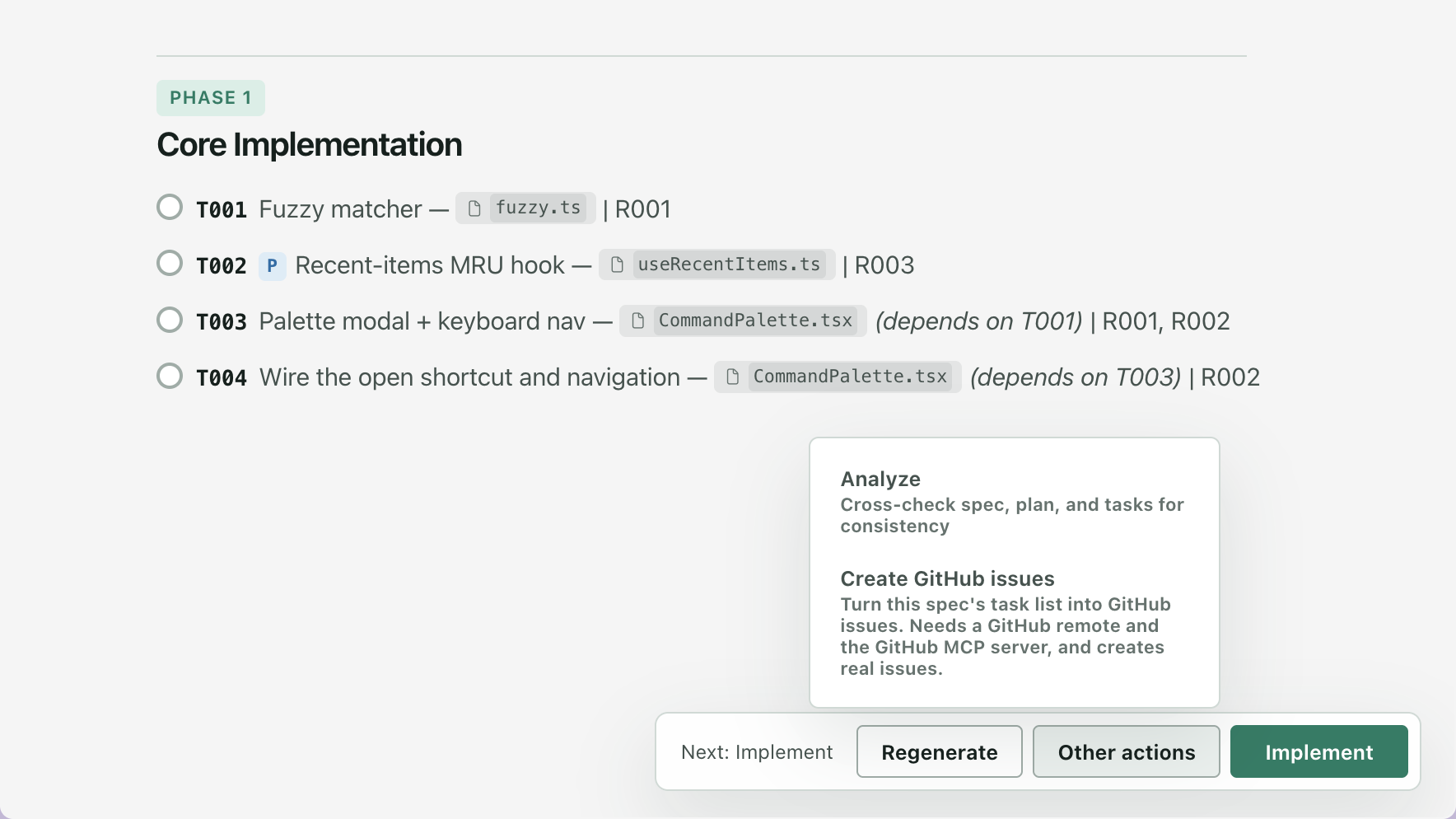
| Button | What it does | Shows when |
|---|---|---|
| The next step, such as Plan | Closes the current step and sends the next command | You’re on the current step’s tab and the build isn’t done |
| Regenerate | Runs the current step again | The step has started and the spec is still open |
| Other actions | Clarify, Checklist, Analyze and Create GitHub issues, plus your custom commands | The menu isn’t empty |
| Refine (N) | Sends the pending review comments | N comments are pending on this document |
| Converge | Checks the code against the spec and adds tasks for anything missing | The spec is implemented or completed |
| Mark Completed | Closes the spec | The spec is implemented |
| Archive | Shelves the spec | The spec is implemented or completed |
| Reactivate | Opens a closed spec again | The spec is completed or archived |
While a step runs there’s no forward button and the footer reads “Step running, actions unlock when it settles”. A finished spec reads “Run complete”.
How the markdown renders
Section titled “How the markdown renders”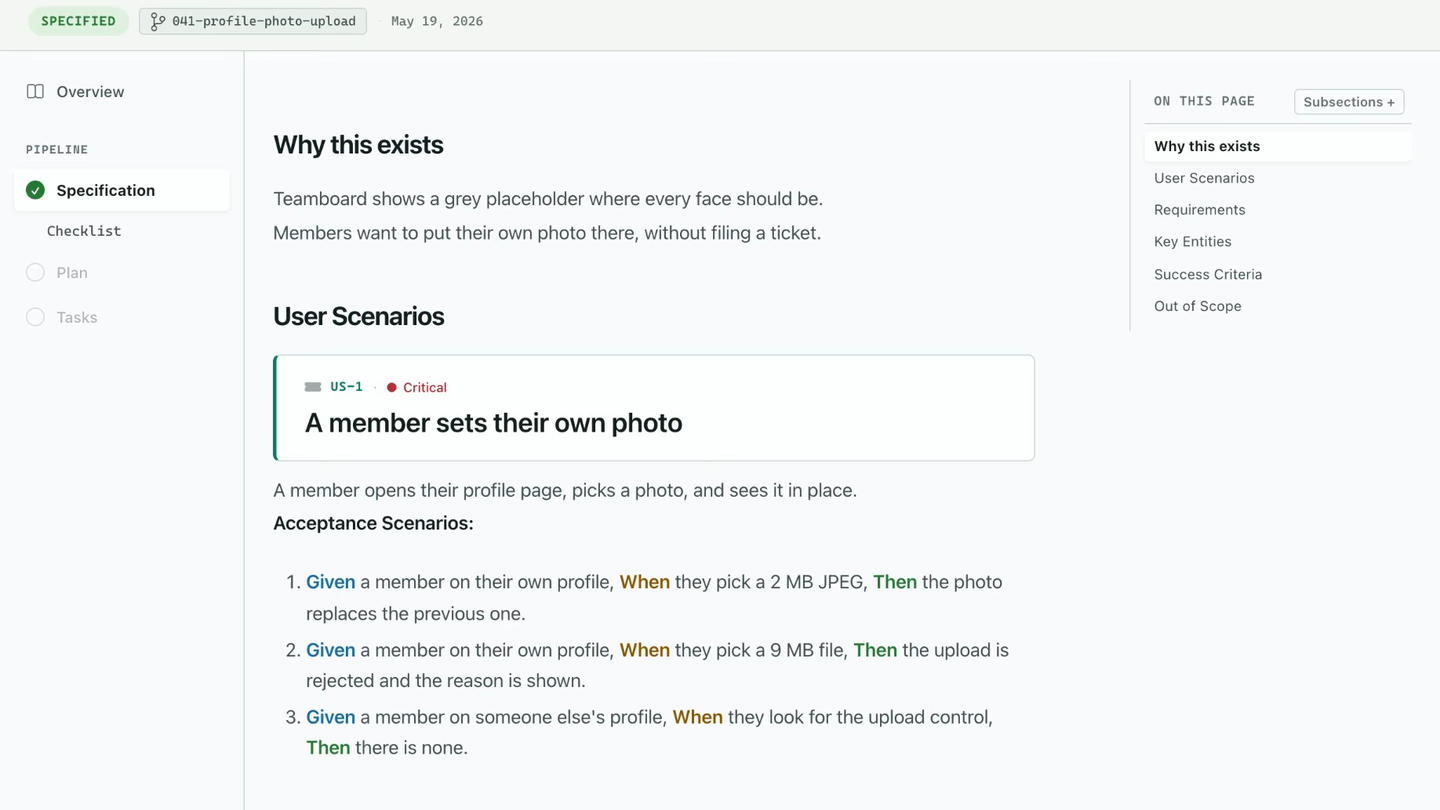
| In the markdown | On the page |
|---|---|
- **FR-001** The system must ... |
A labelled requirement row. Any prefix of two to five capital letters and a number works. |
| Given, When and Then in a scenario | The three words emphasized in place |
## Phase N: Title in tasks.md |
A phase header, with MVP and (P1) to (P5) drawn as chips |
[P] on a task line |
A marker: the task can run in parallel |
[US2] on a task line |
A marker: the user story the task belongs to |
- [ ] and - [x] |
A checkbox per task. During implement the Tasks tab shows a live percentage from them. |
A link to another document or another spec opens in the viewer at the heading it names, and a link to a source file opens in the editor beside it. Plan blocks covers the diagrams and cards a plan can carry. Syntax highlighting and Mermaid load from a CDN, so offline you get plain code and diagram source.
Banners
Section titled “Banners”A document written before the one above it changed gets a banner with Regenerate, so editing the spec after the plan exists marks the plan as stale.
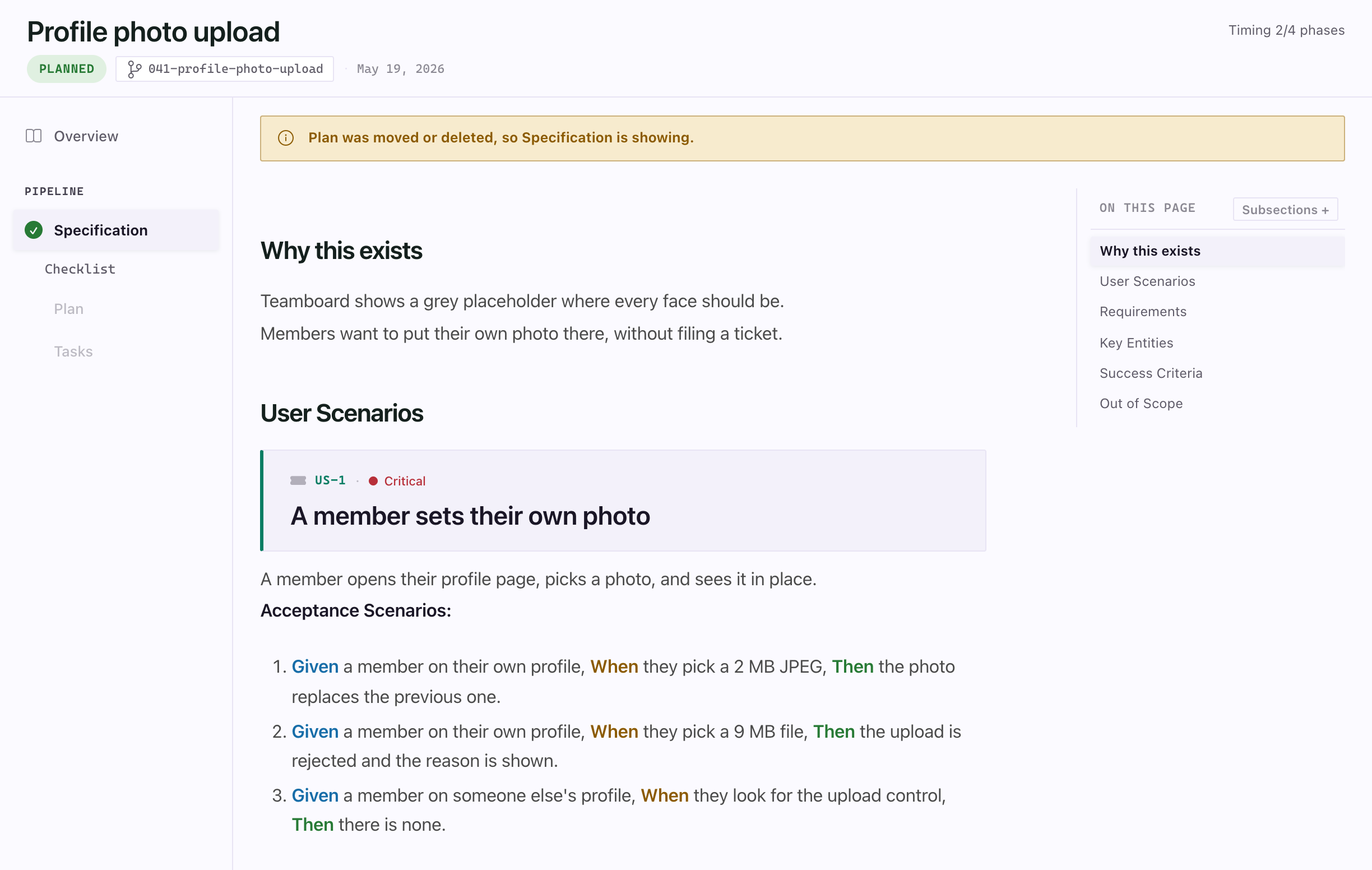
If the file on screen is moved or deleted, the viewer switches to a document that still exists and says so. If .spec-context.json can’t be parsed, the spec opens read-only with Reset context, which backs the file up first.