Review with comments
Open a spec in the viewer and hover any line. Click the comment button that appears, type your note, and the card pins under that line as Pending. A paragraph that is wrapped over several lines in the file counts as one line here: it has one comment button, and a comment made on any of its lines stays with it. When you are done, press Refine (N) in the footer to send every pending comment on the document to your assistant in one prompt.
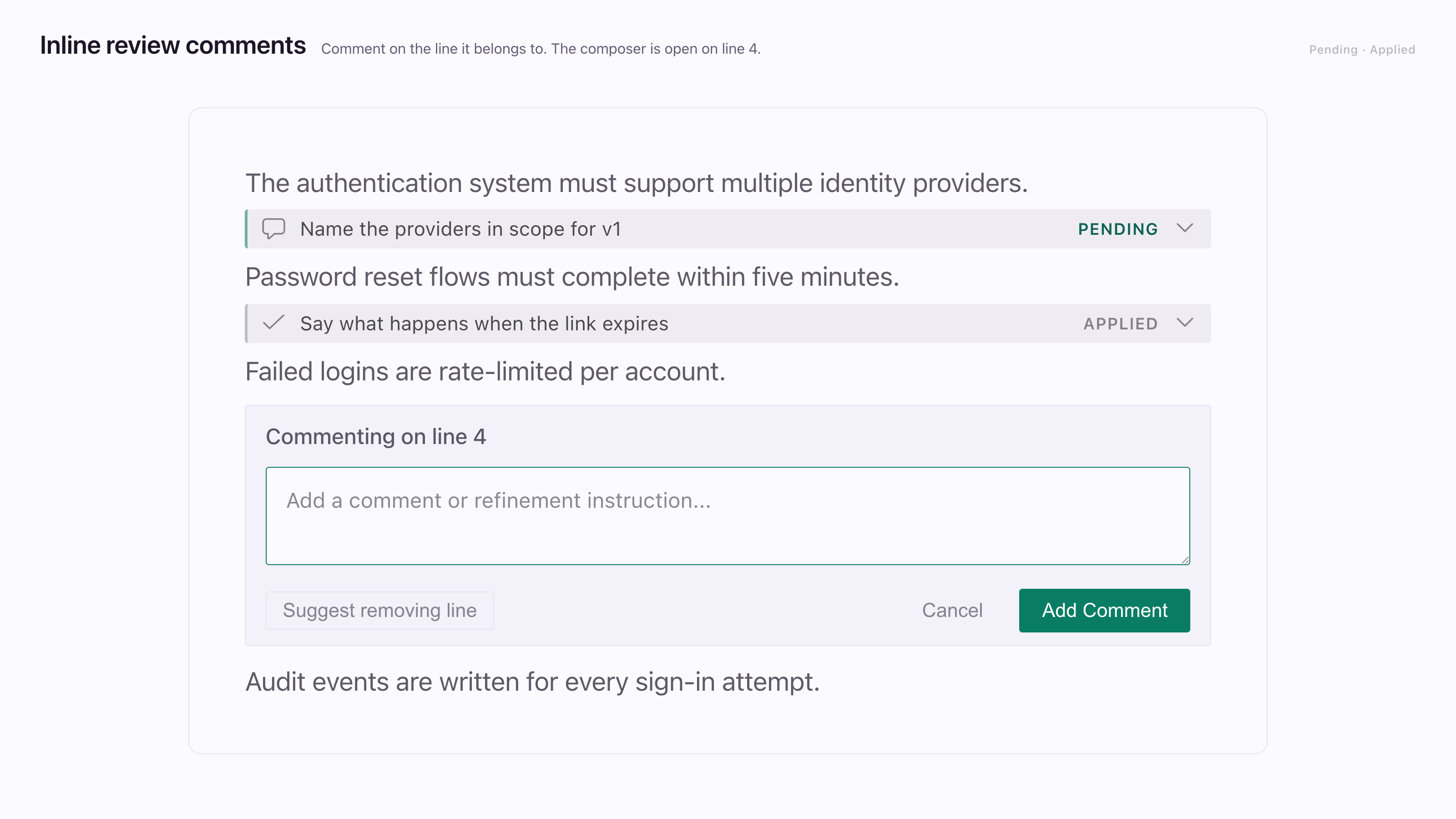
You can review at any step. It works the same on the spec, the plan and the task list.
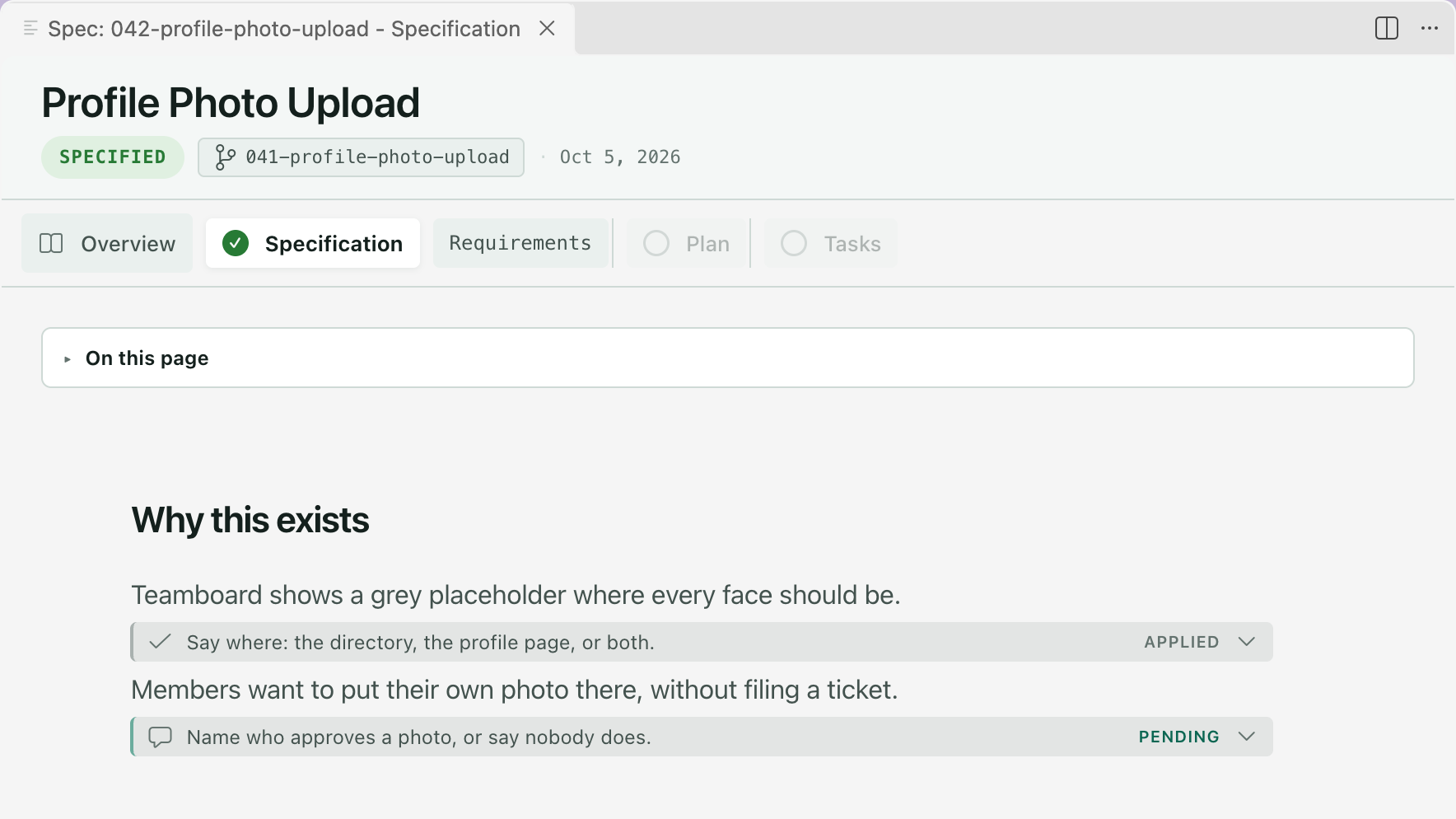
Comment on a line
Section titled “Comment on a line”The composer knows what kind of line you are on (user story, task, section, scenario or paragraph) and offers matching quick actions. Most just fill in suggested wording. On a task line, Toggle also flips the task’s checkbox.
| You can comment on | You cannot comment on |
|---|---|
| Paragraphs, headings, list items, tasks, blockquotes, requirement rows and acceptance scenarios | Code blocks, tables and Mermaid diagrams. Comment on the heading or paragraph above them. |
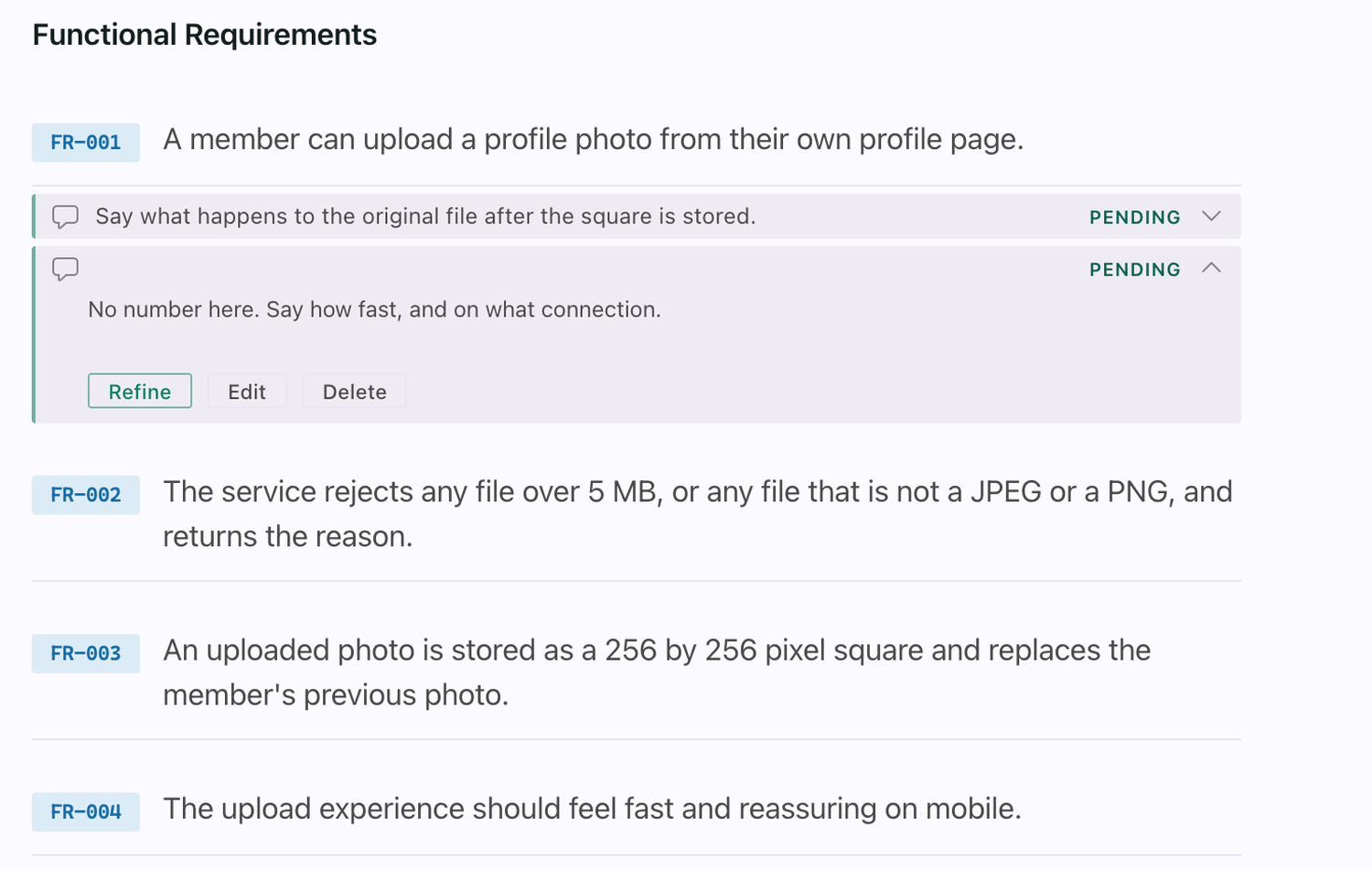
A card starts collapsed and reads Pending or Applied. Expanded, it offers:
| Action | When | What it does |
|---|---|---|
| Refine | While the comment is pending | Sends every pending comment on the document |
| Edit | Any time the spec is active | Changes the text. Keeps the comment’s place and status. |
| Delete | Any time the spec is active | Removes the comment from the record |
Send the pending comments
Section titled “Send the pending comments”The footer button reads Refine (N) once N comments are pending, and is hidden when none are. Pressing it, or Refine on any card, does the same thing.

| The prompt | Detail |
|---|---|
| Covers the current document only | Comments on the plan do not ride along with the spec |
| Includes context | Each comment names its line and section, quotes the source text, then gives your note |
| Asks for an edit, not a rewrite | Your assistant edits that file in place |
The prompt goes to the assistant you configured: a terminal, an IDE chat or the Claude Code panel.
What you see
The sent comments flip to Applied and stay as history. Applied means sent, not checked. Read the change yourself, then comment again on anything missed.
Comments stay in the repo
Section titled “Comments stay in the repo”A comment is written to .spec-context.json in the spec’s folder. Commit it and the review travels with the branch.
- Comments written quickly never overwrite each other.
- A comment follows its block of text, not a line number. If the block is edited away, the comment stays listed with its status in the Activity list under Run log on the Overview.
- On completed or archived specs, cards stay readable but Refine, Edit and Delete are gone.
If a comment goes missing
Section titled “If a comment goes missing”| What happened | Where to look |
|---|---|
| A comment did not save | Check the spec folder for .spec-context.json. The viewer creates it when the spec is first opened, and a comment cannot be saved without it. |
| A comment vanished after an edit | The Activity list under Run log |
Related
Section titled “Related”Steering is the other way to shape what your assistant does, for every spec and not just one.