The steps
| Workflow | Steps | How it ends |
|---|---|---|
| Spec Kit | specify, plan, tasks, implement | At Implemented, until you press Mark Completed |
| SpecKit Companion | specify, plan, tasks, implement, mark-complete | Its last step marks the spec complete as part of the run |
You pick the workflow in Create New Spec, and it’s recorded on the spec. Companion is pre-selected when the Companion Spec Kit extension is installed, unless you set speckit.defaultWorkflow in Settings. The commands below are Companion’s. Each of the four step commands has a stock twin without the companion. part, such as /speckit.plan, and the stock commands stay installed either way.
While a step runs, its tab in the rail spins and keeps time, and the footer reads Step running, actions unlock when it settles. When it settles, the footer offers the next step and a notification offers Open spec.
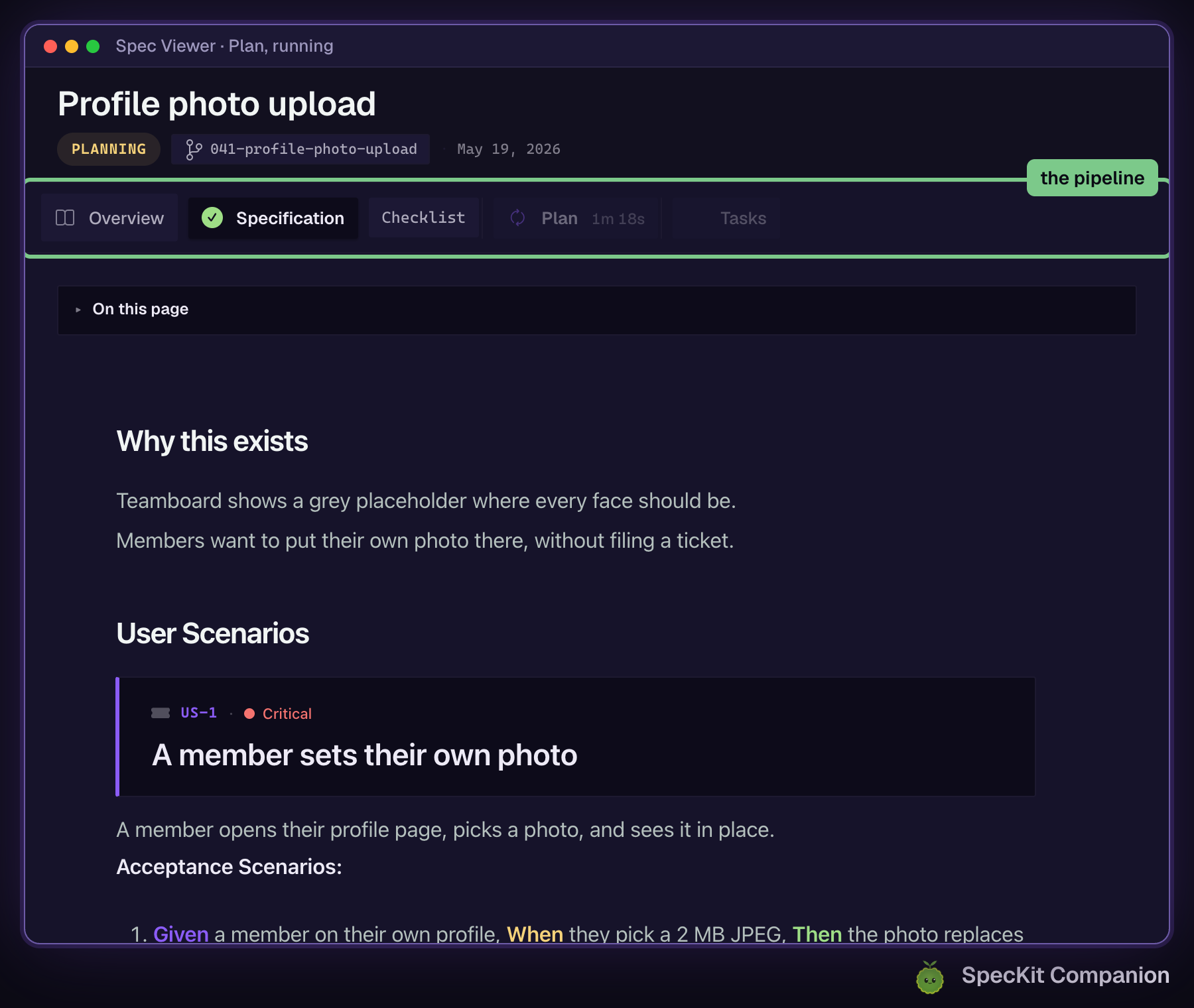
Constitution
Section titled “Constitution”/speckit.constitutionOr click Configure Constitution in the Specs view, or run SpecKit: Constitution from the command palette.
This is Spec Kit’s own step. It writes .specify/memory/constitution.md, once per project.
specify init creates that file as a template full of placeholders. While they’re still there, the Specs view shows Configure Constitution, and a notification offers Run Setup when the project opens. You can skip both and create a spec first. Once the file has real content the prompt goes away, and the Steering view lists the file as Constitution under SpecKit Project Files.
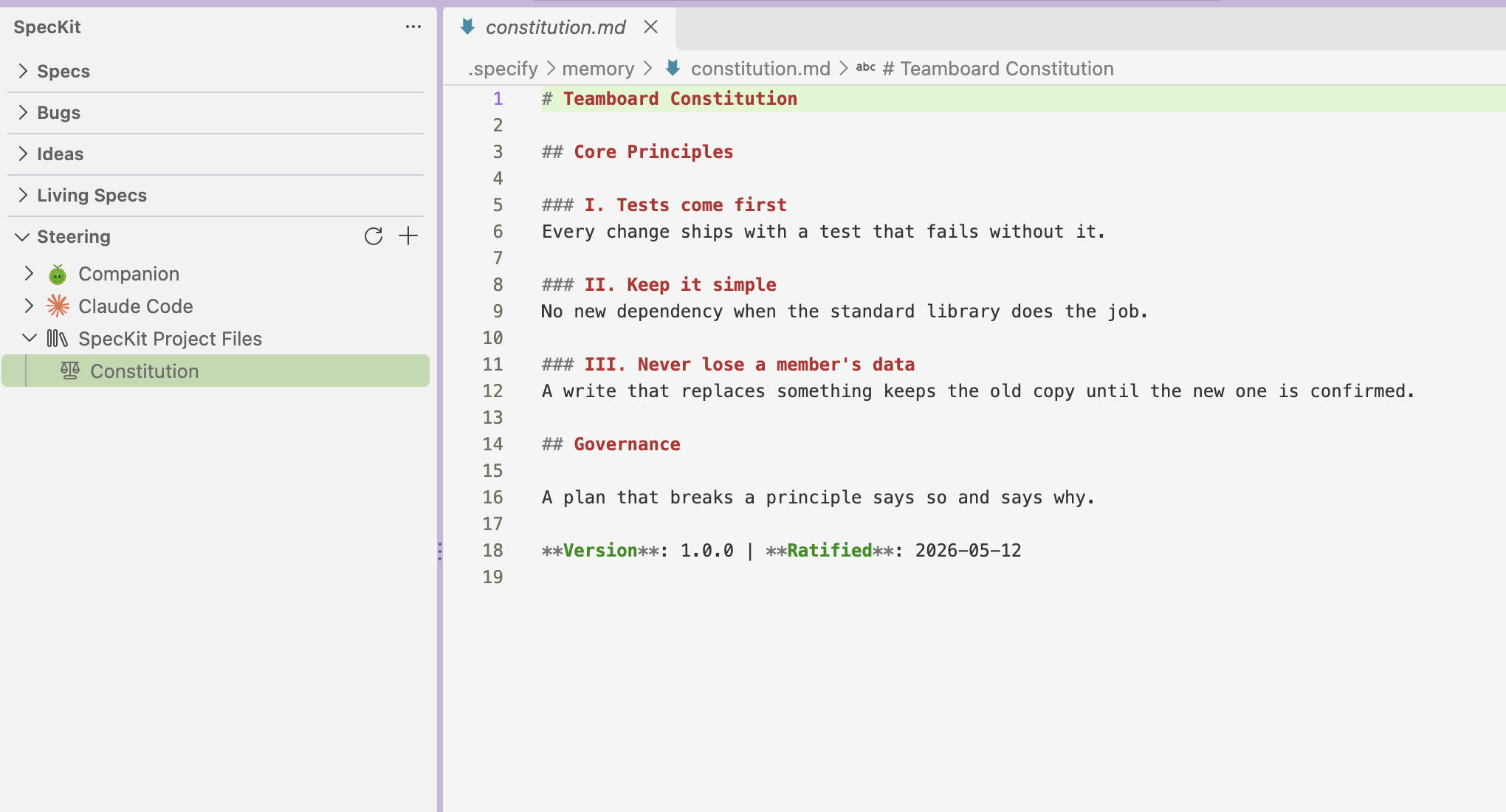
The plan step checks its design against the constitution and records the result in plan.md.
Specify
Section titled “Specify”/speckit.companion.specify <what you want to build>Or click + in the Specs view, write the brief and press Create Spec.
Specify creates a specs/<number>-<name>/ folder and writes two files in it: the spec, named <name>.spec.md (the stock workflow names it spec.md), and checklists/requirements.md, a quality checklist the assistant grades the spec against once.
Where the brief leaves a question open, the spec marks it in the text. Clarify, under Other actions in the footer, has your assistant ask you those questions and write the answers in.
The Companion command also sizes the change. There’s no setting for this.
| Verdict | The bar | What specify does |
|---|---|---|
| Simple | Up to 5 files and 10 tasks, and easy to undo and easy to check | Writes a short plan and the task list in the same pass. The next step is implement. |
| Normal | Over that bar, or inside it but hard to undo or hard to check | Writes only the spec. You continue with plan, then tasks. |
| Oversized | Over it by a wide margin, across several parts of the code | Same as normal. The verdict is recorded. |
A migration, deleted stored data or a contract other code depends on is sized normal whatever its file count, so a risky change never skips plan and tasks. The verdict shows on the Overview as a line such as Sized simple: 6 files, 8 tasks projected.
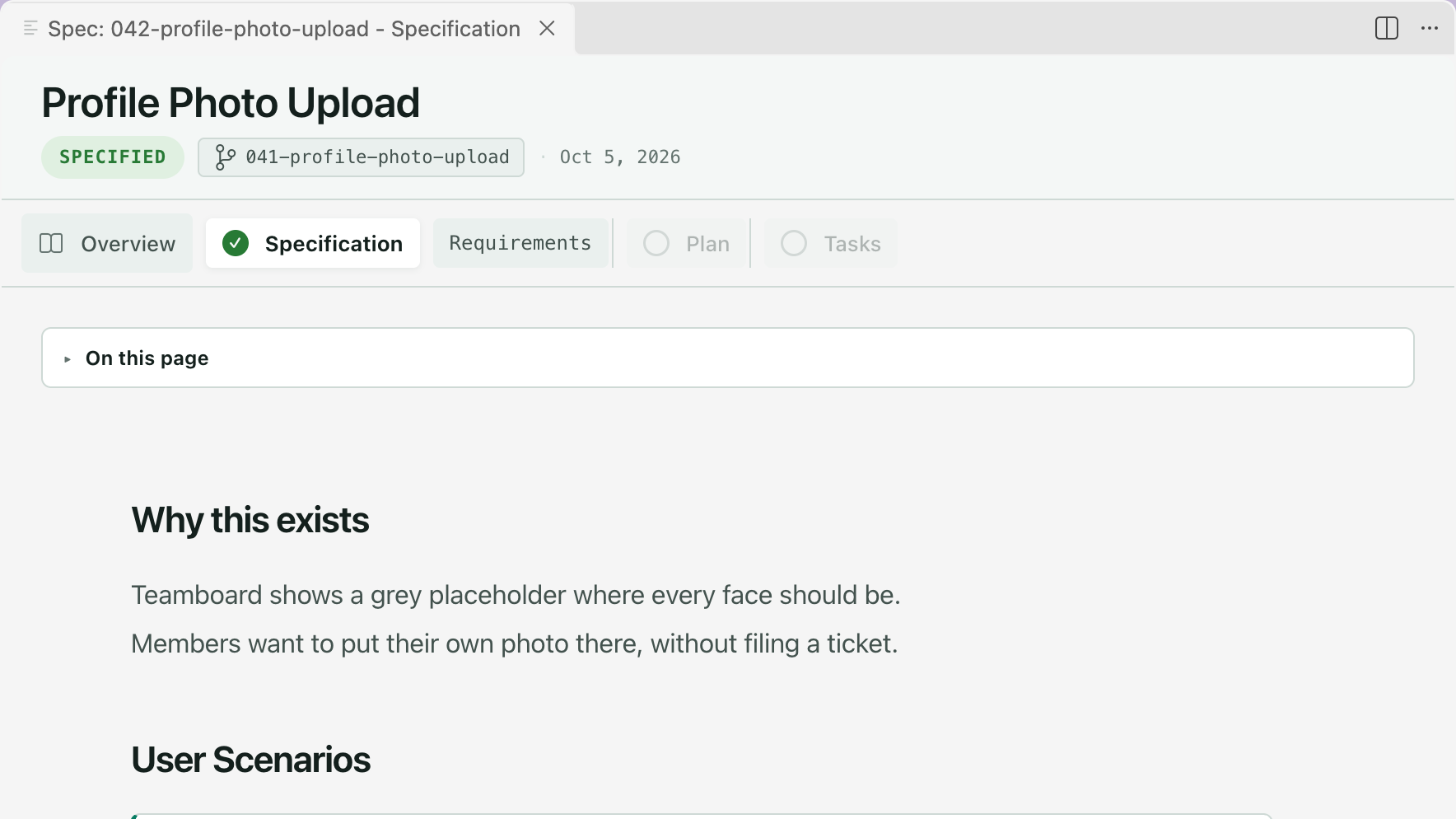
When specify settles, Specification is checked in the rail, the badge reads Specified, and the footer offers Next: Plan. After a simple verdict, Plan and Tasks are checked too and the footer offers Next: Implement.
/speckit.companion.planOr press Plan in the viewer footer.
Plan always writes plan.md: a summary, a check against the constitution, and the project structure. The Companion command adds research.md, data-model.md and contracts/ only when the size of the change warrants them, and can draw parts of the plan as plan blocks. When living specs are on, it reads the specs for the capabilities in scope first.
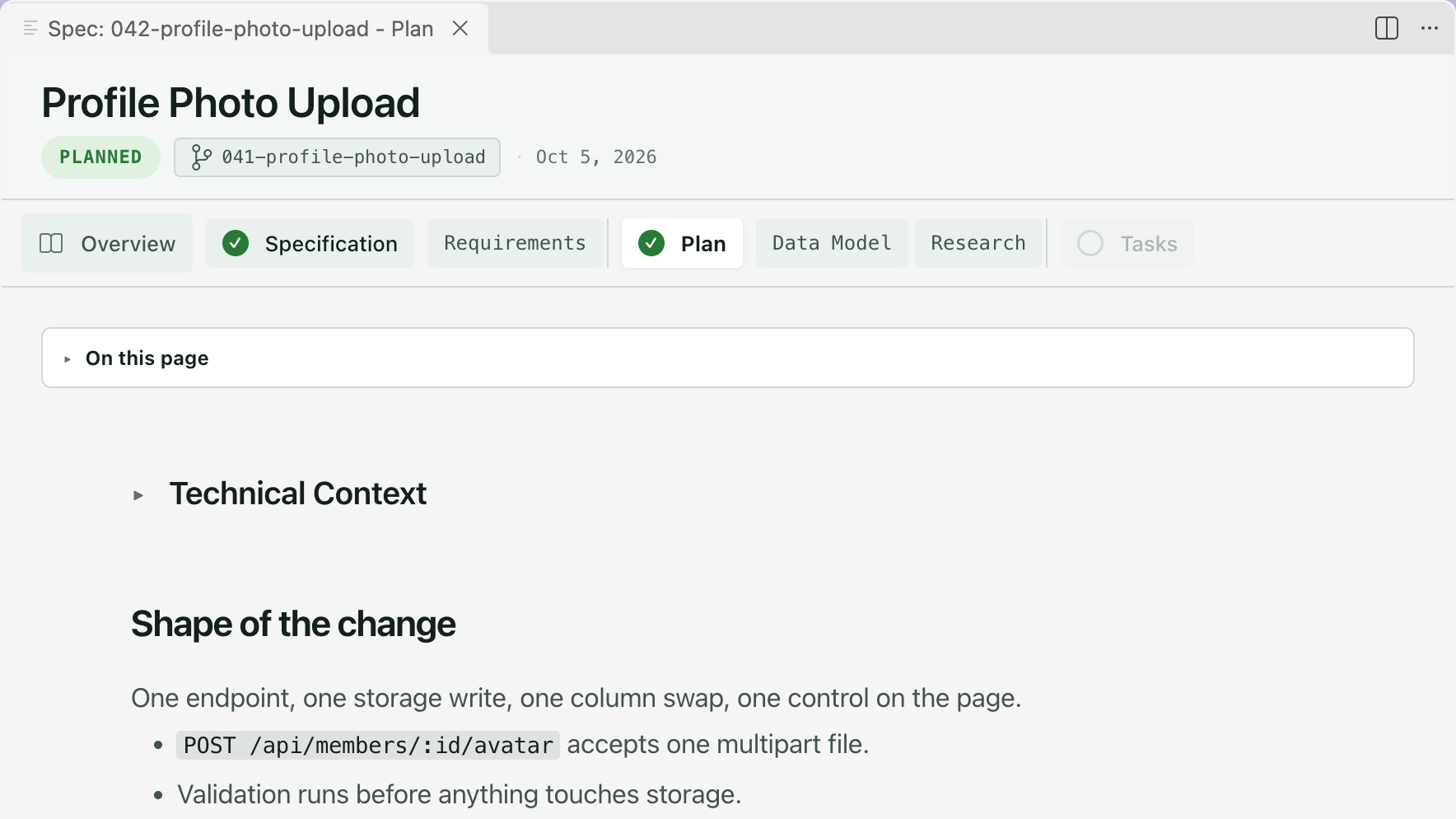
When plan settles, Plan is checked, the badge reads Planned, the supporting documents sit beside Plan in the rail, and the footer offers Next: Tasks.
Checklist, under Other actions, runs Spec Kit’s quality checklist on the plan. If you edit the spec after the plan was written, the plan shows a stale banner with Regenerate.
/speckit.companion.tasksOr press Tasks in the viewer footer.
Tasks writes tasks.md, a checklist in the order the work has to happen. The Companion command makes one phase per user story after a shared setup, and splits each phase into waves. Tasks inside a wave don’t depend on each other, and a wave has to finish before the next one starts. The viewer and sidebar explains the markers on each task.
When tasks settles, Tasks is checked, the badge reads Tasks Created, and the footer offers Next: Implement.
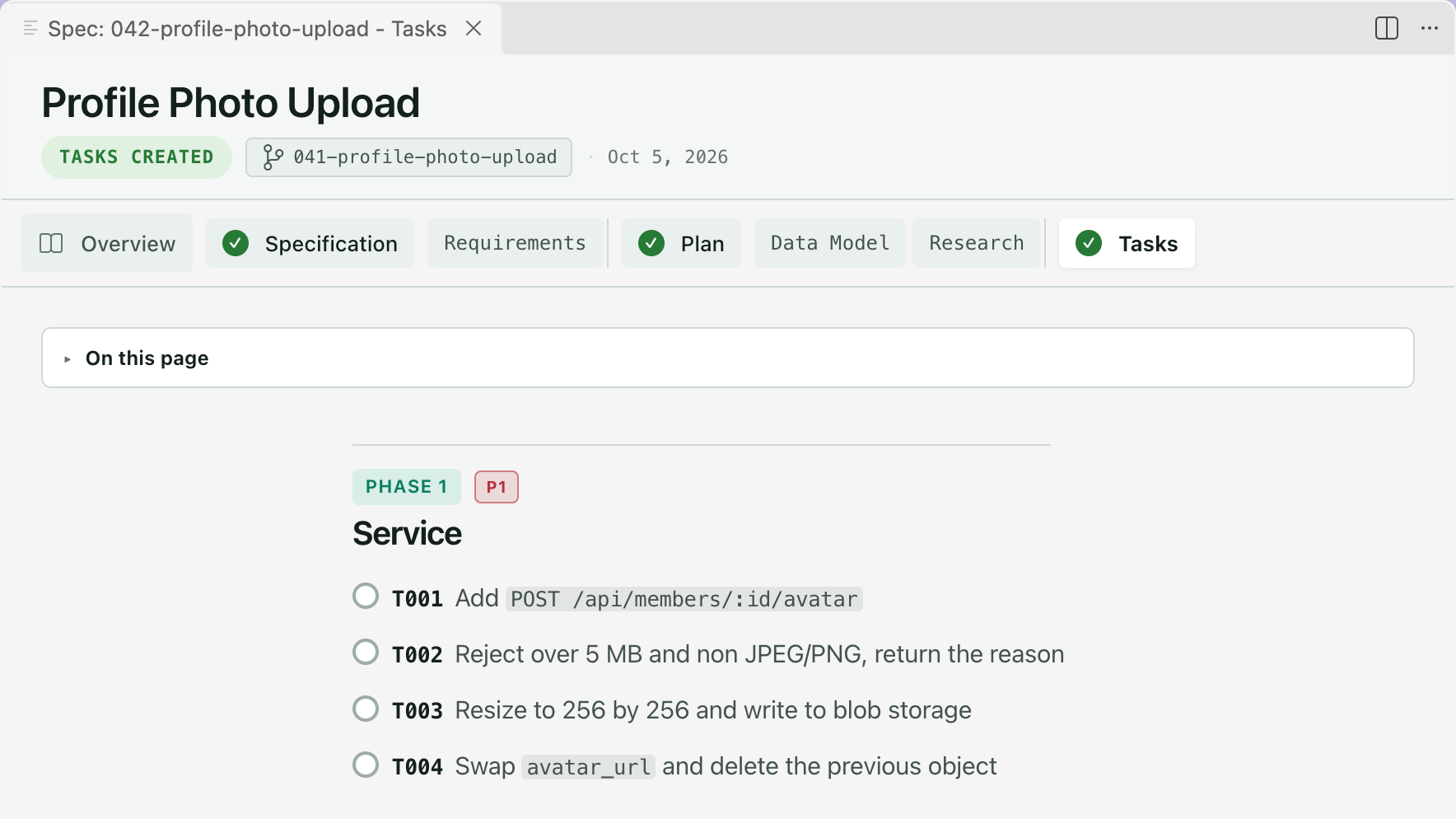
Other actions has two entries here. Analyze cross-checks the spec, the plan and the tasks for consistency. Create GitHub issues sends /speckit.taskstoissues, which creates one GitHub issue per task.
Implement
Section titled “Implement”/speckit.companion.implementOr press Implement in the viewer footer.
Implement works through tasks.md and writes the code. It writes no document of its own, so it has no tab in the rail and its progress shows on the Tasks tab: a live percentage counted from the checked boxes. In the sidebar, the spec’s row shows the last finished task and how long ago, like T004 · 2h ago.
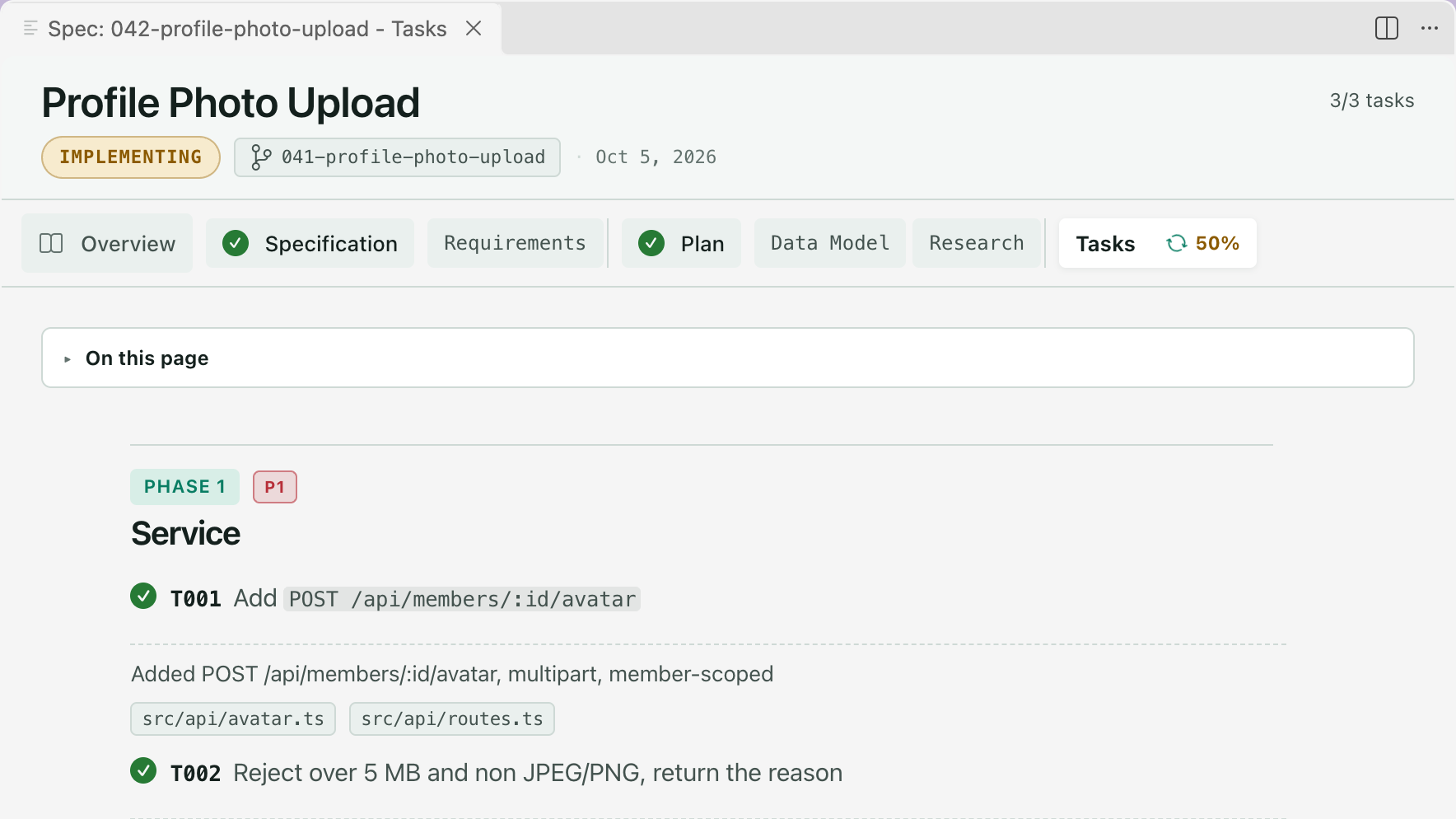
The Companion command records each task the moment it finishes, with one line on what it did and the files it touched, so a run that stops halfway picks up at the next unchecked task. Where your assistant can run work in parallel, large user stories are built side by side.
For a run that stopped, Overview and progress has Resume, status and doctor.
Converge
Section titled “Converge”/speckit.convergeOr press Converge in the footer of a spec whose build is done, or choose it from the spec’s row menu in the sidebar.
Converge is Spec Kit’s own command. It checks the code against the spec, the plan and the task list. If something is missing it appends a Convergence phase of new tasks to tasks.md, and otherwise it reports “Converged”. You run implement and converge again until it converges.
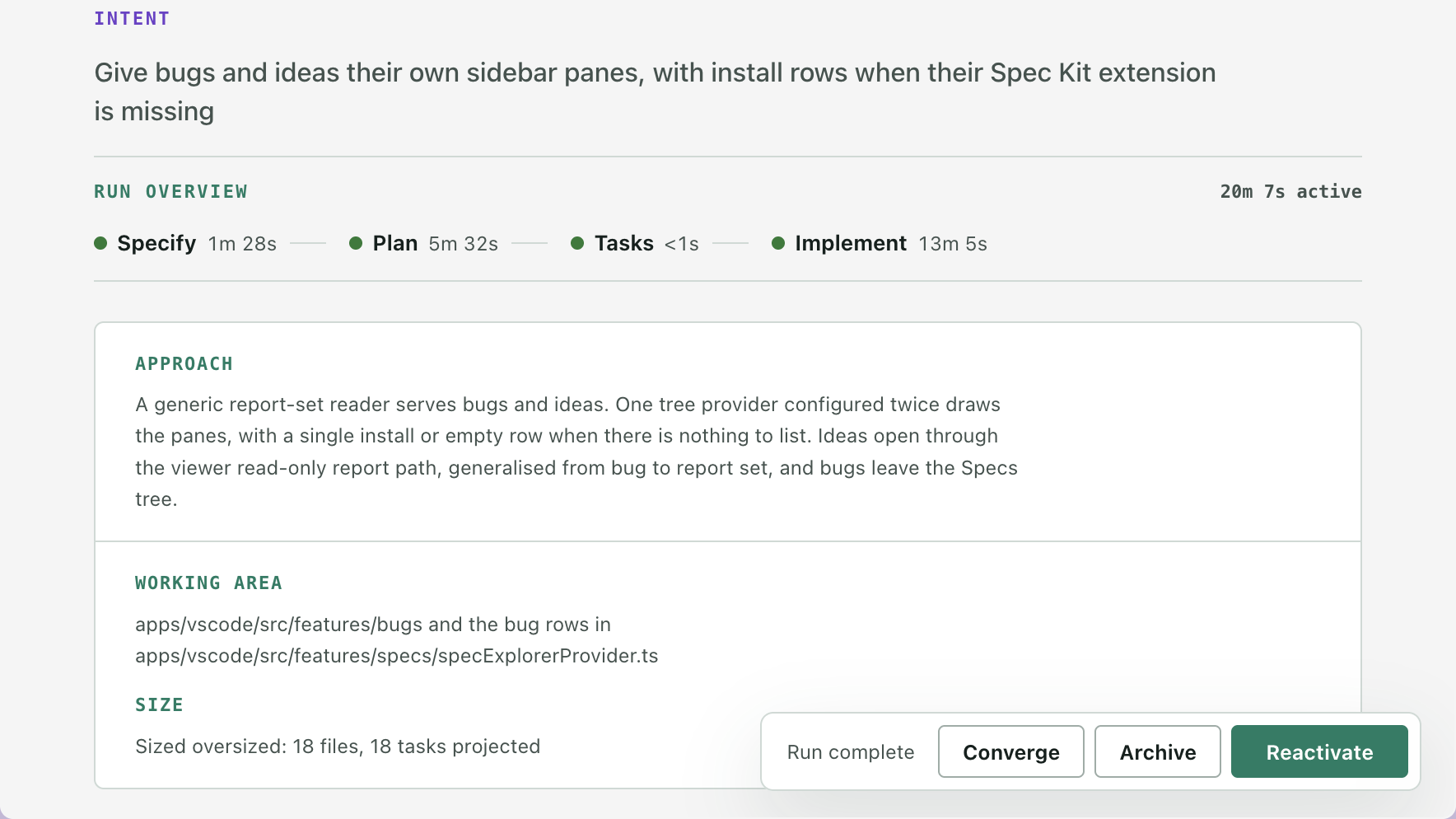
Spec Kit works on the feature of your current branch. Companion names the spec in the request and asks the assistant to stop if the branch belongs to a different one. Converge never changes the spec’s status, so if it adds tasks to a completed spec, press Reactivate before you run implement again.
With the Companion Spec Kit extension installed, the Overview lists Converge after Implement with how long it took. Only the first pass is timed.
Converge compares the code with one feature’s own documents. It doesn’t check living specs, which have drift and sync for that.
/speckit.companion.auto <what you want to build>Or click Auto beside Create Spec in Create New Spec, or run SpecKit: Run Spec Hands-Off (Auto) from the command palette.
Auto runs specify, plan, tasks, implement and mark-complete in order without stopping for approval. It dispatches the same step commands, so the documents come out the same.
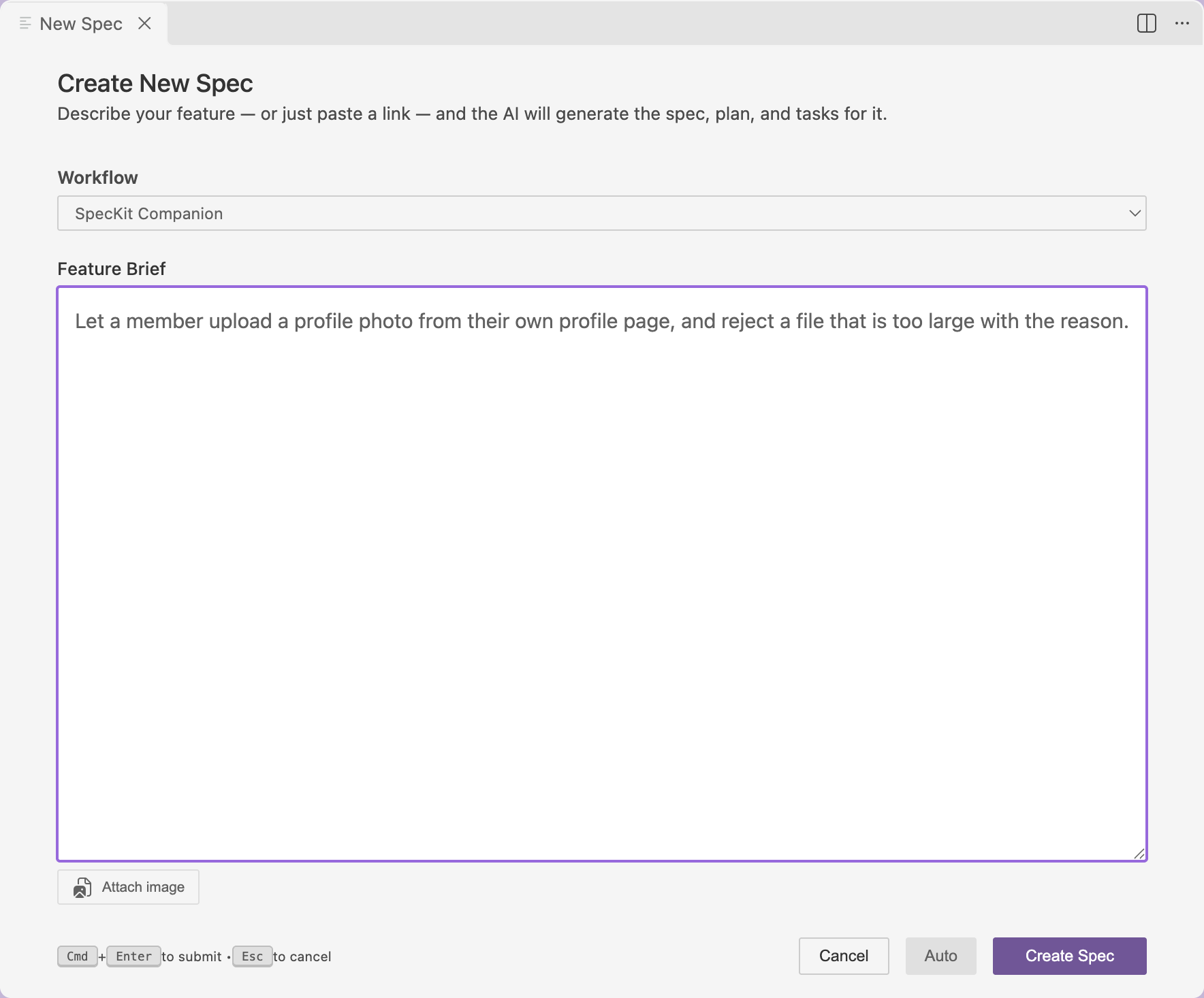
It needs the Companion Spec Kit extension, the SpecKit Companion workflow, and an assistant that keeps working after a step finishes. In a terminal that runs one command and stops, auto runs the first step and stops there.
Three things differ from running the steps yourself:
- A change sized simple goes from specify straight to implement.
- The run is marked unattended, so a hook that would stop and ask a person records the checkpoint and carries on.
- You can’t pause it from the editor. To stop it, stop your assistant.
To read the spec before it becomes code, run the steps one at a time and review with comments.
Mark complete
Section titled “Mark complete”/speckit.companion.mark-completeIn the stock workflow, press Mark Completed in the viewer footer.
This is the Companion workflow’s last step, and the Companion implement command runs it when the last task is checked, so you rarely type it. It writes the completed status to the spec’s .spec-context.json, and the spec moves to Completed in the sidebar.
The stock workflow has no such step. A spec stays at Implemented, with a yellow beaker in the sidebar, until you press Mark Completed. A completed spec’s footer reads Run complete and offers Converge, Archive and Reactivate.
Stock or Companion, measured
Section titled “Stock or Companion, measured”One benchmark run (2026-06-10) built the same features through each workflow at three sizes, scored by an independent judge. Timing is one sample per cell, so read it as a direction.
| Easy / medium / hard | Spec Kit | SpecKit Companion |
|---|---|---|
spec.md lines |
61 / 91 / 94 | 24 / 29 / 36 |
| Throwaway side files | 3 / 4 / 4 | 0 / 0 / 0 |
| Wall-clock | 2m05s / 4m31s / 7m38s | 3m03s / 5m03s / 5m59s |
Companion specs run about 60 to 68% leaner. Correctness tied: every cell shipped a passing build and scored 5.0 out of 5 from the judge.