Fix a bug
specify extension add bugThis adds Spec Kit’s bug extension to the project. Where your Spec Kit has bundles, specify bundle install bugfix adds the extension and a guided workflow together.
A bug does not go through specify, plan and tasks. Spec Kit’s bug extension has its own three commands. You run them from your assistant. SpecKit Companion does not start them. It shows the reports they write.
The three commands
Section titled “The three commands”| Command | What it does | Writes |
|---|---|---|
/speckit.bug.assess |
Reads a bug report, pasted or from a URL, judges whether it is a real bug, finds the suspected code and proposes a fix. Changes no code. | assessment.md |
/speckit.bug.fix |
Applies the proposed fix and records exactly what changed. The only one that edits code. | fix.md |
/speckit.bug.test |
Runs the reproduction and any added tests again, and records the result. Changes no code. | test.md |
Name the bug once and reuse the name, for example /speckit.bug.assess https://github.com/example/repo/issues/1234 slug=callback-token, then /speckit.bug.fix slug=callback-token.
Each bug gets its own folder, .specify/bugs/<slug>/, holding those three files.
In the sidebar
Section titled “In the sidebar”What you see
A Bugs pane under Specs. It groups bugs as To fix, To test, Verified and Closed, and each row is named by the bug’s title with its severity and latest outcome beside it, like high · fix applied.
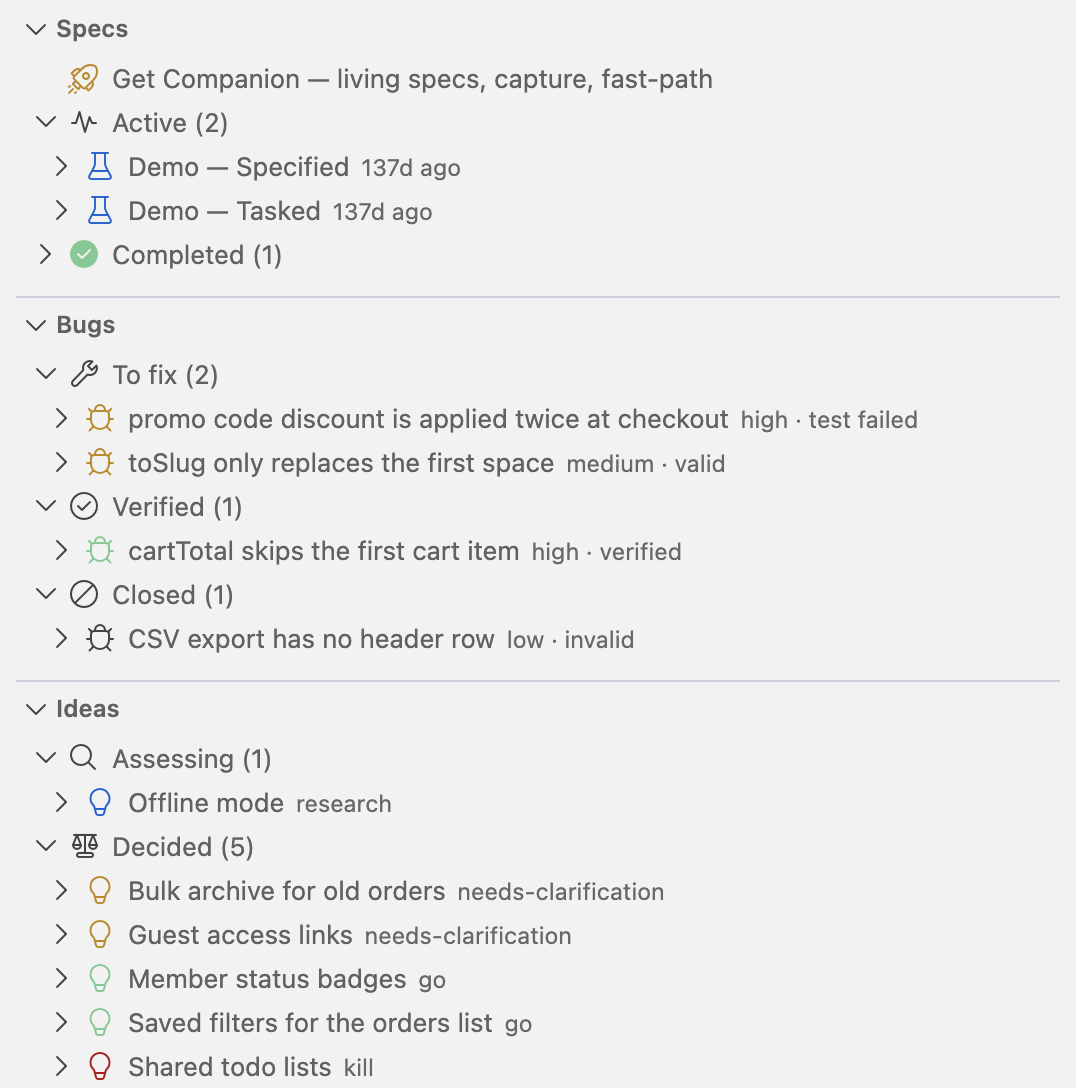
Expand a bug for Assessment, Fix and Test. A report not written yet reads not created.
| A bug is under | When |
|---|---|
| To fix | It has no fix yet, its fix was not applied, or its test failed or was partial |
| To test | It has a fix and no test |
| Verified | Its test report says verified |
| Closed | Its assessment’s verdict is invalid |
The groups come from the reports on disk, so a bug handled by typing the commands yourself shows up the same. Before the bug extension is installed the pane holds one row that installs it.
In the viewer
Section titled “In the viewer”Click a bug and the viewer opens on Story, the whole bug on one page. The header shows the bug’s title, and the badge shows the latest outcome, such as VERIFIED, or BUG when there is none.
The story starts with one sentence saying where the bug stands and one line of facts. Three steps follow down a timeline, What was wrong, What changed and How it was verified, and Risks and open questions closes the page. A closed bug shows only the first step.
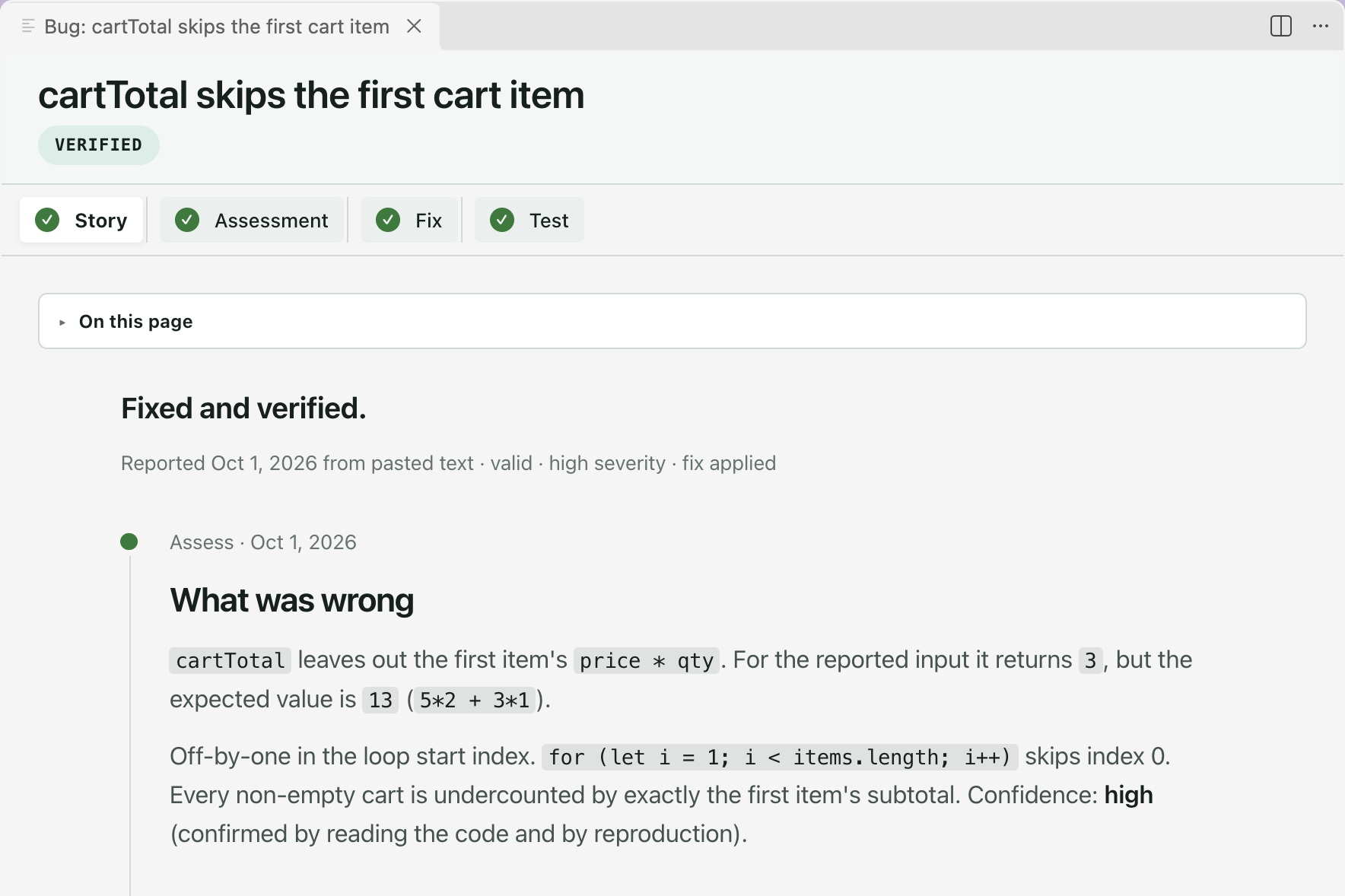
| The story opens with | When |
|---|---|
| Assessed, not fixed yet. | The bug has no fix and no test |
| Fixed, not tested yet. | It has a fix and no test |
| Fixed and verified. | Its test report says verified |
| The fix did not hold. | Its test failed or was partial |
| Tested, result unclear. | It has a test report whose result cannot be read |
| Closed without a fix. | Its assessment’s verdict is invalid |
The reports as written are the tabs beside the story: Assessment, Fix and Test. A report not written yet is disabled. Click a report in the sidebar and the viewer opens on that report. A bug whose assessment cannot be read as a story opens on the assessment itself.
Every tab is for reading: there is no Overview and no comment button, and the viewer writes nothing to the bug’s folder. The page updates when a report changes on disk. The footer holds the next step, chosen from where the bug stands.
An open question in a report shows Needs an answer and an Answer button on the Assessment, Fix and Test tabs. Click Answer, type your reply and send it. Your answer is saved in the project’s .speckit-companion/ folder, which git ignores, and the command that wrote that report is sent to your assistant with it, so the report is rewritten with the question settled.
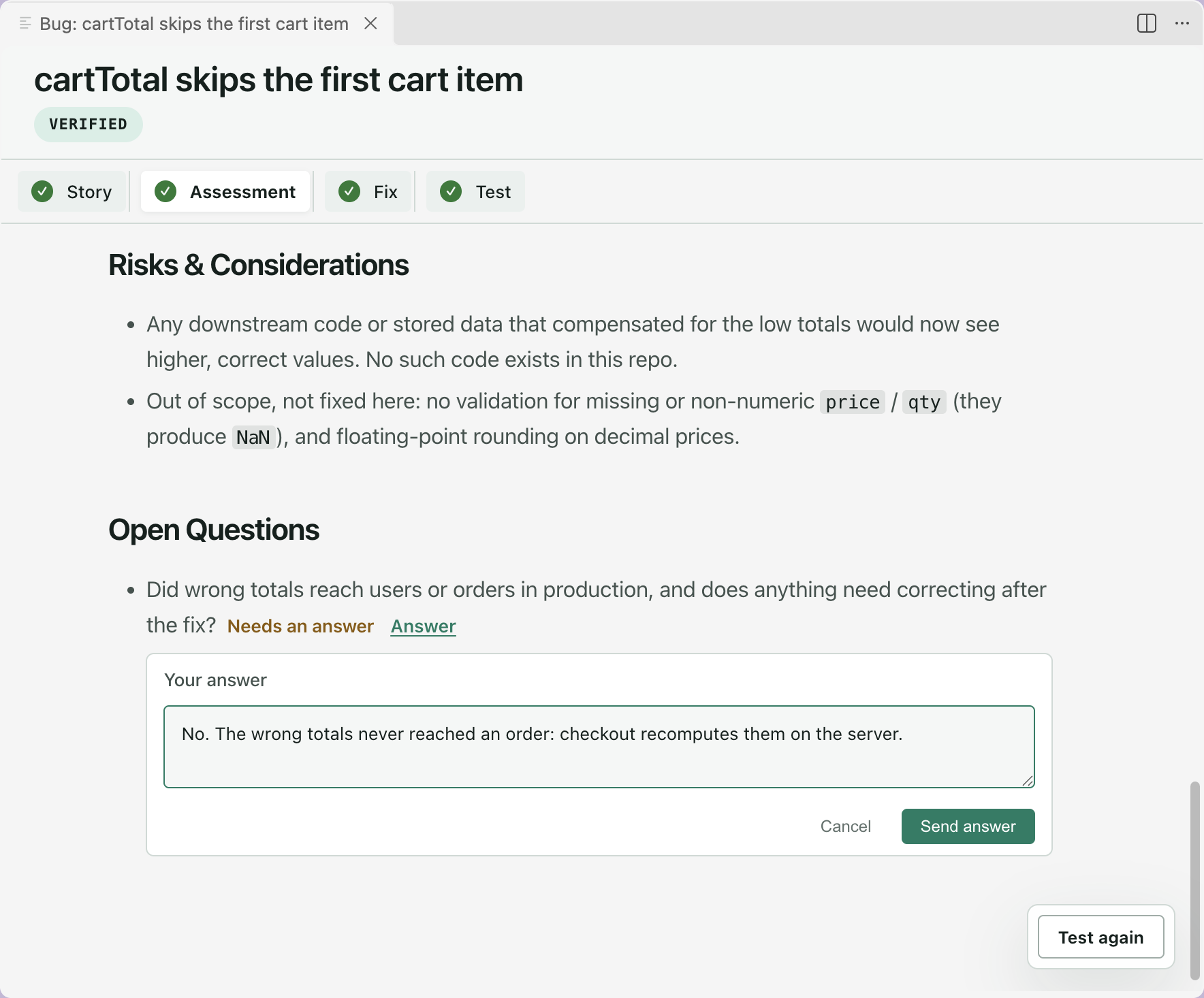
| The bug is | Main button | Also offered |
|---|---|---|
| Waiting for a fix | Fix bug | Test again, when a test already failed |
| Waiting for a test | Test fix | Fix again |
| Verified | Test again | |
| Closed | Assess again |
A button sends that step’s command, with the bug’s name, to your assistant. When the report it writes appears, the buttons move on by themselves.
Start a bug from Companion New
Section titled “Start a bug from Companion ”- Choose + on the Bugs pane.
- In New Bug, describe the symptom and add a link or pasted error if you have one. The name for the bug’s folder is suggested from the symptom and can be edited. A name that is already taken cannot be sent.
- Press Assess bug. It sends
/speckit.bug.assessto your assistant. - Fix and Test come after, from the buttons on the bug’s own page.
Related
Section titled “Related”- The sidebar covers the rest of the Specs view.
- Assess an idea is Spec Kit’s other process outside the spec steps.