Run it all with Auto
/speckit.companion.auto <what you want to build>Or click Auto beside Create Spec in the Create New Spec panel, or run SpecKit: Run Spec Hands-Off (Auto) from the command palette.

Auto runs specify, plan, tasks, implement and mark-complete in order, without stopping for approval between them. It runs the same step commands you would run one at a time, so the documents come out the same.
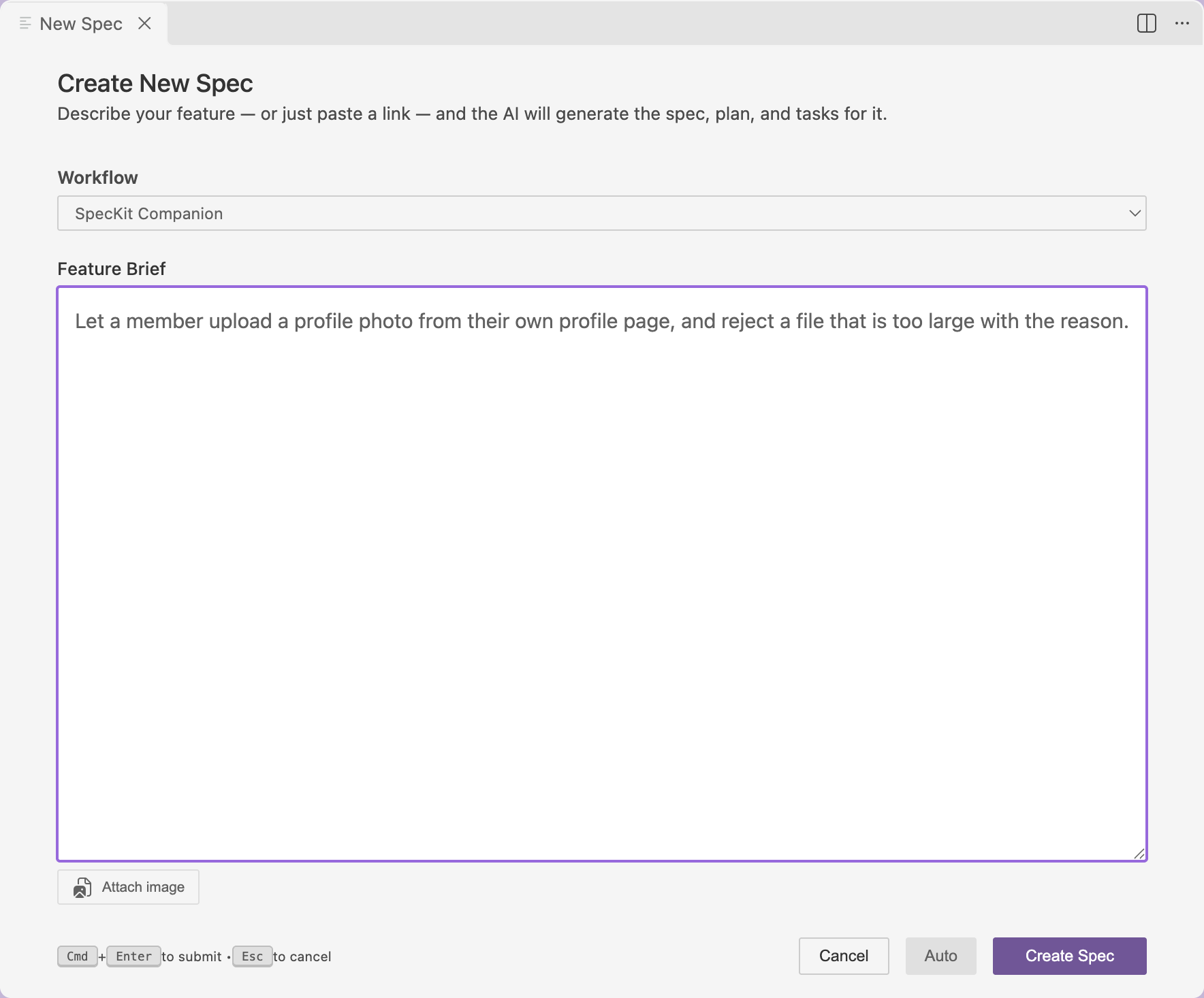
What it needs
Section titled “What it needs”| Requirement | Why |
|---|---|
| The Companion Spec Kit extension | Auto is one of its commands. See Install. |
| The SpecKit Companion workflow | The stock Spec Kit workflow has no Auto button |
| An assistant that keeps working after a step finishes | In a terminal that runs one command and stops, auto runs the first step and stops there |
While it runs
Section titled “While it runs”What you see
The viewer follows the files, as it does for any run. Tabs check off in the rail as each document lands, the Tasks tab shows the percentage during implement, and the spec moves to Completed at the end.
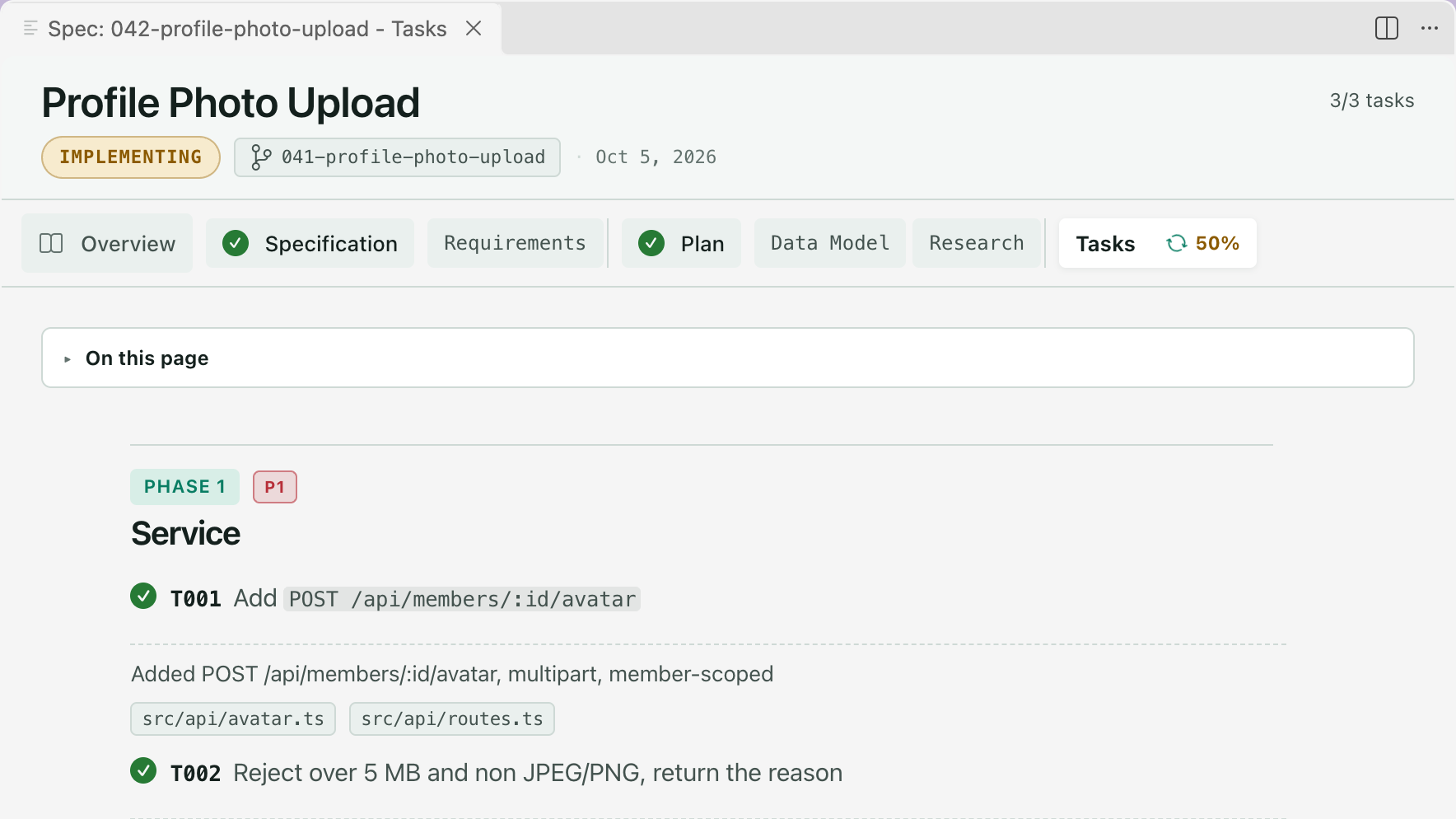
Auto is one command your assistant follows from start to finish. You cannot pause it from the editor. To stop it, stop your assistant.
What it changes about a run
Section titled “What it changes about a run”- Small changes skip two steps. When Specify sizes the change as simple, it has already written the plan and the task list, so auto goes straight to implement.
- Checkpoints do not wait. Auto marks the run as unattended. A hook that would normally stop and ask a person records the checkpoint and carries on.
- Nobody reviews in between. If you want to read the spec before it becomes code, run the steps one at a time and use Review with comments.
Related
Section titled “Related”- Track progress covers Resume, for a run that stopped halfway.
- The Overview is where you read what an unattended run did.