The sidebar
Click the SpecKit icon in the activity bar to see your specs, your steering files and your living specs in one place.
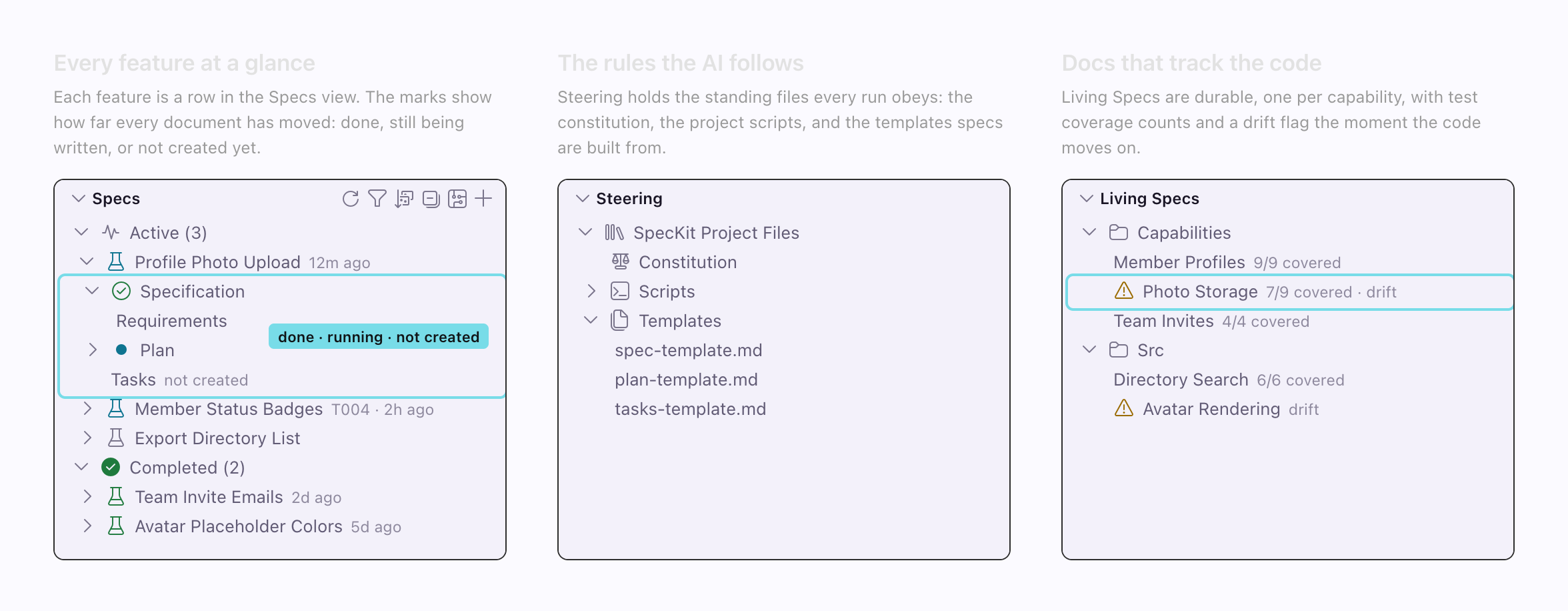
| View | Shows when |
|---|---|
| Specs | Always |
| Bugs, Ideas | The folder is a Spec Kit project |
| Steering | Always, unless you turn off speckit.views.steering.visible |
| Living Specs | The Companion Spec Kit extension is installed |
| Settings & Feedback | You turn on speckit.views.settings.visible |
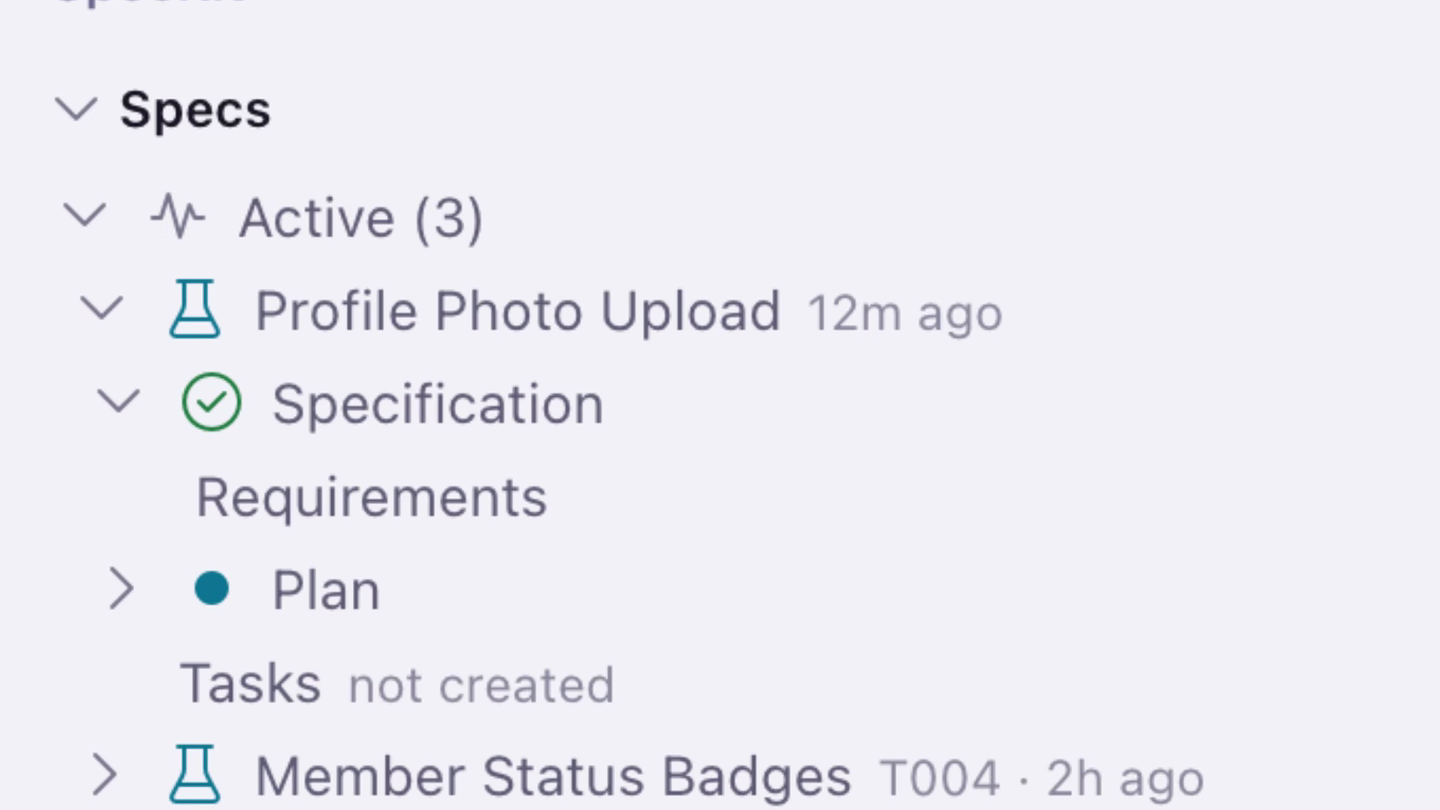
| Part | What it is |
|---|---|
| Toolbar | Refresh, Filter, Sort, Collapse All or Expand All, Open Workflow Builder and New Spec. Workflow Builder needs the Companion Spec Kit extension. |
| Groups | Active, Completed and Archived, each with a count. Empty groups are hidden. |
| Spec row | Named from the folder, so 515-readable-spec-names reads “Readable Spec Names”. Click the name to open the viewer. Click the chevron to only expand. |
| Description line | For a spec in flight, the last finished task and how long ago anything happened, like T004 · 22h ago. A spec you ran from Companion also names the assistant its last step went to, like T004 · 22h ago · Claude Code. |
| Hover | Resting the pointer on a spec shows its status, its last activity, the assistant and the branch the work is on. |
| Document rows | One per document, each with its own mark. |
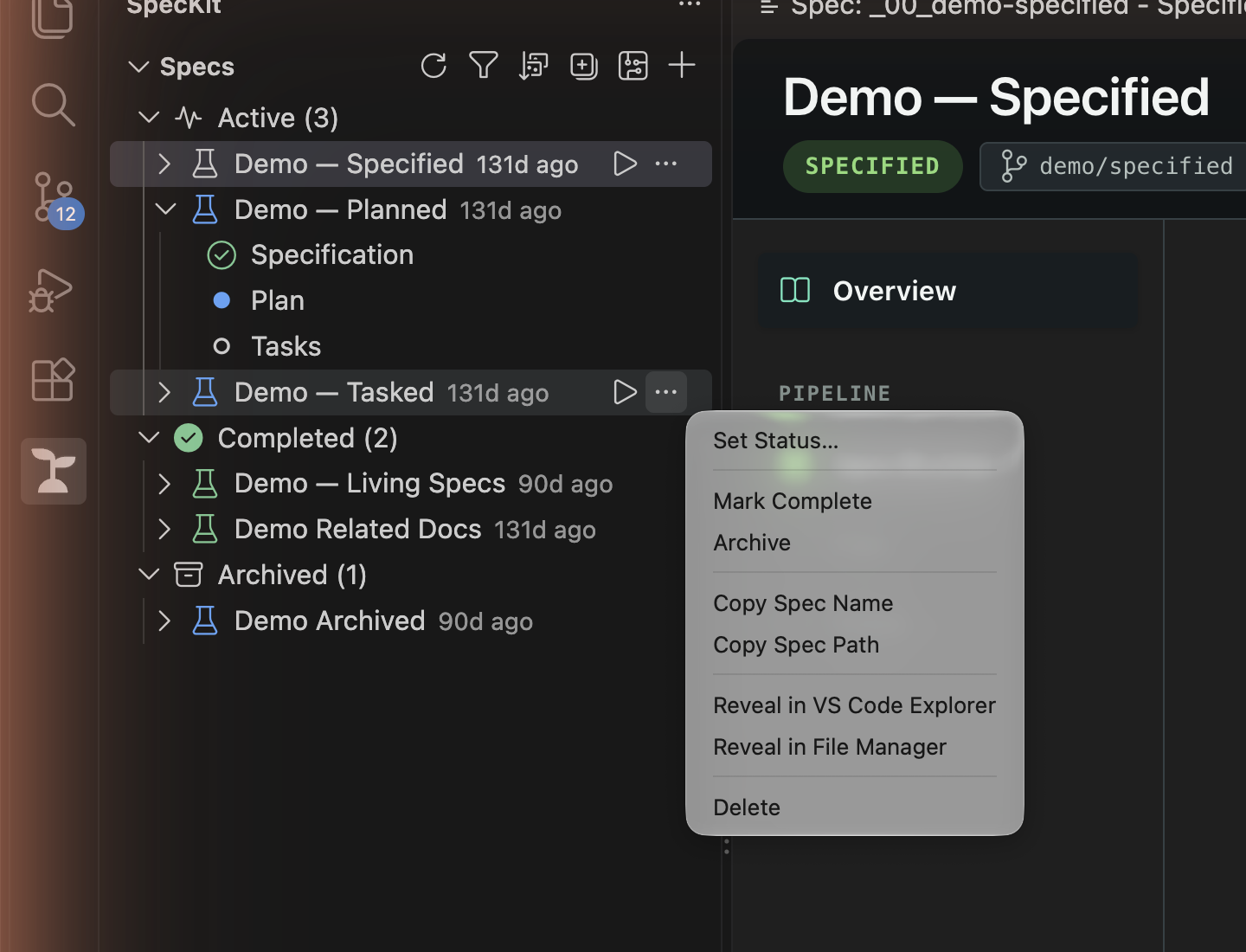
| Hover actions | Resume when it applies, and More Actions…. Right-click opens the same menu. |
What the spec icon says
Section titled “What the spec icon says”| Icon | Meaning |
|---|---|
| Plain beaker | Created, nothing recorded yet |
| Blue beaker | A workflow step is current |
| Yellow beaker | Implement finished, and you have not confirmed |
| Green beaker | You marked it complete |
| Spinner | A step is running now |
What a document mark says
Section titled “What a document mark says”| Mark | Meaning |
|---|---|
| Green check | Done, and the file has real content |
| Blue dot | In progress |
| Hollow circle | The file exists and the workflow has not reached it |
not created |
The file is not on disk yet |
Actions on a spec
Section titled “Actions on a spec”Resume finds where the spec stopped and sends one command to your assistant. It needs the Companion Spec Kit extension. Track progress covers it.
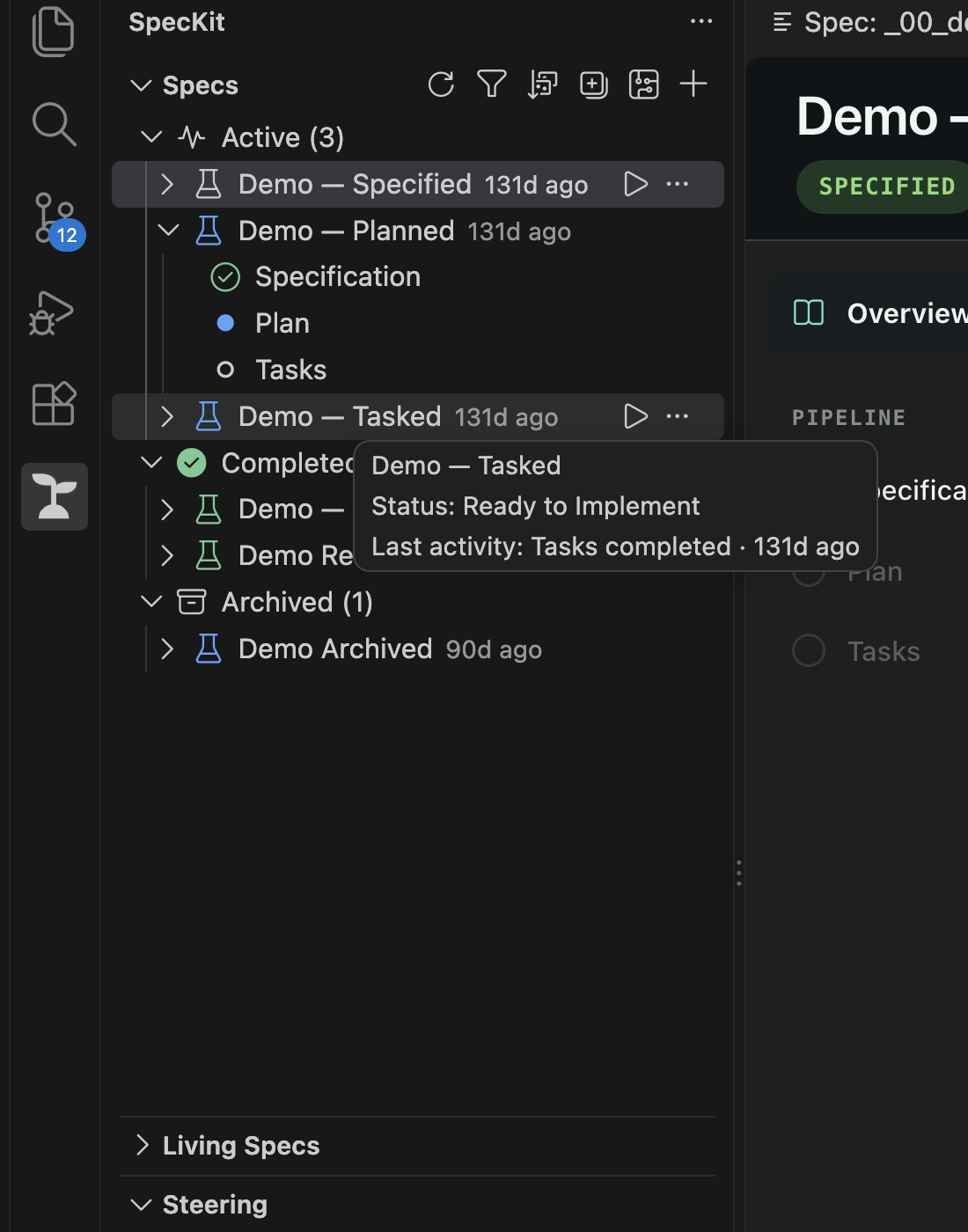
More Actions… offers Set Status, Mark Complete, Archive, Reactivate, Converge on a spec whose build is done, copy and reveal actions, and Delete. Set Status… is the way out for a spec the buttons will not move. Show Terminal appears while the terminal Companion opened for the spec is still open, and brings it to the front. Shift-click or cmd-click to select several specs, then mark, archive or reactivate them together.
Bugs New
Section titled “Bugs ”A pane of its own, under Specs. Bugs are grouped by where they stand, and a group with nothing in it is hidden.
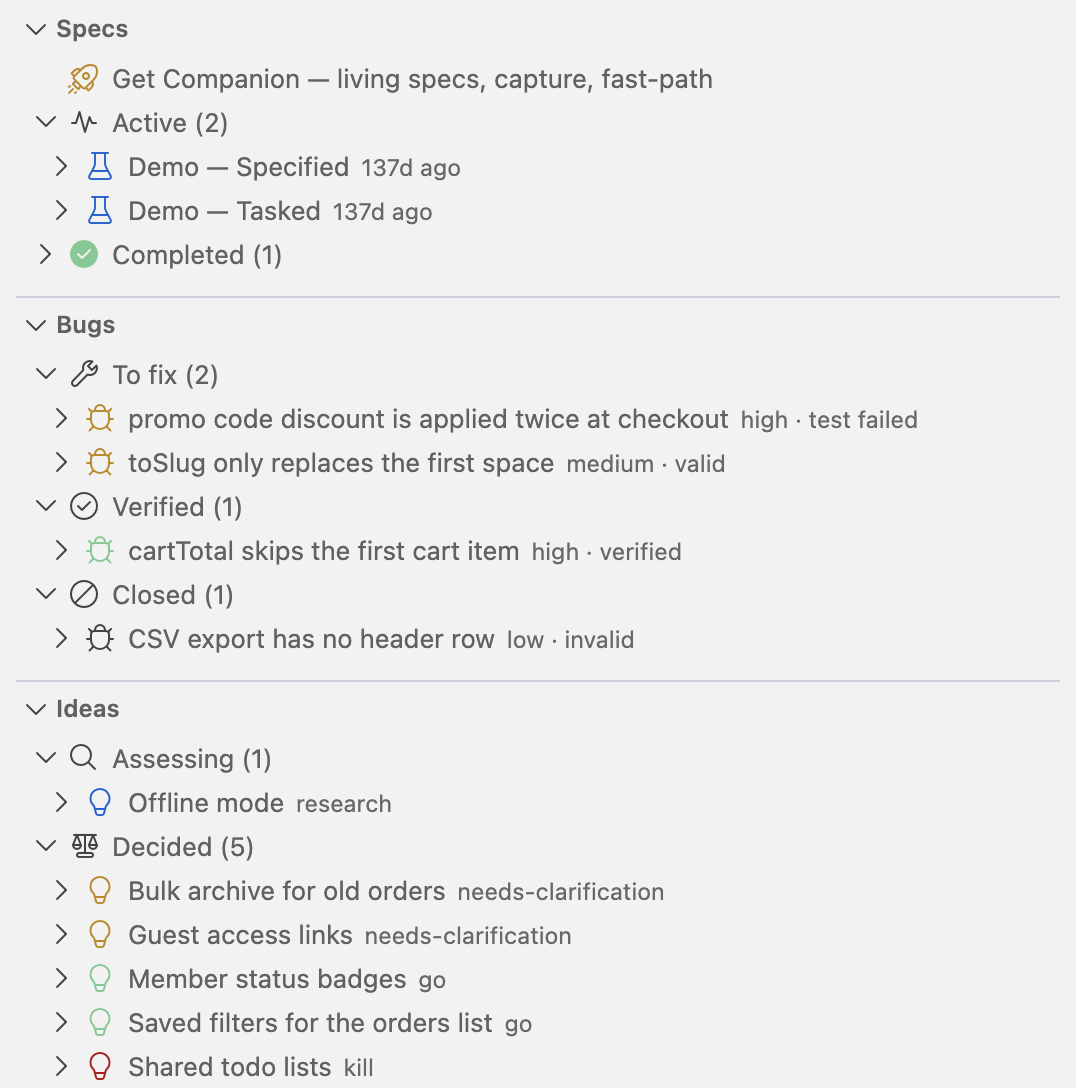
| Group | A bug is here when |
|---|---|
| To fix | It has an assessment and no fix, or its fix was not applied, or its test failed or was partial |
| To test | It has a fix and no test yet |
| Verified | Its test report says verified |
| Closed | Its assessment says it is not a valid bug |
Each row is the bug’s title, with its severity and latest outcome beside it. Expand it for Assessment, Fix and Test; a report not written yet reads not created. Click a bug or a report to read it in the viewer. Fix a bug covers the flow.
Ideas New
Section titled “Ideas ”The same pane for Spec Kit’s idea assessment. Assessing lists ideas still in progress with the stage they reached; Decided lists the rest with the verdict: go, needs-clarification or kill. Expand an idea for Intake, Research, Problem, Concept and Decision. Assess an idea covers the flow.
Each pane has a + in its title bar: New Bug and New Idea open a short screen that sends the first step to your assistant. Both panes read Spec Kit’s own files and write nothing. Before the matching Spec Kit extension is installed, and while there is nothing to list, a pane holds one row: Install Spec Kit’s bug extension or Install Spec Kit’s assess extension. Choosing it runs the install in a terminal. Each pane has a Refresh button, and you can collapse or hide one you do not use.
Living Specs
Section titled “Living Specs”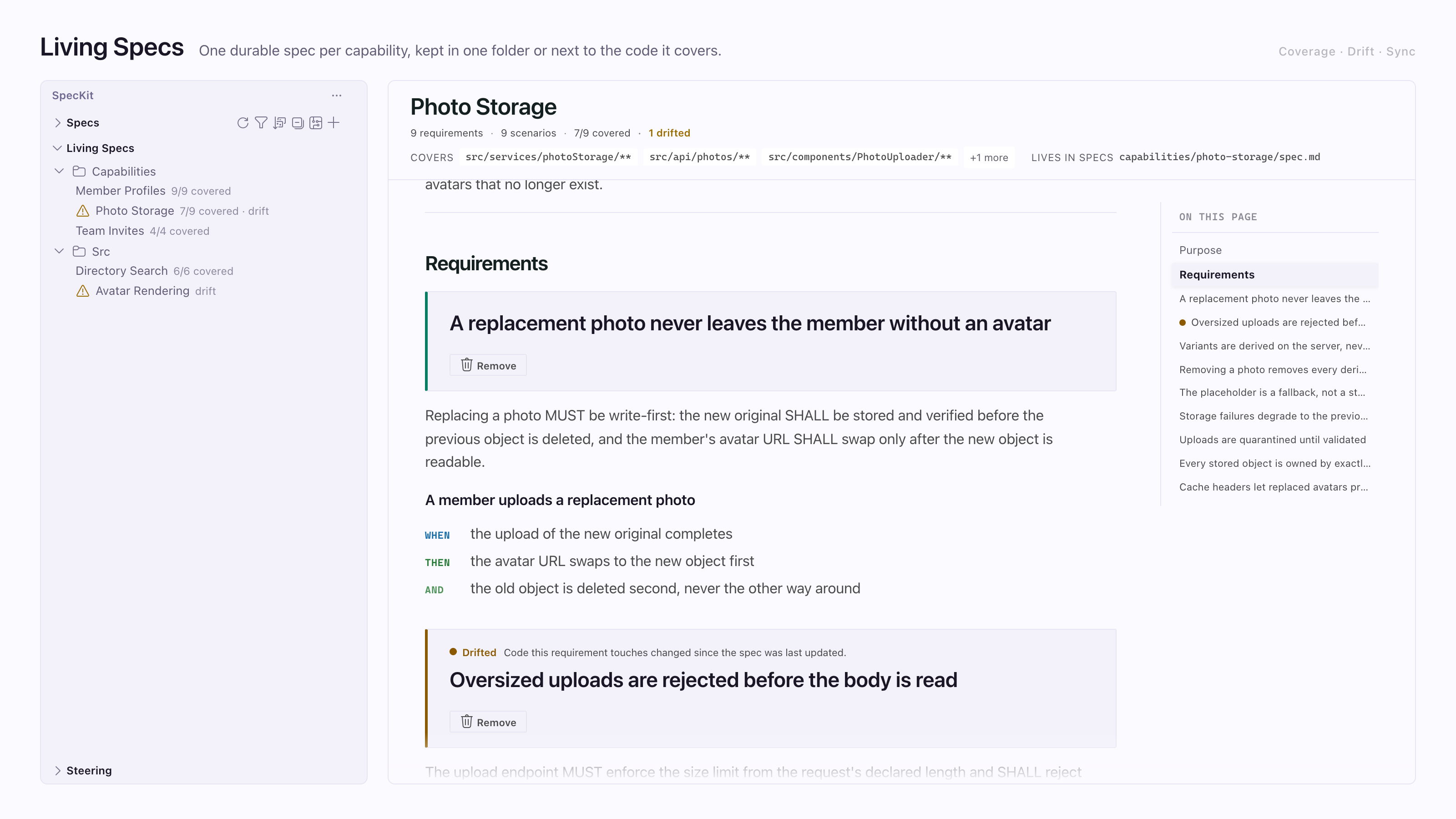
A capability is behavior your code keeps having, and a living spec is its lasting spec.
| On a row | Meaning |
|---|---|
7/9 covered |
Requirements with recorded evidence. No coverage file means no number, which is not the same as zero. |
Warning icon, drift |
Source files changed after the spec was last committed. |
The toolbar has Refresh, Adopt Code Area and Sync. Right-click a row to check drift or coverage. Without a living-specs.yml at the repo root, the view says “Living Specs are off”. Living specs explains how to turn them on.
Steering
Section titled “Steering”A steering document is a standing instruction. A spec says what to build this time, and steering says how this project builds anything. The view gathers the files your assistant already reads, plus Spec Kit’s constitution, scripts and templates. See Steering.
Settings & Feedback
Section titled “Settings & Feedback”Five rows: Workflow Builder, Open Settings, Report a Bug, Request a Feature and Rate on Marketplace.
Good to know
Section titled “Good to know”- Which assistant. The name on a row is the assistant Companion last sent that spec to. A step you type straight into an assistant is not recorded, and neither is the first step of a new spec, which runs before the spec folder exists. Companion cannot jump to a chat panel, because VS Code does not say which panel picked up a command, and it does not mark a spec as waiting for your answer.
- Empty workspace. One welcome block offers Create your first spec and Open a live sample.
- Install badge. Without the Companion Spec Kit extension, a dot on the SpecKit icon reads “Install SpecKit Companion”. It clears once the extension is present.
- Upgrades live in the Command Palette:
SpecKit: Upgrade….