Inside the viewer
The spec viewer shows your spec markdown as a readable page. The file on disk is unchanged. This page covers the frame around the document. Reading a spec covers the document itself.
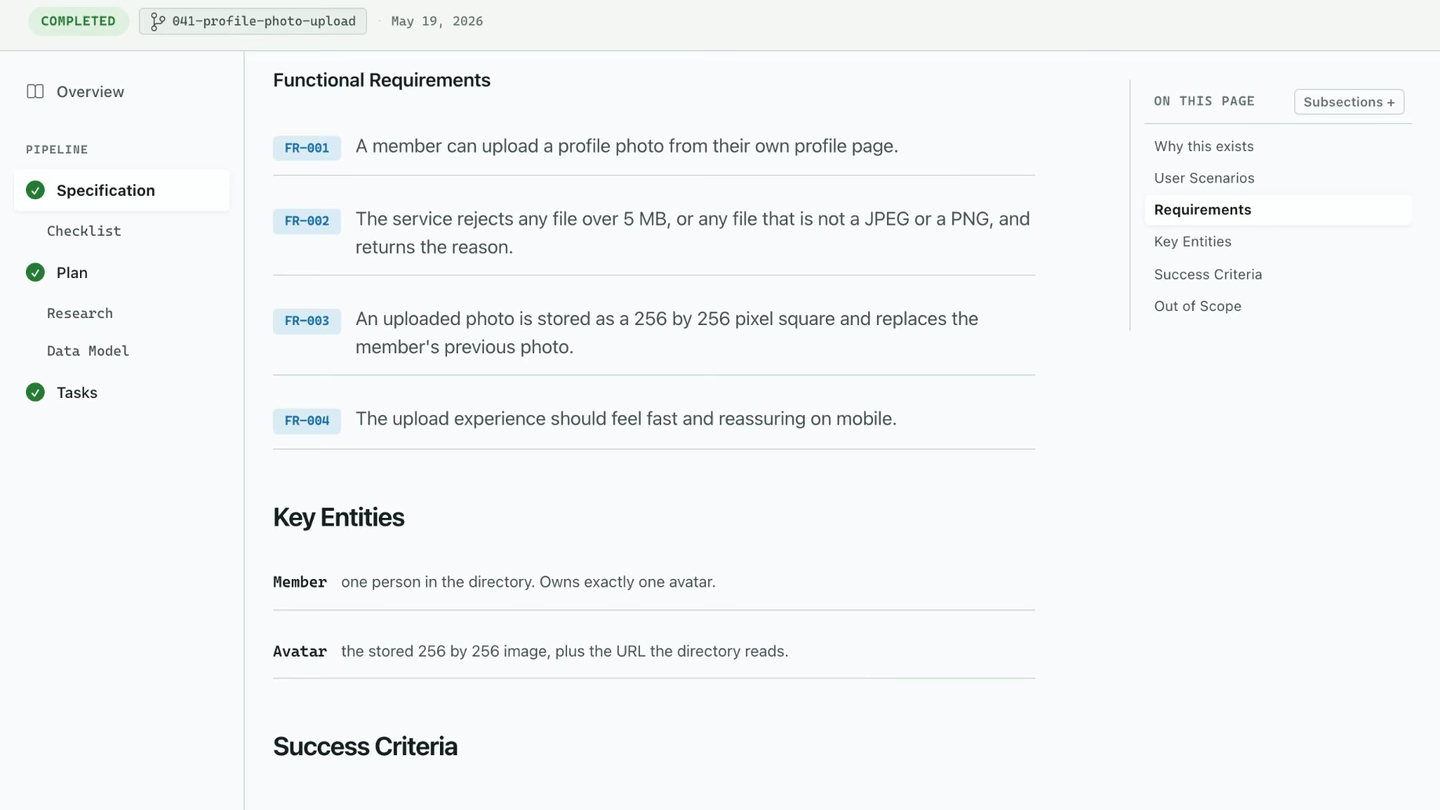
| Part | What it holds |
|---|---|
| Header | The spec’s name, a status badge, the branch and the creation date |
| Run strip | Tasks done, requirements traced, checks, active time and a pull request link |
| Step rail | One tab for each step that writes a document, with the Overview at the top |
| Document | Your markdown, with requirements, scenarios and tasks drawn as rows and chips |
| On this page | The document’s headings. It follows where you are. |
| Footer | The next step, plus archive, complete, regenerate and refine |
The step rail
Section titled “The step rail”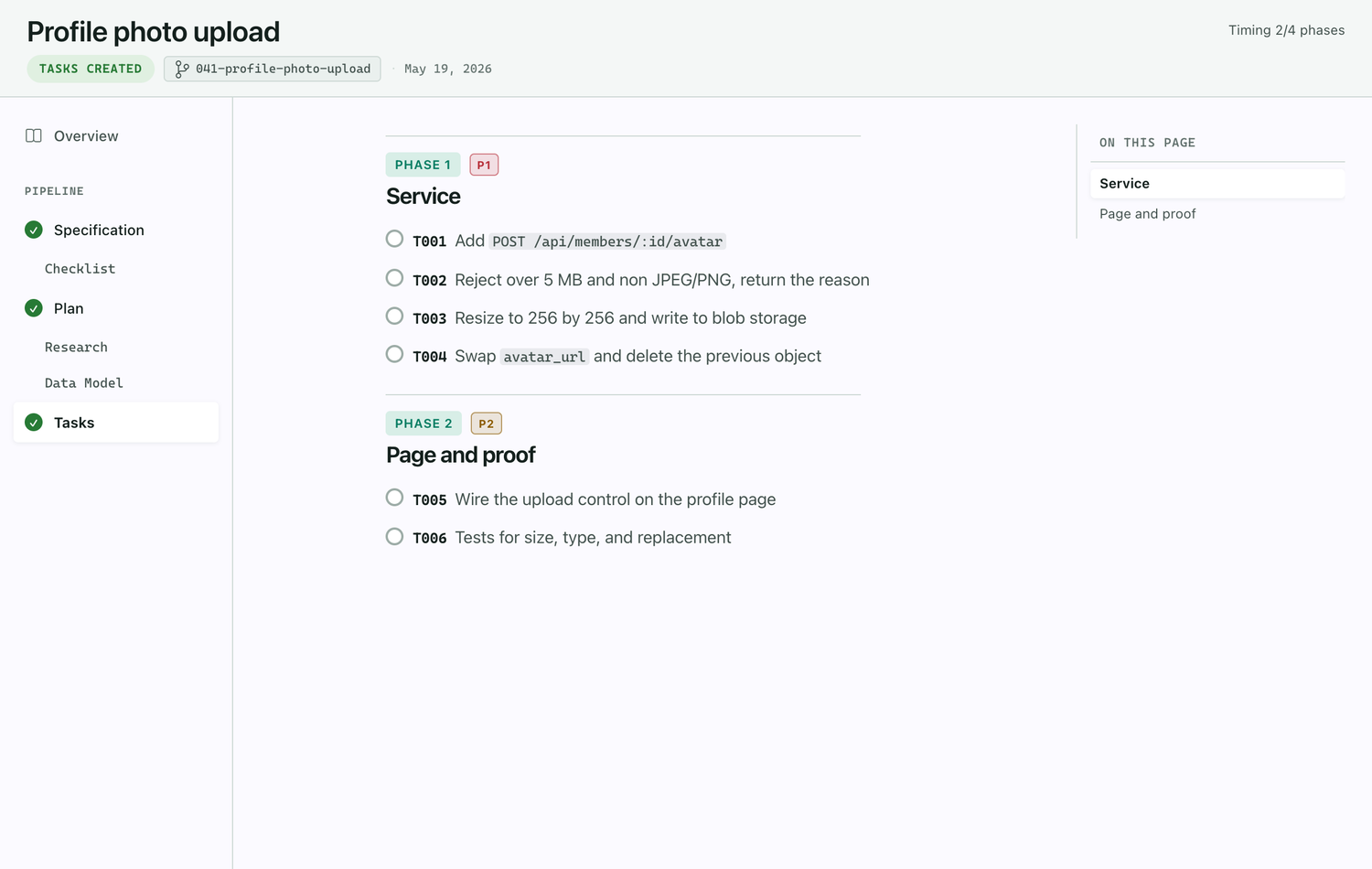
| A tab looks | Meaning |
|---|---|
| Check mark | Done. The document exists. |
| Highlighted | Current. This is the tab you are reading. |
| Spinner and timer | In flight. The step is running. |
| Disabled, with a tooltip | Locked. A step ahead is running and this document does not exist yet. |
| Plain | Not started. |
Clicking a tab only changes what you read. It never moves the run. Supporting documents, such as Checklist, Research and Data Model, sit under the step that wrote them. Steps that only act, such as Implement and Mark Complete, have no tab. Their actions live in the footer.
The footer
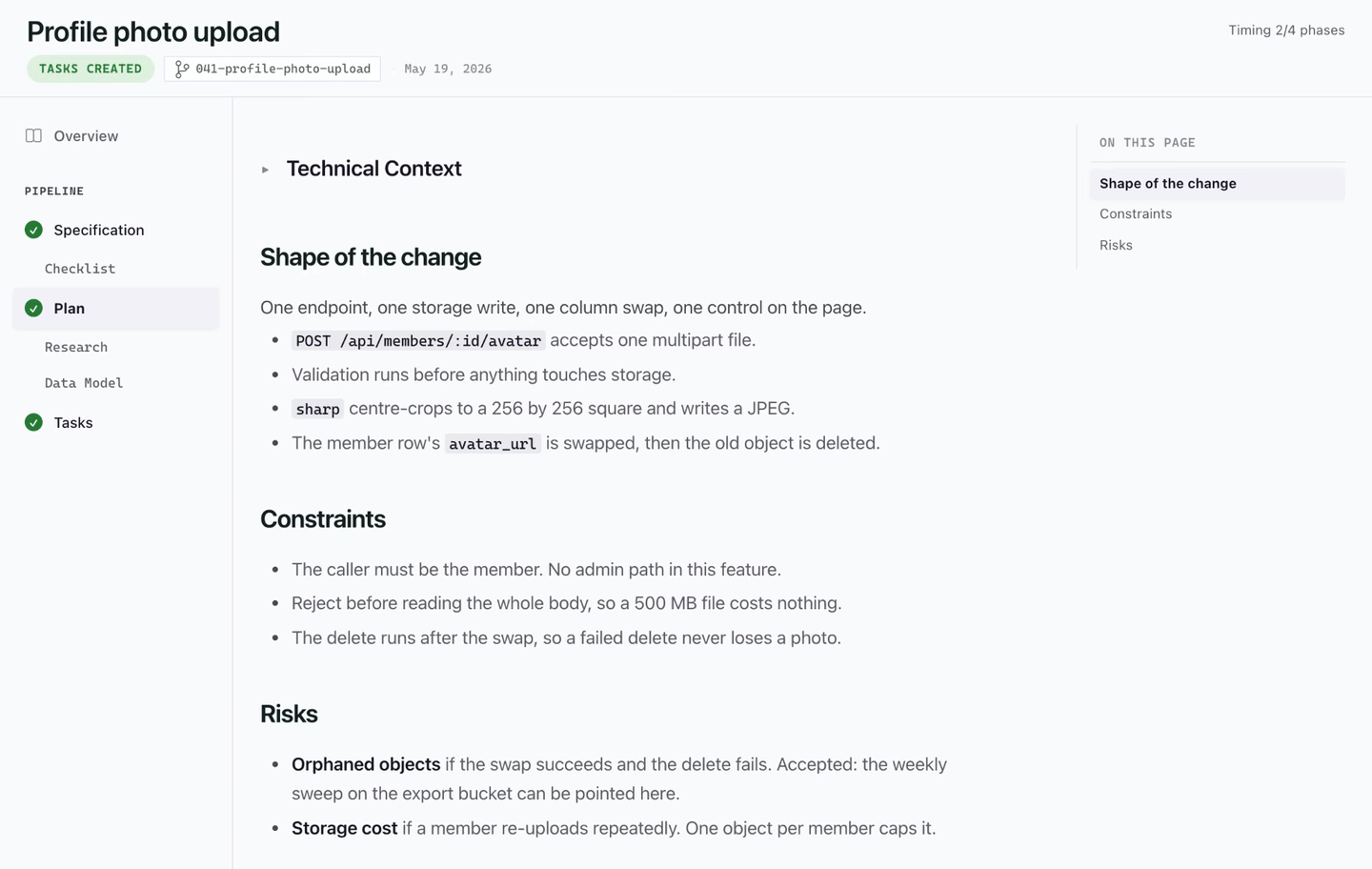
Section titled “The footer”The main button is the next step, named after it, with a line above reading Next: Plan. Press it and the viewer records the current step as done, starts the next one and sends its command to your assistant.
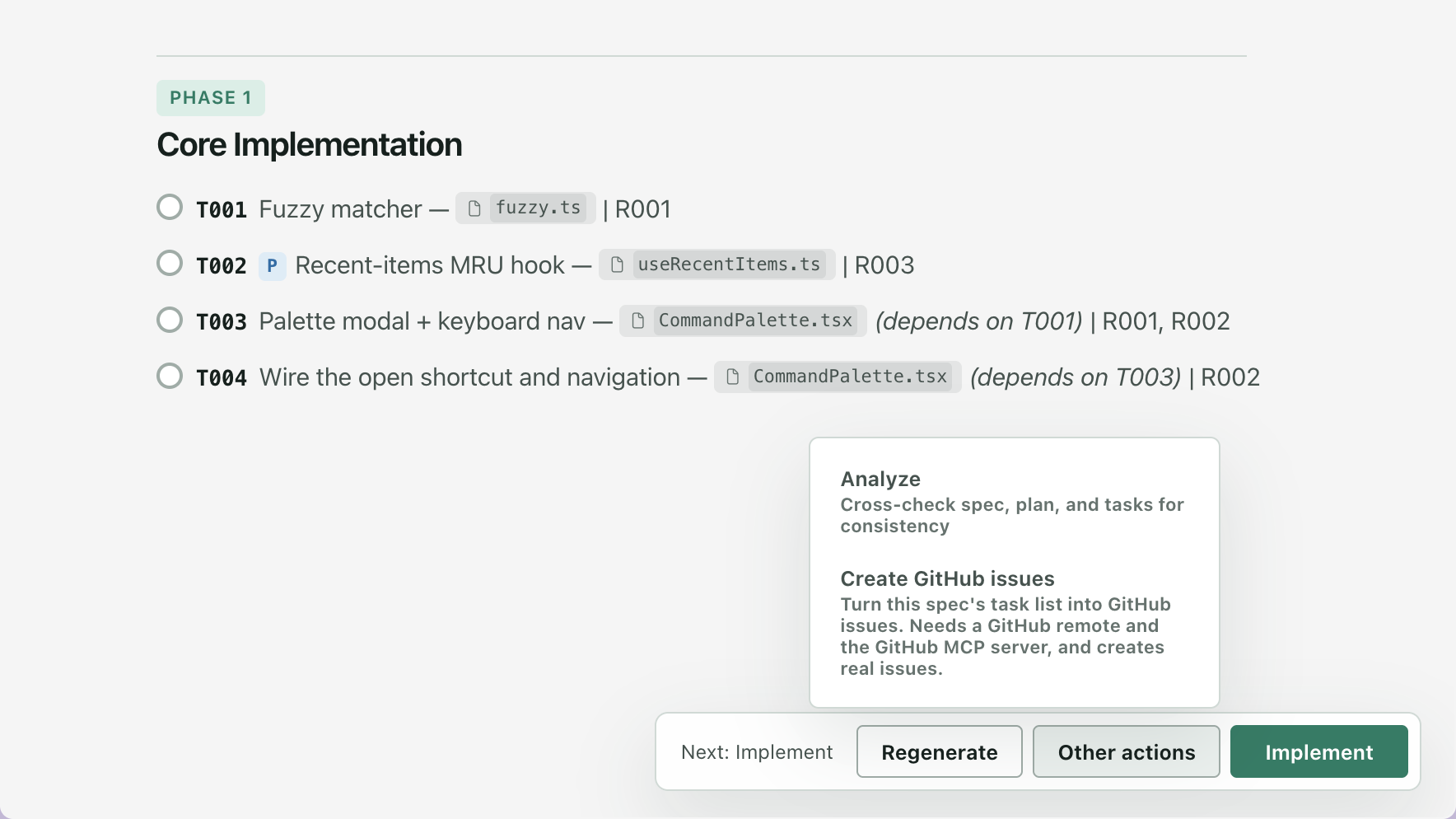
| Button | What it does | Shows when |
|---|---|---|
| The next step, such as Plan | Closes the current step and sends the next command | You are reading the current step and nothing is running |
| Regenerate | Runs the current step again | The step has started and the spec is not closed |
| Other actions | Spec Kit’s Clarify, Checklist, Analyze and Create GitHub issues, plus your custom commands | The spec is open and the menu is not empty |
| Refine (N) | Sends the pending review comments | N comments are pending on this document |
| Converge | Sends Spec Kit’s converge, which checks the code against the spec | The build is done and the spec is not archived |
| Mark Completed | Closes the spec | The work is done and the spec is not closed |
| Archive, Reactivate | Shelves a spec, or opens a closed one again | At the end of a run |
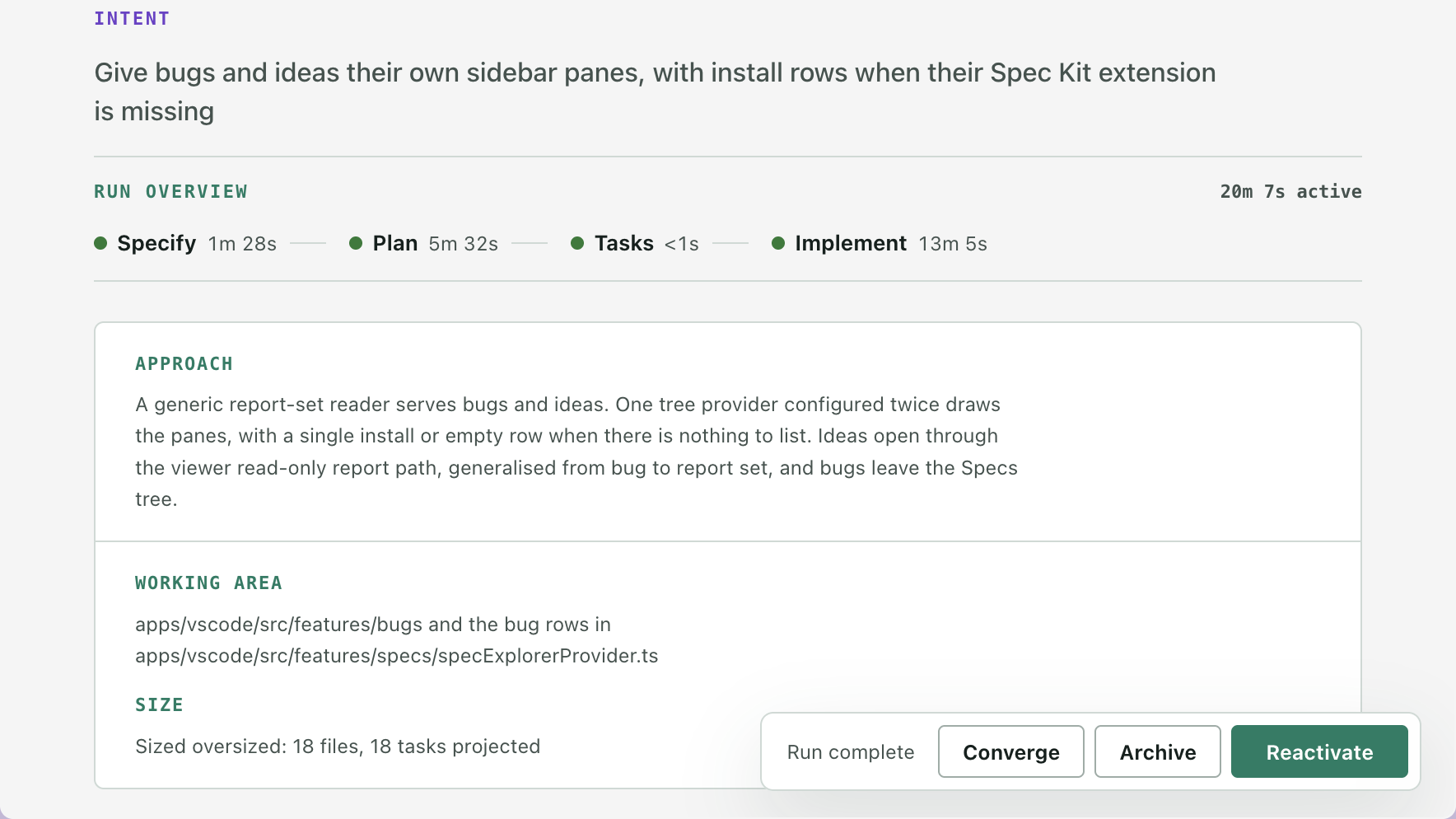
No forward button is normal while a step runs, after a run is complete, or when you are reading a tab that is not the current step. While a step runs, the footer reads Step running, actions unlock when it settles.
The header badge
Section titled “The header badge”The badge is the spec’s status. Two stored values are renamed on screen: tasking shows as Creating Tasks, and ready-to-implement as Tasks Created.
When the document you are reading goes away
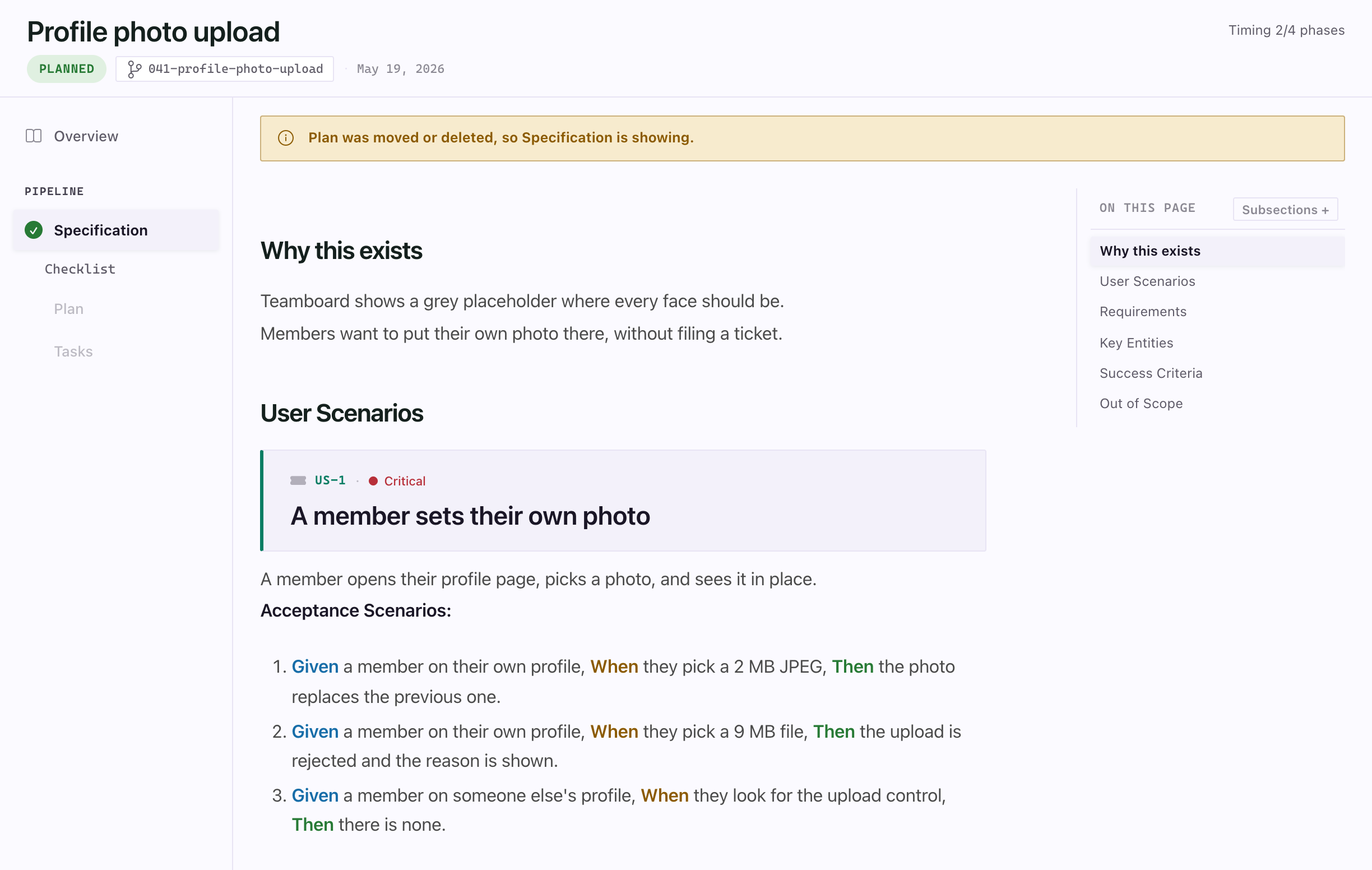
Section titled “When the document you are reading goes away”If the file on screen is moved or deleted, the viewer switches to a document that still exists and says so above the page. The note stays until you open another document, and clears on its own if the file comes back.
Good to know
Section titled “Good to know”- Broken run record. If
.spec-context.jsoncannot be parsed, the viewer shows the spec read-only and offers Reset context, which backs the file up first. - Show terminal is for terminals. A spec you ran from Companion shows the assistant its last step went to in the header, and a Show terminal button while that terminal is still open. An assistant that runs in a chat panel shows its name and no button: VS Code does not tell an extension which chat panel picked up a command. After a reload the name stays and the button is gone.
- Offline. Syntax highlighting and Mermaid load from a CDN, so offline you get plain code and diagram source.
- Living specs, bugs and ideas open in the same viewer with a different frame. A bug opens on its Story, with Assessment, Fix and Test as the tabs beside it, and a decided idea’s Decision reads as a decision page. A report or stage not written yet is disabled. See Fix a bug, Assess an idea and Reading a spec.