Specify
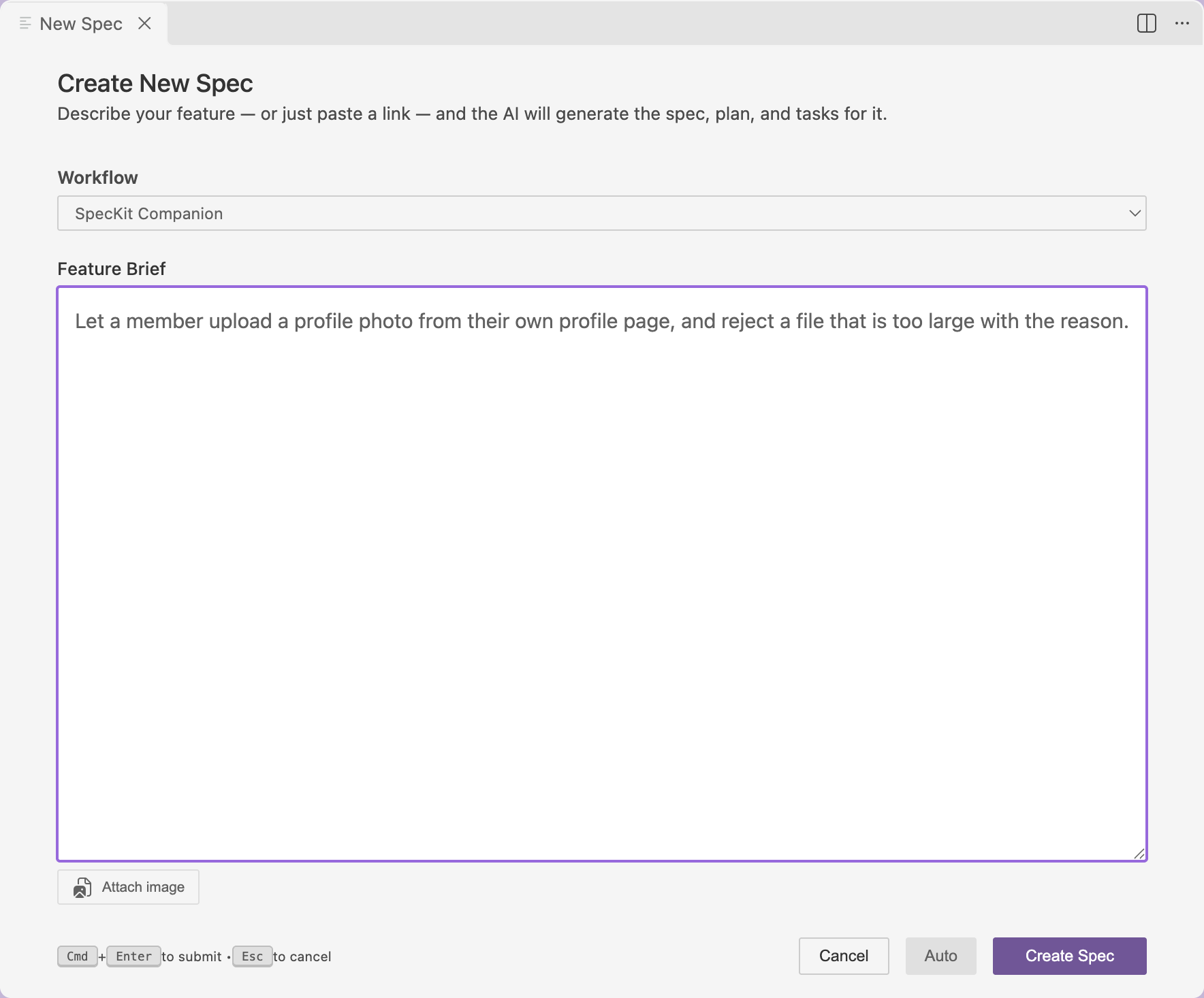
/speckit.companion.specify <what you want to build>Or click + in the Specs view, write the brief and press Create Spec. The stock Spec Kit workflow sends /speckit.specify.
Specify turns a short brief into a spec: what is being built, for whom, and how you will know it works. It says nothing about how to build it. That is the plan’s job.
What it writes
Section titled “What it writes”| File | What is in it |
|---|---|
The spec, in a new specs/<number>-<name>/ folder |
User stories in priority order with acceptance scenarios, functional requirements, key entities, edge cases and success criteria |
checklists/requirements.md |
A quality checklist the assistant grades the spec against, once |
The stock workflow names the spec spec.md. The Companion workflow names it after the folder, <name>.spec.md. The viewer opens either as Specification.
Where the brief leaves a real question open, the spec marks it in the text and does not guess. Clarify, under Other actions in the footer, has your assistant ask you those questions and write the answers in.
How it sizes the change
Section titled “How it sizes the change”With the Companion workflow, specify also judges how big the change is. There is no setting for this.
| Verdict | The bar | What specify does |
|---|---|---|
| Simple | Up to 5 files and 10 tasks, and easy to undo and easy to check | Writes a short plan and the task list in the same pass. The next step is implement. |
| Normal | Over that bar, or inside it but hard to undo or hard to check | Writes only the spec. You continue with plan, then tasks. |
| Oversized | Over it by a wide margin, across several parts of the code | Same as normal: only the spec, then the full run. The verdict is recorded. |
A change can be small and still risky: a migration, stored data being deleted, a contract other code depends on. Specify sizes those as normal whatever their file count and says so as it runs, so a risky change never skips plan and tasks.
The verdict shows on the Overview as a line such as Sized simple: 6 files, 8 tasks projected.
When it settles
Section titled “When it settles”What you see
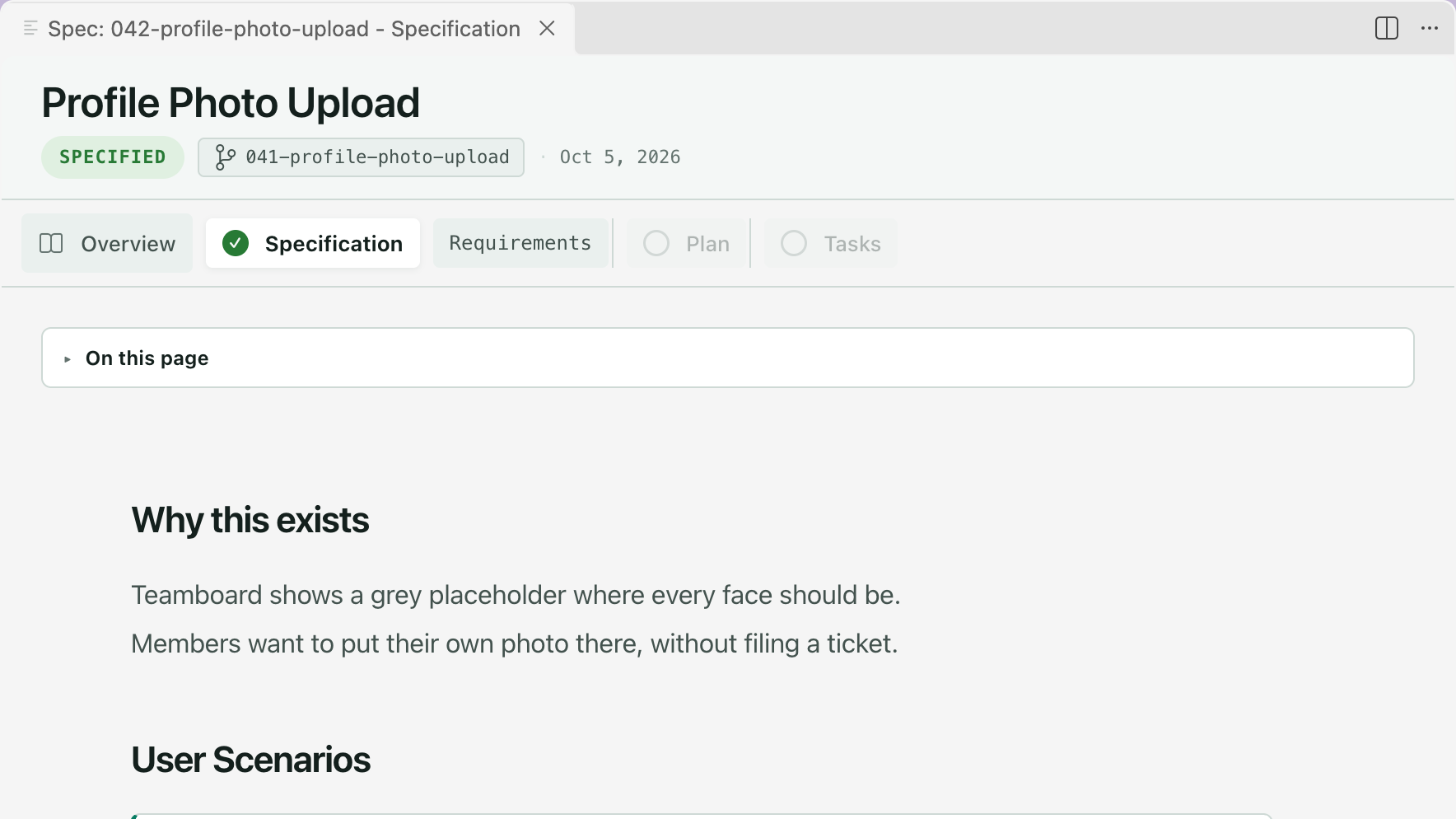
While it runs, the footer reads Step running, actions unlock when it settles. When it settles, Specification is checked in the rail, the badge reads Specified, and the footer offers Next: Plan. After a simple verdict, Plan and Tasks are checked too and the footer offers Next: Implement.
Related
Section titled “Related”- Your first spec walks through creating one.
- Review with comments is how you correct the spec before planning.
- Plan is the next step.