Track progress
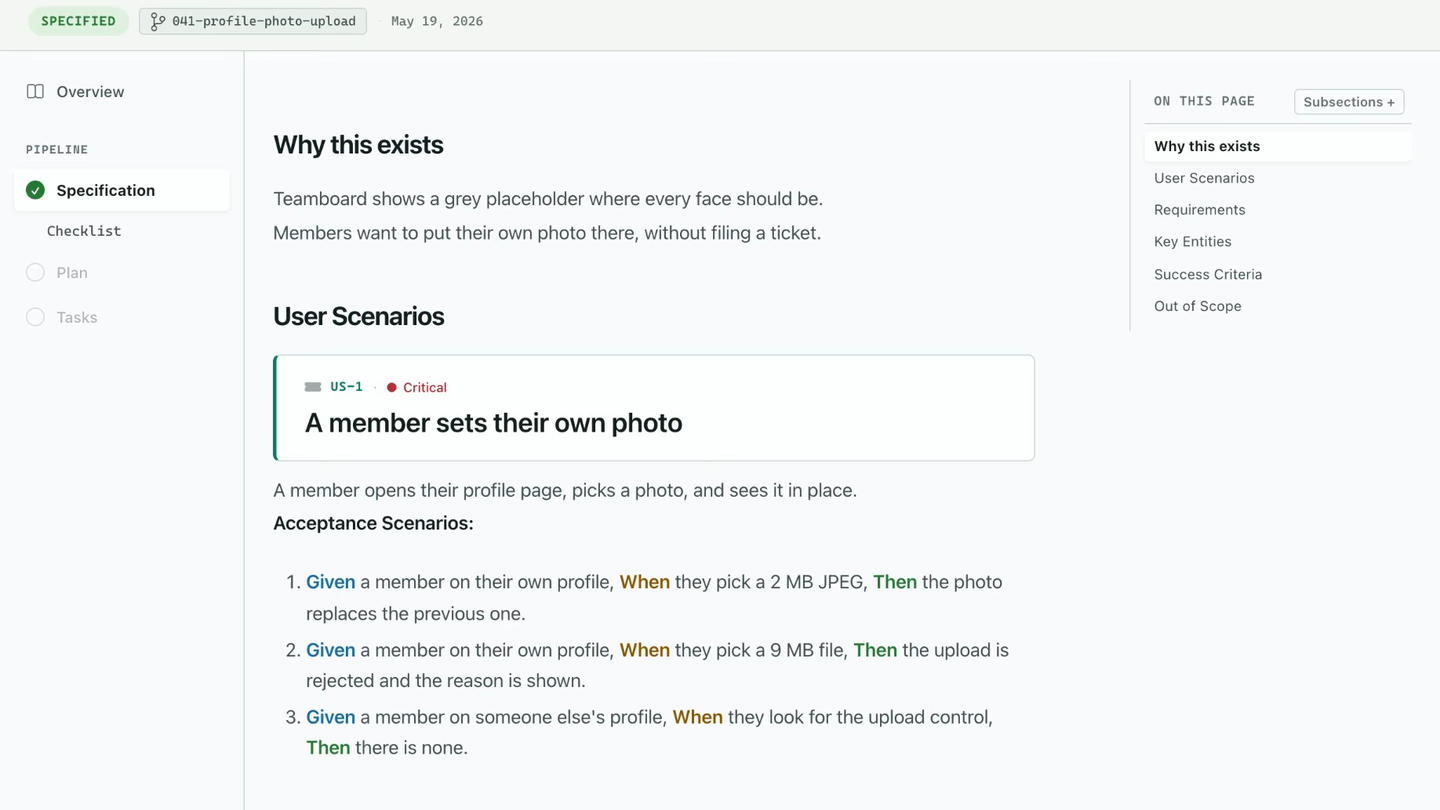
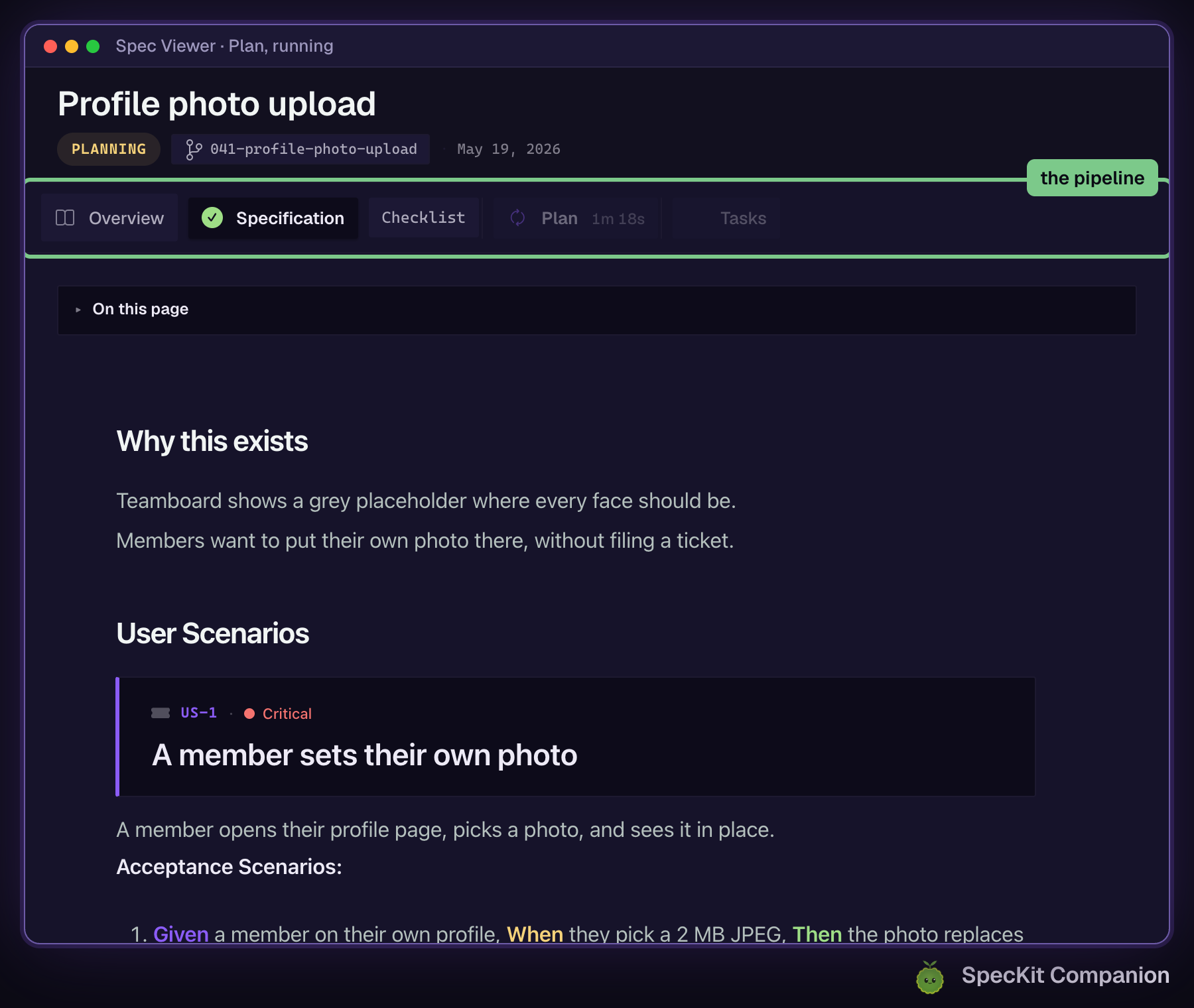
Three places tell you where a spec is: the rail, the sidebar and the footer. You don’t have to do anything to keep them current. They follow the files the run writes.
| Place | What it shows |
|---|---|
| The rail | A check when a step’s document exists, a spinner and a timer while it runs, and a lock on documents a running step has not reached |
| The Tasks tab | During implement, a live percentage from the checked boxes in tasks.md |
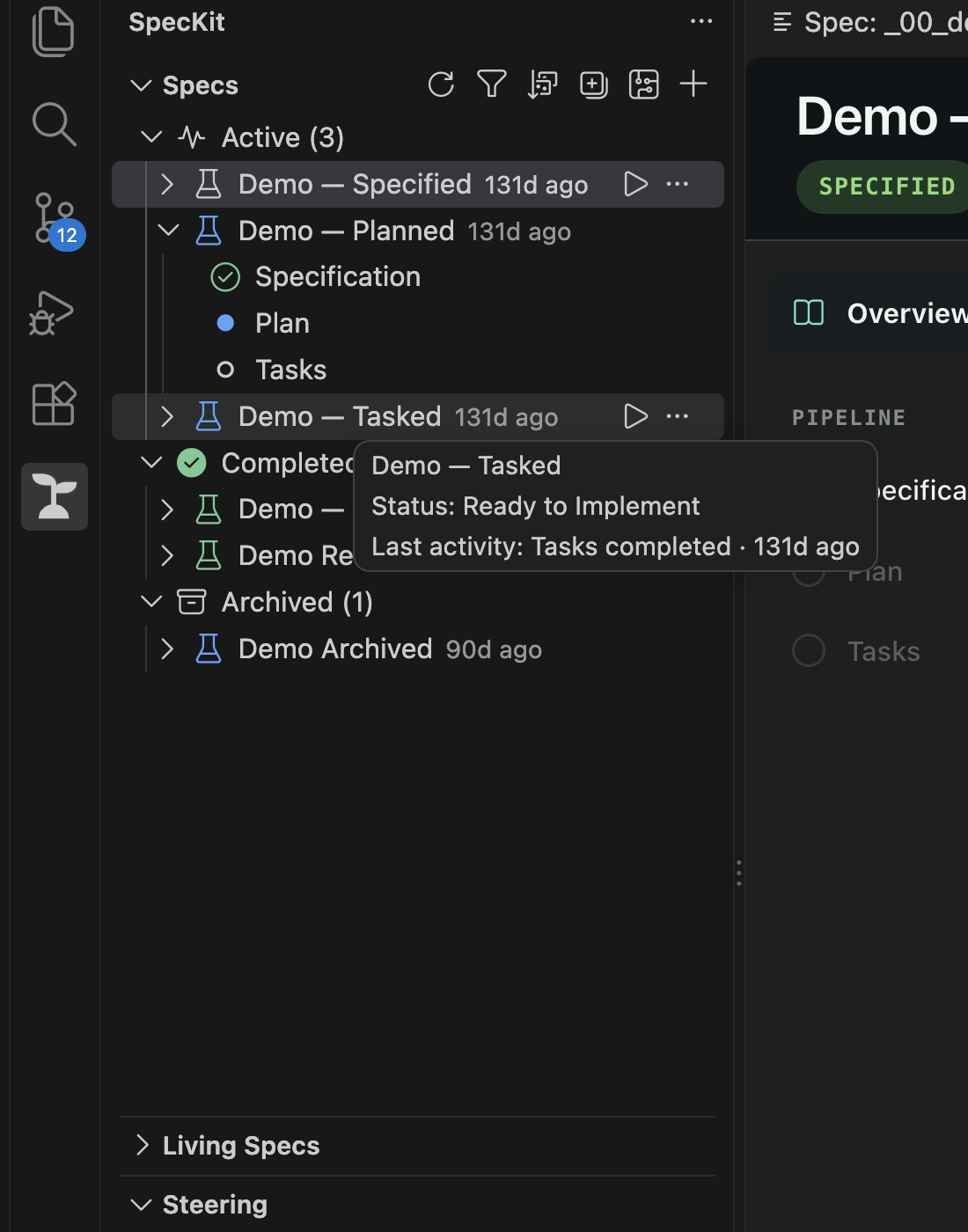
| The sidebar | For a spec in flight, its last finished task and how long ago, like T004 · 2h ago |
| The footer | The next step by name, with Next: Plan above the button. No forward button while a step runs. |
| A notification | When a step or a phase of tasks completes, with Open spec. Turn it off with speckit.notifications.stepComplete. |
Three commands for three questions
Section titled “Three commands for three questions”All three need the Companion Spec Kit extension and work with any assistant.
| Question | Command | What it does |
|---|---|---|
| Where does this spec stand? | /speckit.companion.status |
Reports the current step, its status, the decisions recorded so far and the next action. Changes nothing. |
| I stopped halfway. How do I carry on? | /speckit.companion.resume |
Finds the next step, carries the recorded decisions into scope and sends that step’s command. In implement it continues at the next unchecked task. |
| Did the run do what it says it did? | /speckit.companion.doctor |
Recomputes what happened and reports problems. Read-only, and it never stops your work. |
Resume from the sidebar
Section titled “Resume from the sidebar”Hover a spec that is still in flight and click the play button. That is Resume. It shows only when the spec can move forward and the Companion Spec Kit extension is installed. On a spec that is already implemented, completed or archived, resume reports that the run is complete and sends nothing.
Run the doctor
Section titled “Run the doctor”/speckit.companion.doctor| Add | To |
|---|---|
| Nothing | Check the active spec |
--feature-dir specs/042-export-csv |
Check one spec by name |
--all |
Check every spec |
--json |
Get a machine-readable report |
--chat |
Also read the assistant’s session transcript, and explain failed or abandoned work |
It looks for the things a run can get wrong without anyone noticing.
| It finds | For example |
|---|---|
| Unfinished work | A step that started and never finished, or a task ticked in tasks.md with nothing recorded for it |
| A step doing the next step’s work | Plan content in the spec, a task list in the plan, code written before implement |
| A step that closed having verified nothing | Implement finished but no test or check ever ran |
| A missing file | A step that closed without the document it promised |
| Why a spec did not complete | The write was refused, it never arrived, or it landed and the display disagrees |
Every check says whether it ran, was skipped (with the reason) or does not apply, so a check that could not look never reads as clean. The doctor reports and stops. Fixing what it finds is your call.
Every capture call writes one line to specs/<NNN>/.trace.jsonl, which is what the doctor reads to explain a failed capture. The file is safe to delete.
Related
Section titled “Related”The Overview shows what a finished run recorded.