Reading a spec
The viewer draws the markdown your assistant wrote so it reads as a document, not a file. Nothing is added to the file. This page covers what the page shows. Inside the viewer covers the rail, the header and the footer around it.
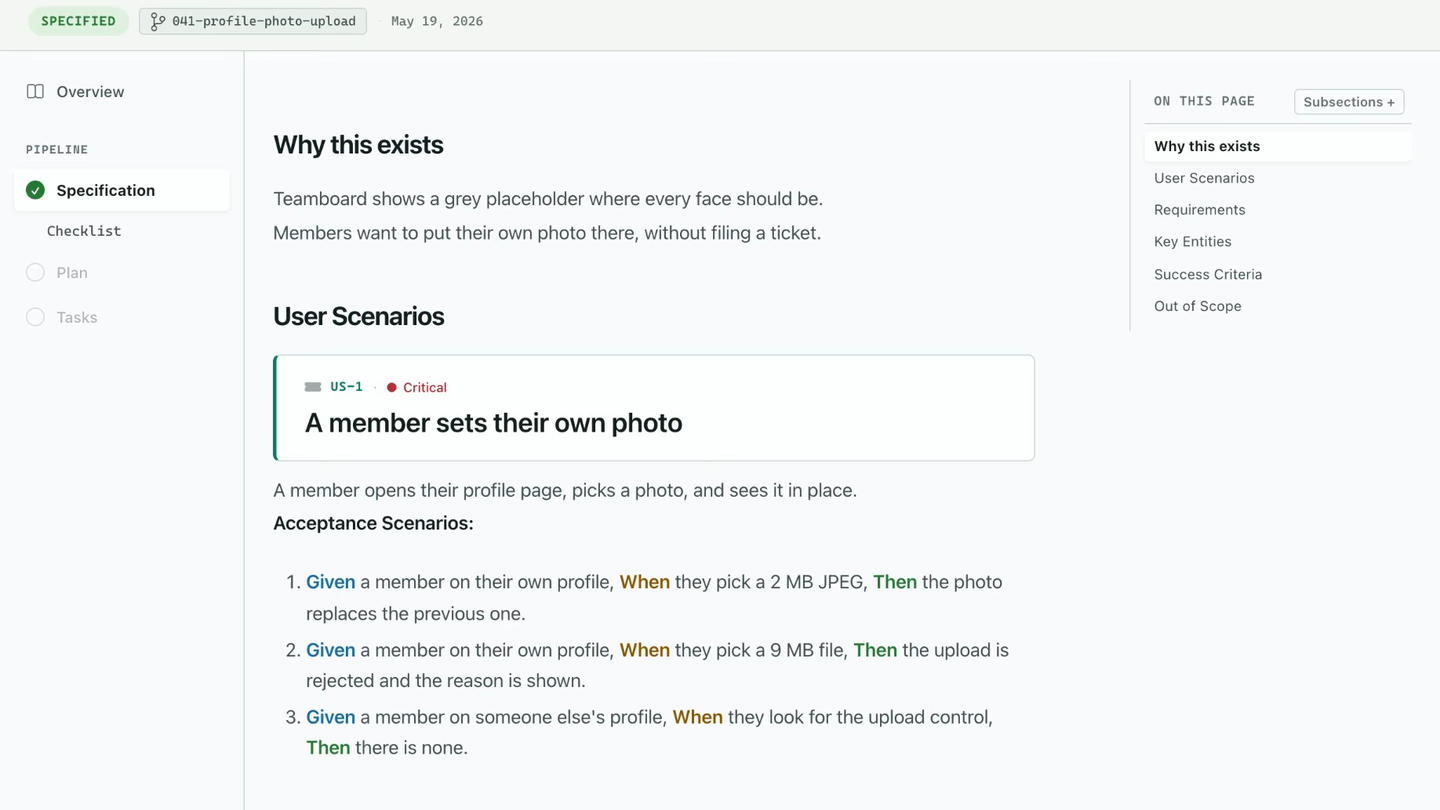
What the viewer draws
Section titled “What the viewer draws”| In the markdown | On the page |
|---|---|
A bullet like - **FR-001** The system must ... |
A labelled requirement row. Any prefix of two to five capital letters and a number works. |
| Given, When and Then in a scenario | The three words emphasized in place |
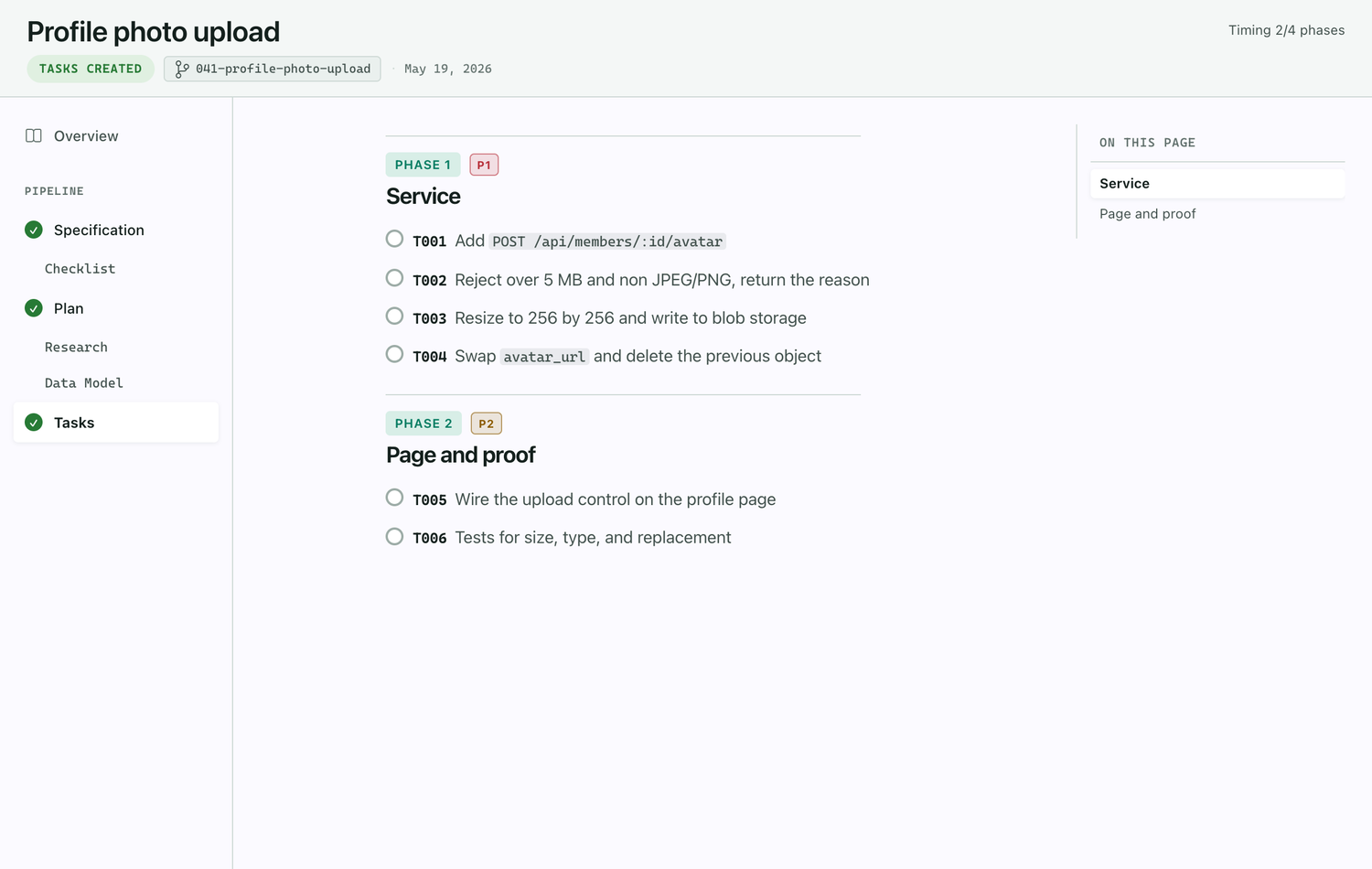
## Phase N: Title in tasks.md |
A phase header, with MVP and P1 to P5 chips |
[P] on a task line |
The task can run in parallel |
[US2] on a task line |
The user story the task belongs to |
- [ ] and - [x] |
A checkbox per task. During implement, the Tasks tab shows a live percentage from them. |
Stale documents
Section titled “Stale documents”A document generated before the one above it changed gets a banner with Regenerate. Edit the spec after the plan was written and the plan says so.
Links between documents
Section titled “Links between documents”| The link points at | Clicking it |
|---|---|
Another document of the same spec, such as tasks.md from the plan |
Opens it in the viewer, at the heading it names |
| Another spec | Opens that spec in the viewer |
| A heading only | Jumps within the page |
| A source file | Opens it in the editor beside the viewer |
A living spec
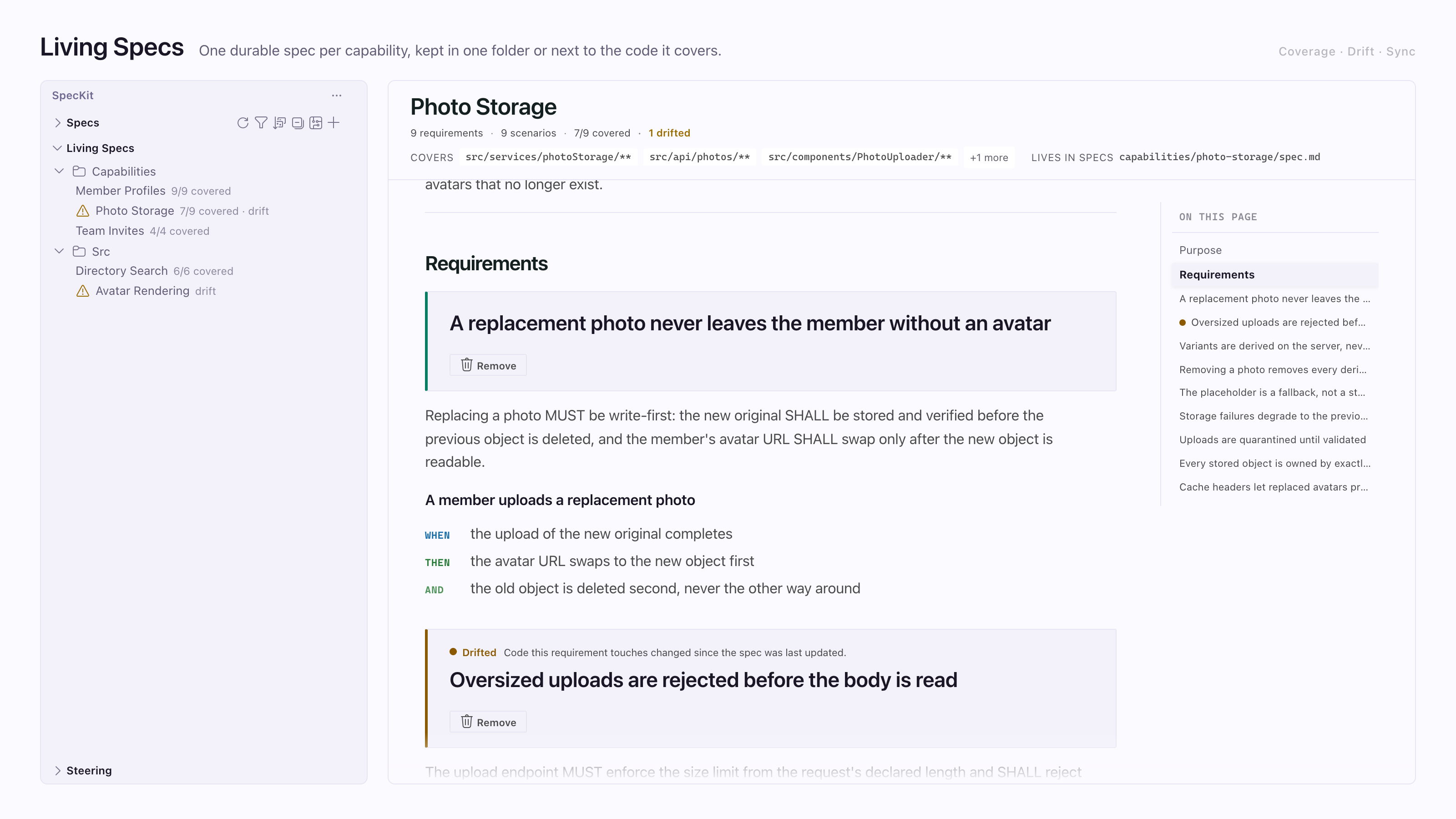
Section titled “A living spec”A living spec has a flat tab strip where a feature spec has a rail. Its header shows the code it covers and an N/M covered count. A drift chip and an Update button appear when that code changed after the spec was last committed. Requirements drafted from existing code carry an adopted badge and an Approve control. Living specs explains what these files are.
A bug report
Section titled “A bug report”Open a bug from the sidebar’s Bugs pane and the viewer shows its Story: where the bug stands, then what was wrong, what changed and how it was verified. Assessment, Fix and Test on the rail open the reports themselves. The page is for reading, so there is no Overview or comment button, and the footer holds only the next step. Fix a bug covers it. An idea reads the same way: see Assess an idea.
Related
Section titled “Related”- The Overview is the first tab in the rail, and the record of what the run did.
- Review with comments is how you change what you just read.