What is spec-driven development?
Spec-driven development means you write down what you want before any code exists, and you keep that description as the thing the code answers to. The spec comes first and the code follows from it, where most projects do it the other way round and let the documents fall behind.
The method is GitHub Spec Kit’s, not ours. Their own explanation is Specification-Driven Development, and it is worth reading in full. This page is our short version, and how SpecKit Companion fits around it.
Spec Kit’s own document
Section titled “Spec Kit’s own document”GitHub Spec Kit explains the method in one long document, Specification-Driven Development. It covers why the spec becomes the source of truth, how the commands turn a description into a plan and tasks, and the principles a constitution holds. Read it when you want the reasoning behind a step. The pages here stay with what you do and what you see.
Why write the spec first
Section titled “Why write the spec first”An AI assistant can now turn a precise description into working code. That moves the hard part. Typing the code is cheap. Saying exactly what you want, and noticing what you left out, is where the work is.
A spec gives you three things an open-ended chat does not.
- Something to review before code exists. A wrong requirement costs one edited line in a spec, and a rewrite once it is code.
- A record that outlasts the chat. The reasons for a decision are in a file in your repo, not in a conversation you closed.
- A way to change your mind. You edit the spec and run the step again, and you don’t have to patch around what was already built.
The steps
Section titled “The steps”Each step is one command your assistant runs, and each leaves a file behind. The next step reads that file.
| Step | Question it answers | What it leaves |
|---|---|---|
| Constitution | How does this project build anything? | .specify/memory/constitution.md |
| Specify | What are we building, and for whom? | spec.md, or <name>.spec.md in the Companion workflow |
| Plan | How will it be built? | plan.md, plus research and design notes |
| Tasks | In what order, in what pieces? | tasks.md |
| Implement | Does the code exist? | The code, and ticked boxes in tasks.md |
| Converge | Does the code match the spec? | Extra tasks, or a report that it does |
The spec says what and why, and stays away from how. The plan is where technology comes in. Keeping them apart is what lets you change the approach without rewriting the goal.
A spec is allowed to say it does not know. Spec Kit’s templates mark an open question in the text and leave it for you to answer, which is better than a guess that reads like a decision.
The terms you will meet
Section titled “The terms you will meet”Each of these is a Spec Kit command, and most are also the name of what the command writes.
| Term | What it means |
|---|---|
| Constitution | The project’s ground rules, written once and checked against by every spec after it |
| Specify | Writes the spec: what you are building and why, with no technology in it |
| Clarify | Asks you about the parts of the spec that are still open, and writes your answers into it |
| Plan | Decides how the spec gets built: the approach, the structure and the technical choices |
| Checklist | Writes a list of checks for the quality of the requirements themselves, before any code |
| Tasks | Breaks the plan into small ordered pieces of work |
| Analyze | Reads the spec, the plan and the tasks together and reports where they disagree. It changes nothing. |
| Implement | Works through the tasks and writes the code, ticking each task as it goes |
| Converge | Compares the finished code with the spec and adds tasks for whatever is missing |
Clarify, checklist and analyze are optional. The viewer offers them under Other actions, and Commands lists every command.
Where SpecKit Companion fits
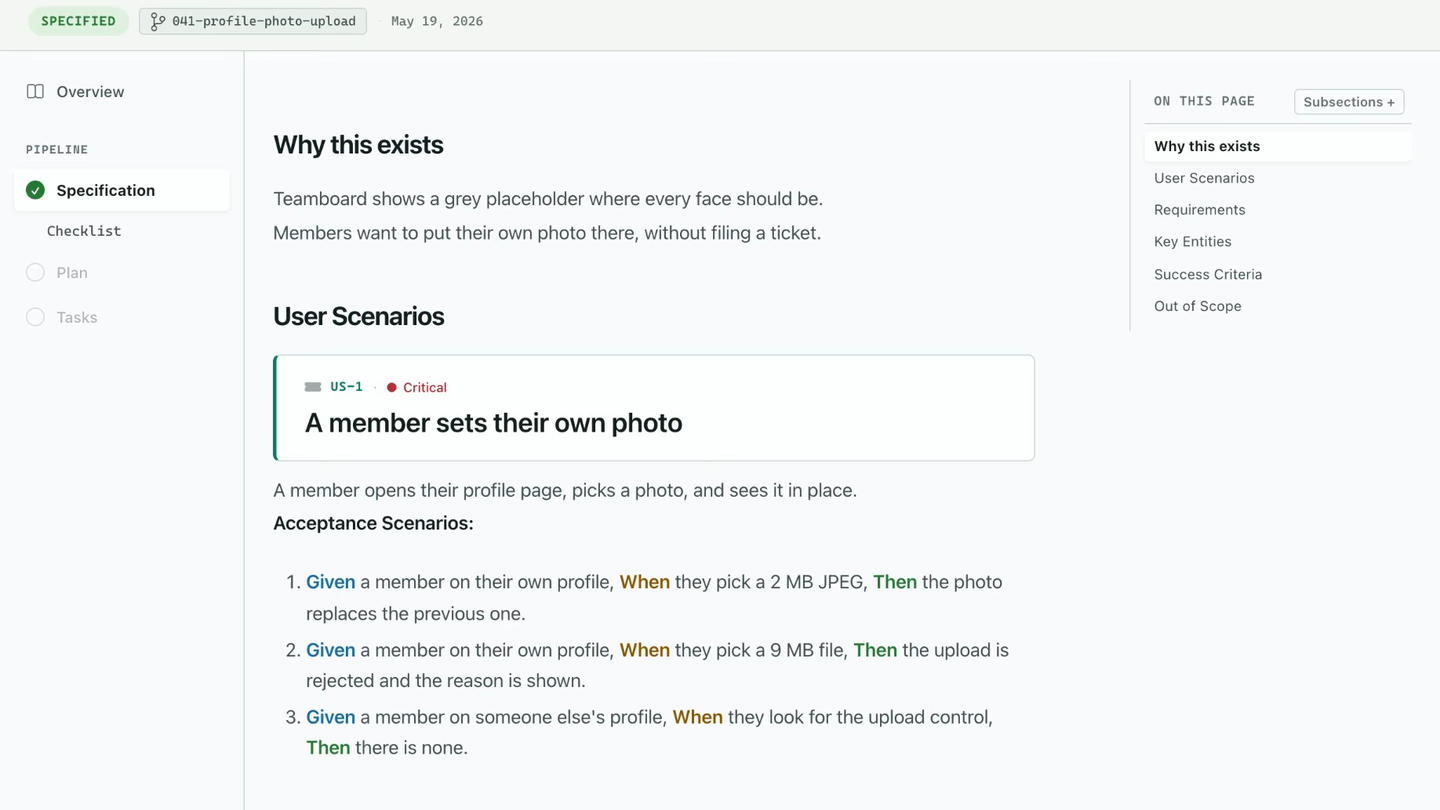
Section titled “Where SpecKit Companion fits”SpecKit Companion does not change the method. Your assistant still runs Spec Kit’s commands and writes the same files. Companion shows them: the spec as a page, the steps as a rail, the run as a record you can read afterwards.
The two workflows that ship
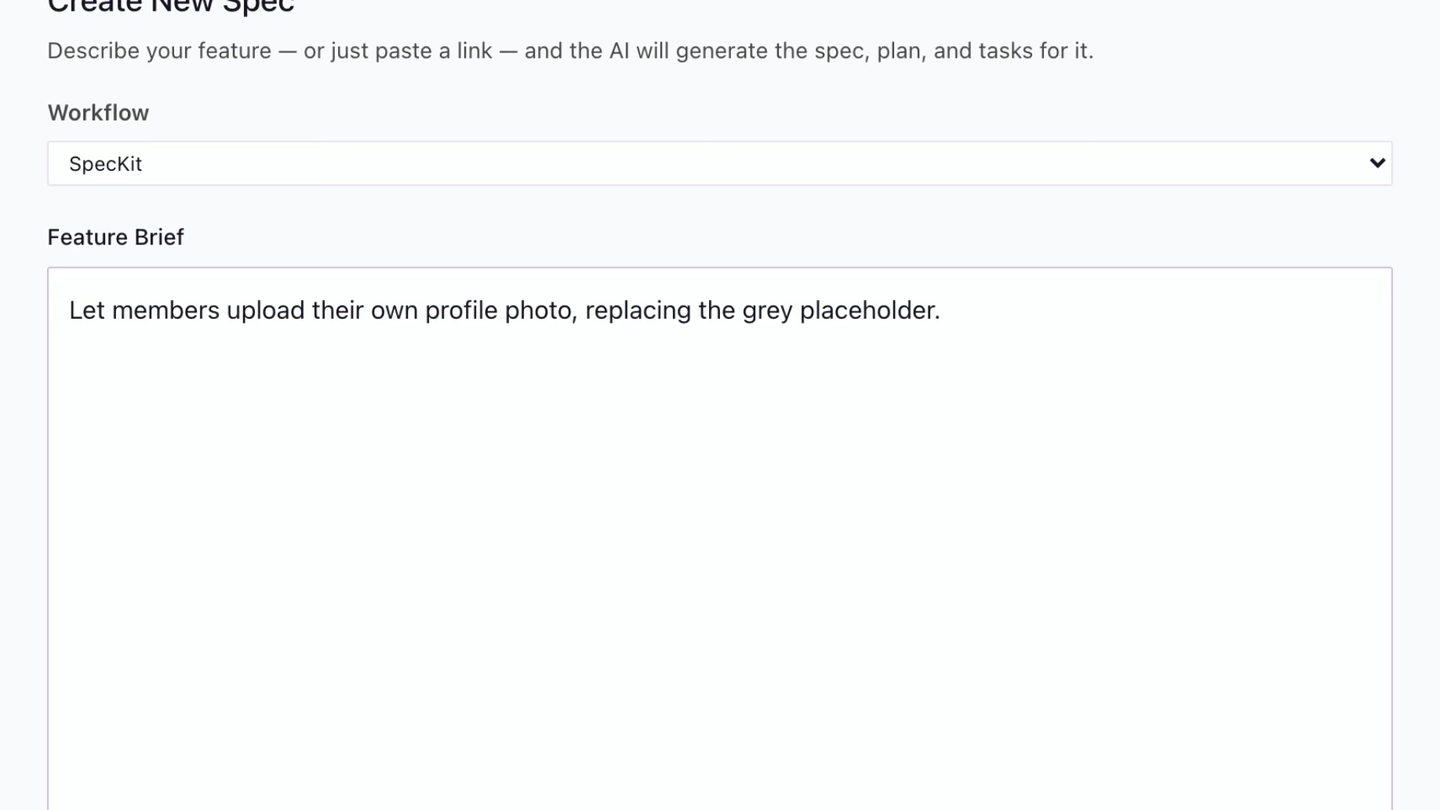
Section titled “The two workflows that ship”A workflow is the set of steps a spec goes through. You choose it once, when you create the spec. It is recorded on the spec, and the rail, the sidebar and the footer’s forward button all read it from there.
| Workflow | Steps | How it ends |
|---|---|---|
| Spec Kit | specify, plan, tasks, implement | At Implemented, until you press Mark Completed |
| SpecKit Companion | specify, plan, tasks, implement, mark-complete | Its last step marks the spec complete as part of the run |
Companion’s commands also write less. They skip sections a typical change never needs and size the documents to the change. The stock commands stay installed either way, so this is a choice between two command families and not a mode.
Which one is pre-selected
Section titled “Which one is pre-selected”| Your setup | Pre-selected in Create New Spec |
|---|---|
You set speckit.defaultWorkflow yourself |
The value you set |
| Unset, Companion Spec Kit extension installed | SpecKit Companion |
| Unset, extension not installed | Spec Kit |
The setting decides the pre-selection and nothing else. It does not restrict your choice and does not change existing specs. See Configuration.
Without the Companion Spec Kit extension
Section titled “Without the Companion Spec Kit extension”Companion still appears in the panel, marked Install to enable. If you dispatch a Companion step anyway, the four step commands fall back to their stock twins with an install prompt. Commands with no stock twin, such as mark-complete, are not sent.
Fixing a bug
Section titled “Fixing a bug”A bug does not go through specify, plan and tasks. Spec Kit’s bug extension has three commands of its own: assess the report, apply the fix, and test it again. Each one leaves a report, and SpecKit Companion lists the bugs in the sidebar and shows each one as a story. See Fix a bug.
Assessing an idea
Section titled “Assessing an idea”Assessment comes before a spec. It asks whether an idea is worth building, takes it through five stages, and ends in a verdict: go, needs-clarification or kill. A go can become a spec with one button. See Assess an idea.
Related
Section titled “Related”- Your first spec runs the first step on a real project.
- Run it all with Auto runs every step as one command.
- Your own workflow replaces the steps with your own.